
Different kinds of localisation may be assigned to the sampling plots:
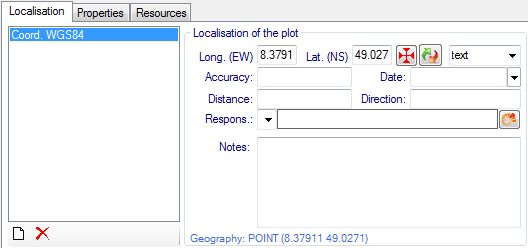
To add a new localisation for the selected plot click
at the
 button. Select the desired kind of localisation from the drop down list and press
the OK button.
button. Select the desired kind of localisation from the drop down list and press
the OK button.
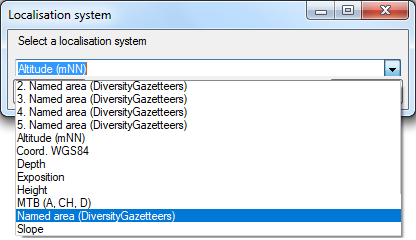
Fill up the data fields in the right part of the window. Each kind of localisation can only be assigned once. The list will contain the remaining choices.
Some buttons are provided depending on the selected localisation:
 : Open a GoogleMaps window to
select the coordinates.
: Open a GoogleMaps window to
select the coordinates.
 : Convert coordinates to another
coordinate system.
: Convert coordinates to another
coordinate system.
 : Open an appropriate Diversity
Workbench remote module.
: Open an appropriate Diversity
Workbench remote module.
To remove a localisation, select it and click at the
 button. The localisation will disappear from the list.
Finally press the
 item in the Query toolbar to store the localisation for the plot in the database.