


The data related to a project can be exported into
an archive. Choose Data -
Archive -
Create archive... from the menu. A window as shown below will open.
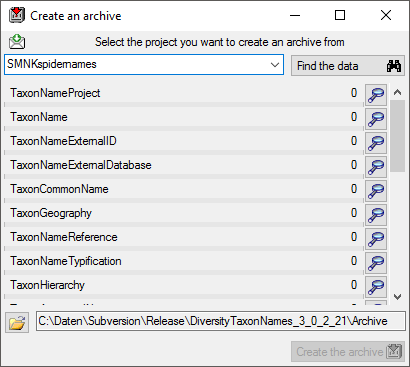
Select the project you want to create an archive of
and click on the Find the data  button. The program will scan the data for all informations related to the
project and include them in the archive as shown below.
button. The program will scan the data for all informations related to the
project and include them in the archive as shown below.
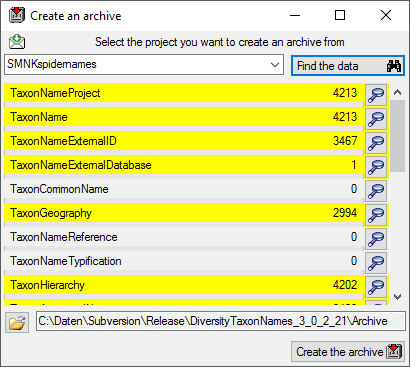
The data related with the project will be imported into temporary tables
to allow you to inspect them in advance of the creation of the archive (use the
 buttons to see the data). To create the archive, click on the
Create the archive
button.
buttons to see the data). To create the archive, click on the
Create the archive
button.
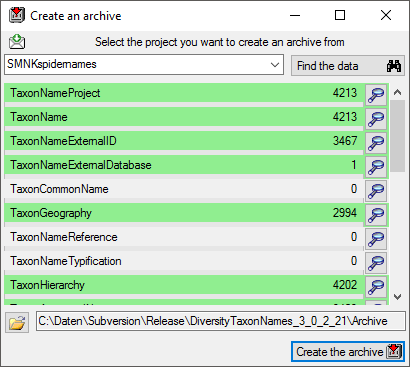
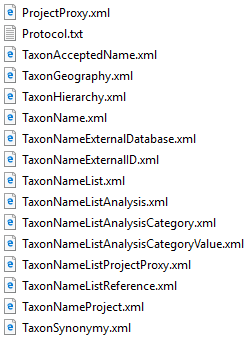
A directory will be created containing a XML file for every table and a protocol file containing a summary of the archiving event.

Before you restore an archive, please make sure
that the data from the archive do not interfere with the data in the database.
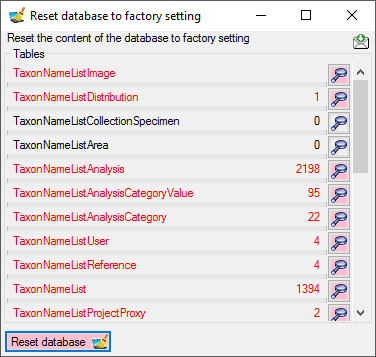
In order to avoid problems you should clean the database from any user data. To
clear the database from any user data, choose Data -
Archive -
Reset database... from the
menu. A window as shown below will open listing all tables and the number of
data within these tables. Click on the Reset database button to remove any of these data
including any data in the log tables.

To restore an archive choose Data -
Archive -
Restore archive... from the menu. A window as shown below will open
listing the tables in the database. To restore an archive click on the Choose
archive directory
 button and select the directory containing the
archive files. Next click on the Read data
button and select the directory containing the
archive files. Next click on the Read data  button to import the data from the XML files into temporary tables.
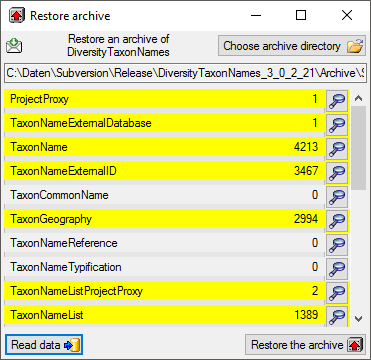
With a click on the
buttons you can inspect the content of the temporary tables. Finally click on
the Restore the archiv
button.