This tutorial demonstrates the export of a small sample of data from the database.
In the main form, select the data that should be exported (only the data displayed in the query results are exported).

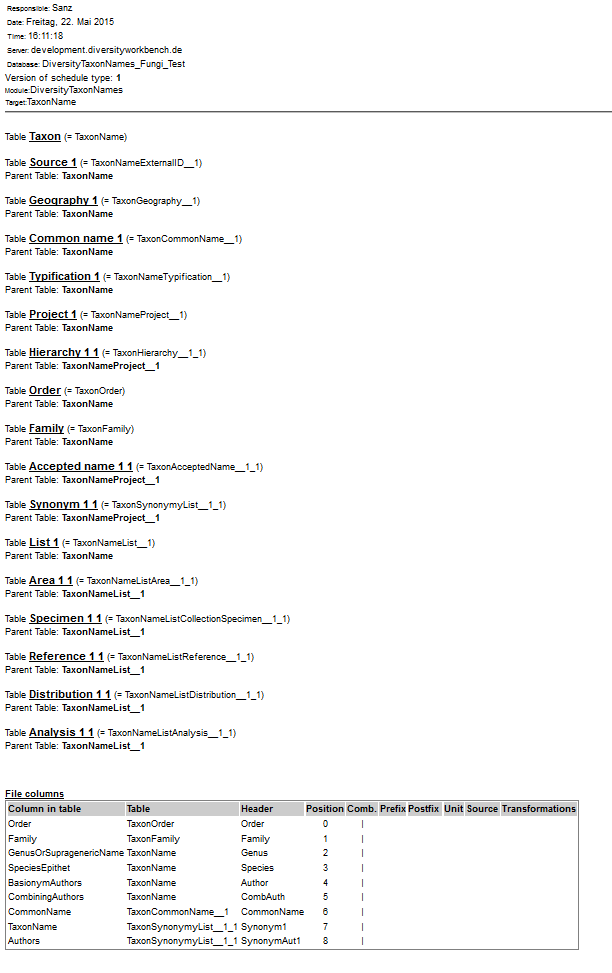
Choose Data -> Export ->
Wizard ->
 Export taxa ... from the menu.
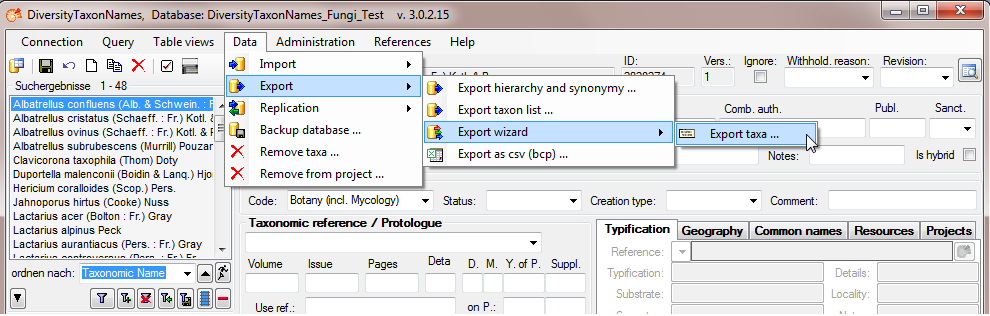
A window as shown below will open where the available tables for export are listed in the upper left area. To show the data colums of a table, select this table in the list.
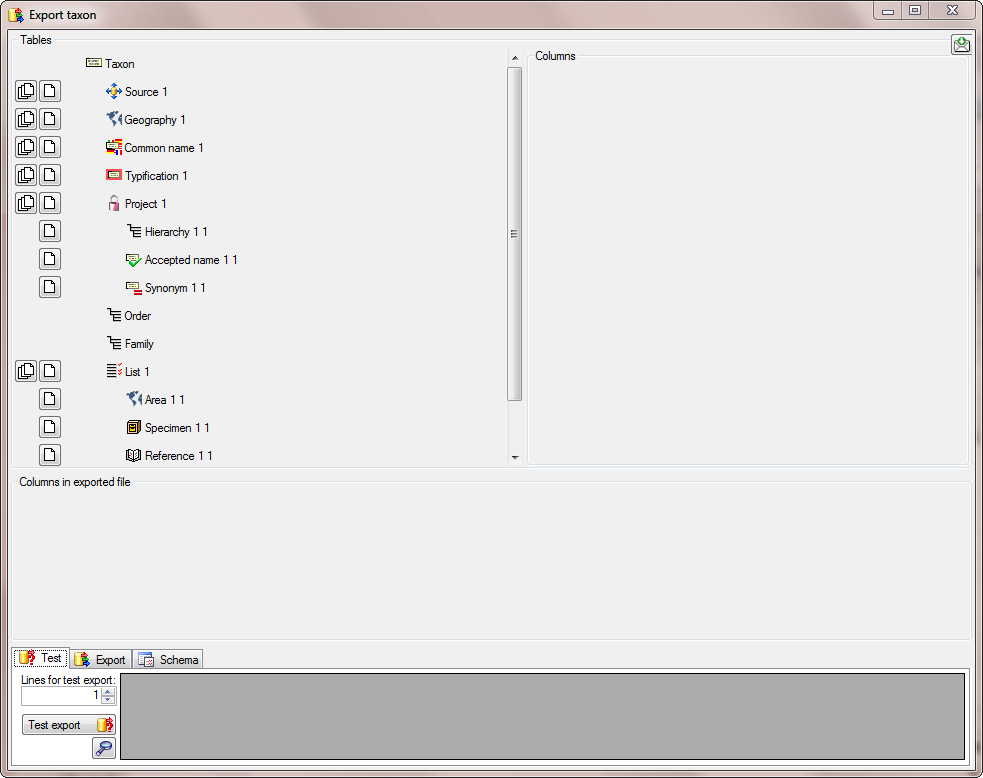

In this example, we want to add the higher
hierarchy, starting with the order. Select the
 Order from the list as shown below.
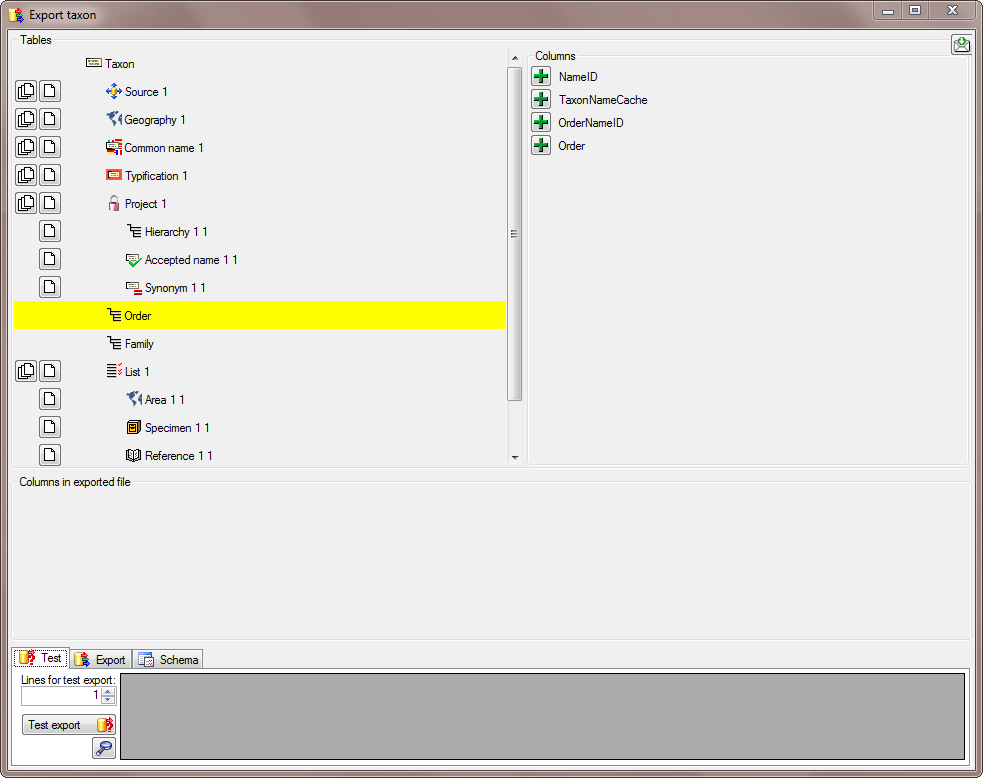
In the Columns area appearing in the area on the
right click on the
button to add the Order to the columns list.
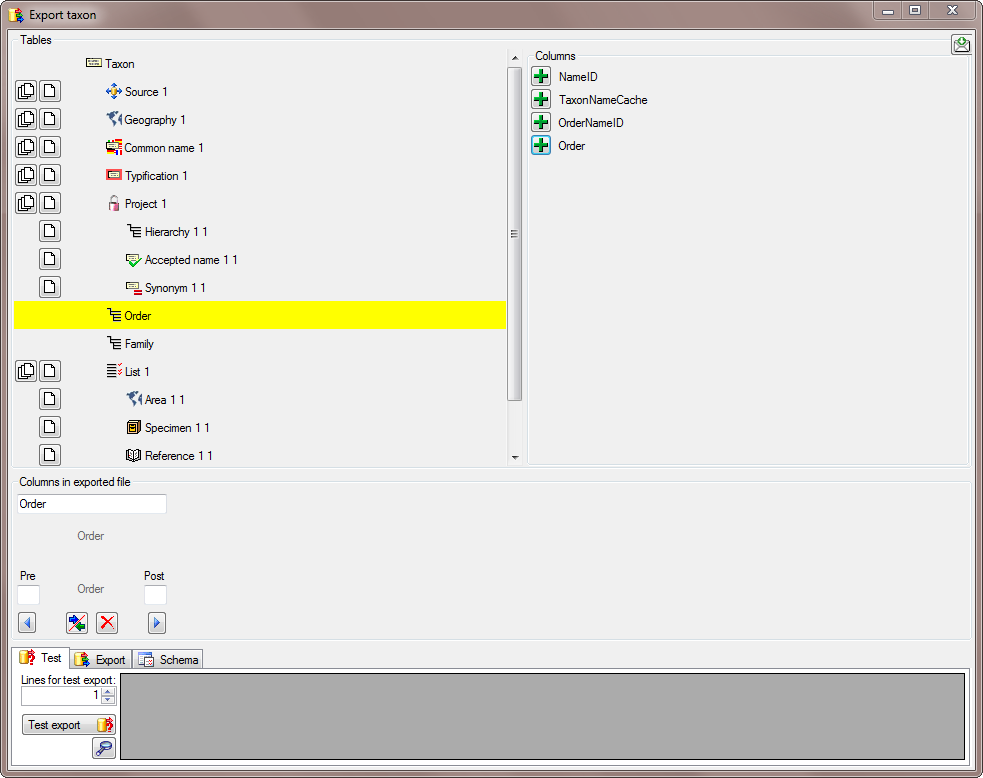
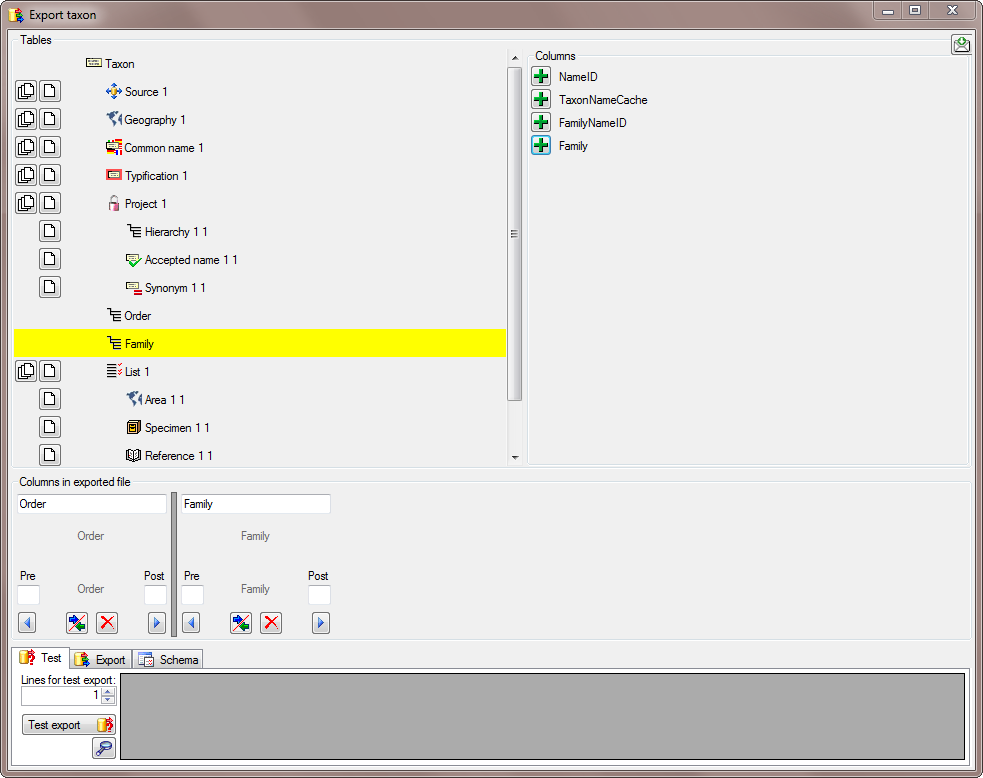
This is repeated for the
Family and the Genus (see below).
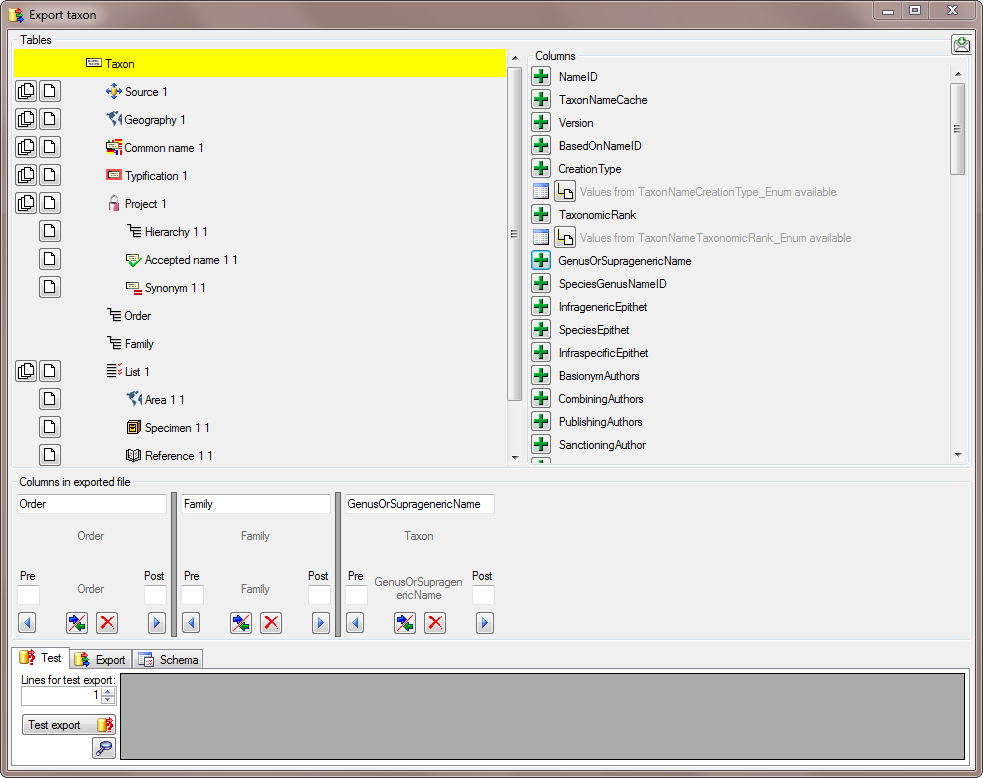
In the taxon table choose the column GenusOrSupragenericName to add teh genus to te exported (see below).
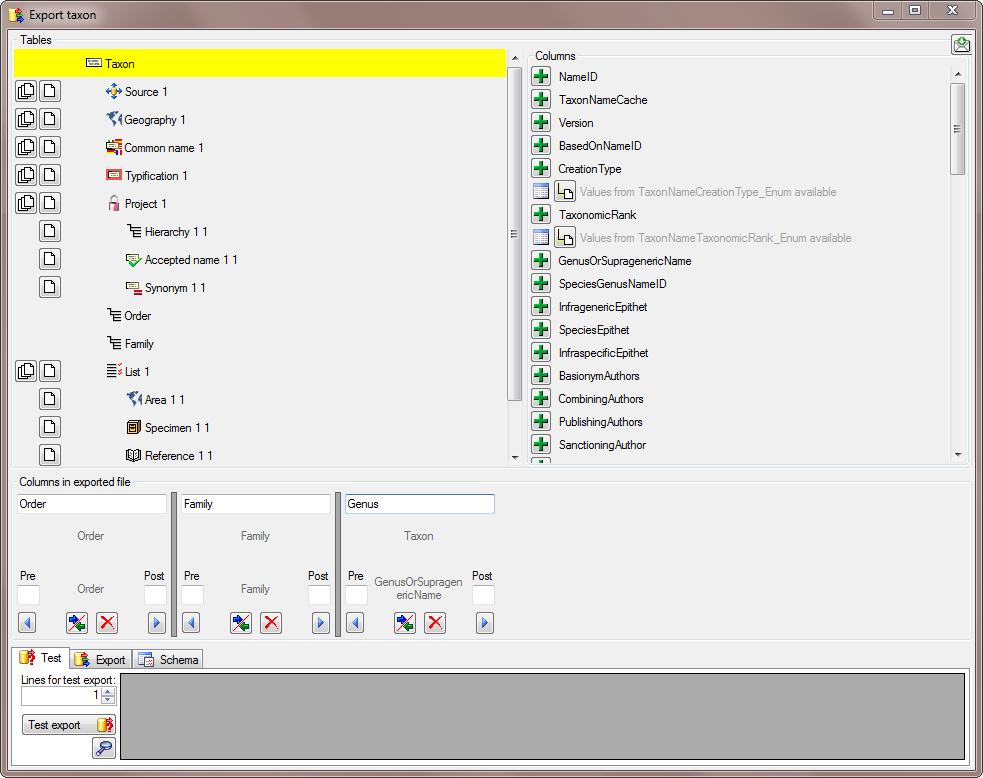
To avoid that the column name GenusOrSupragenericName appears in our export, we change the name to Genus (see below).
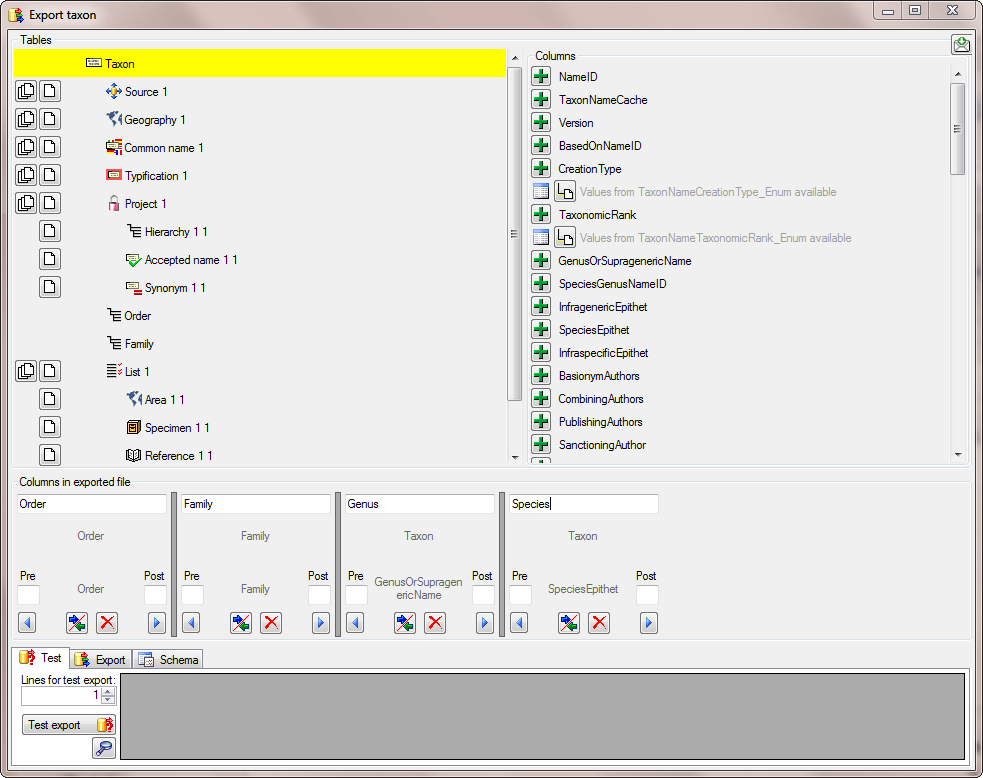
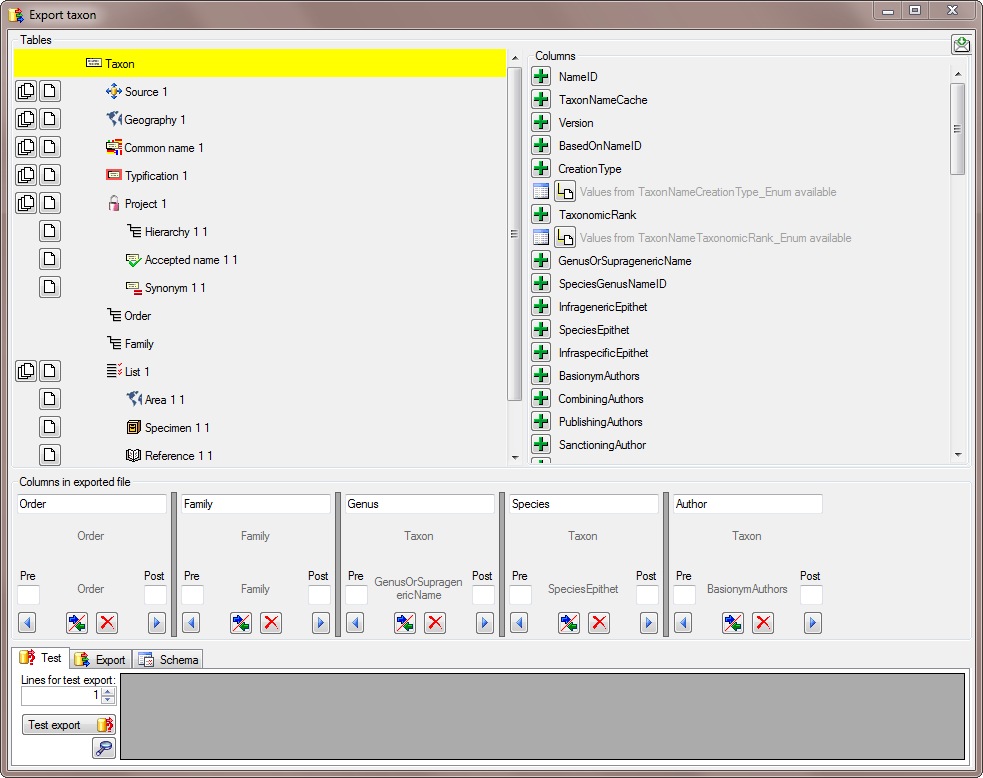
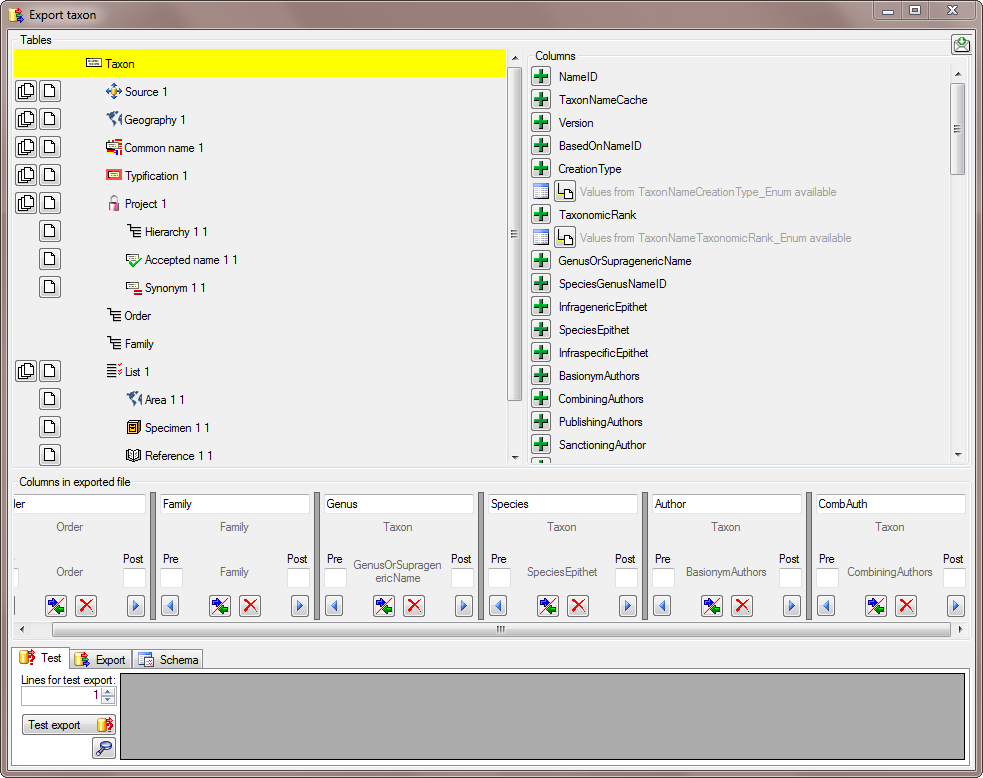
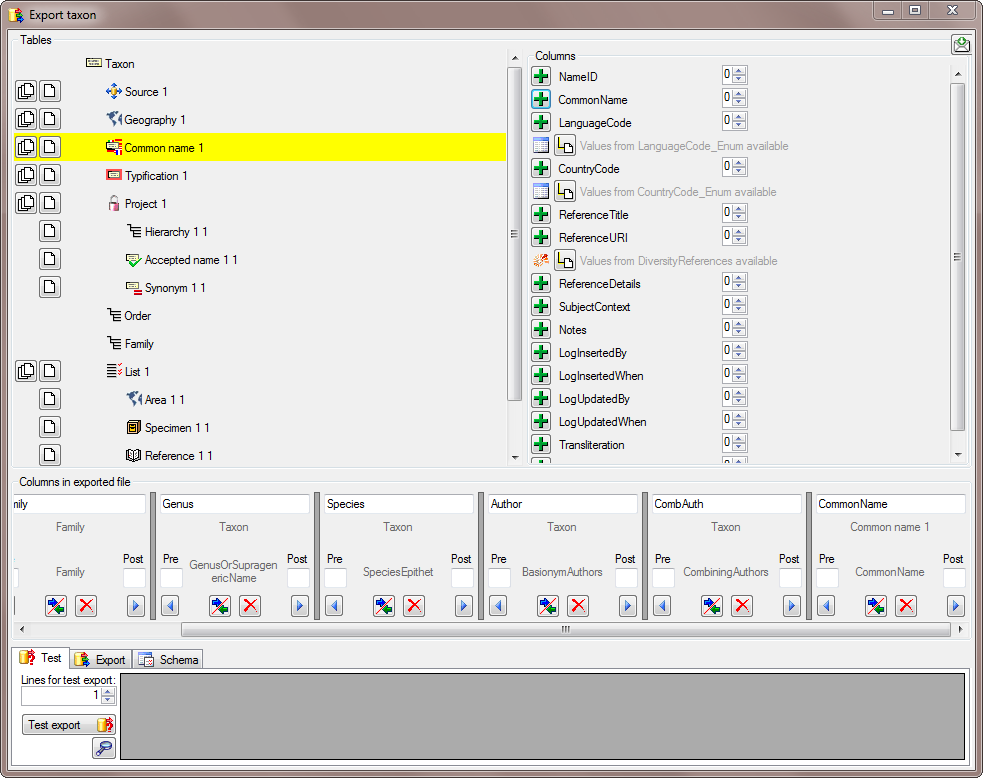
The same is repeated for the species, authors, common names and synonyms (see below).
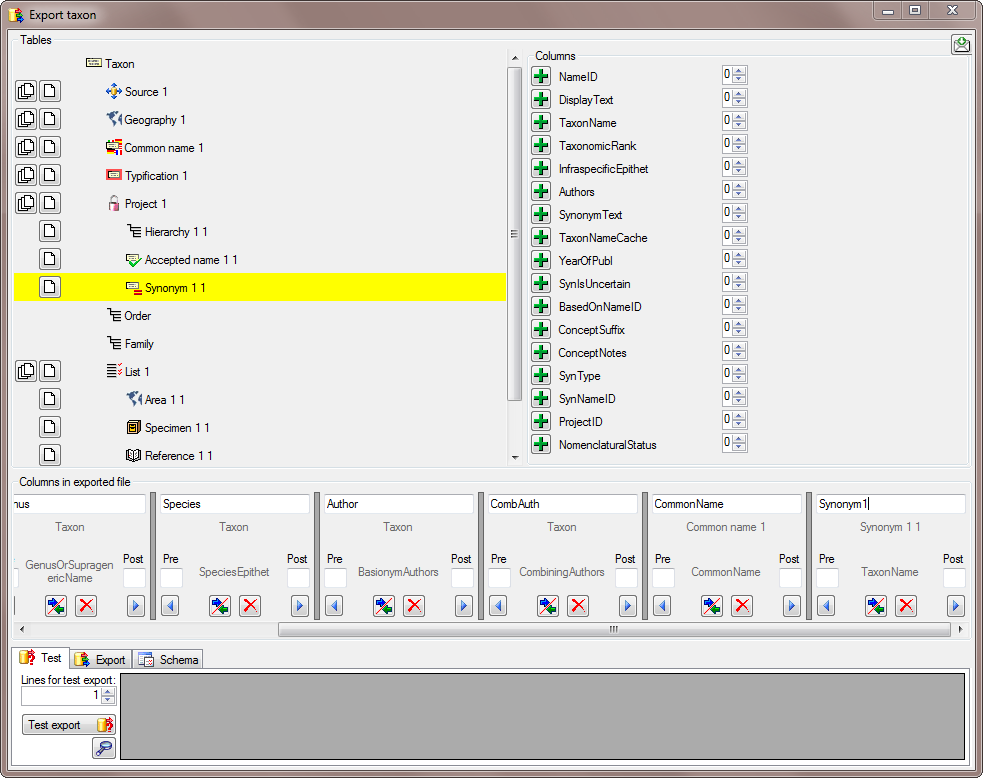
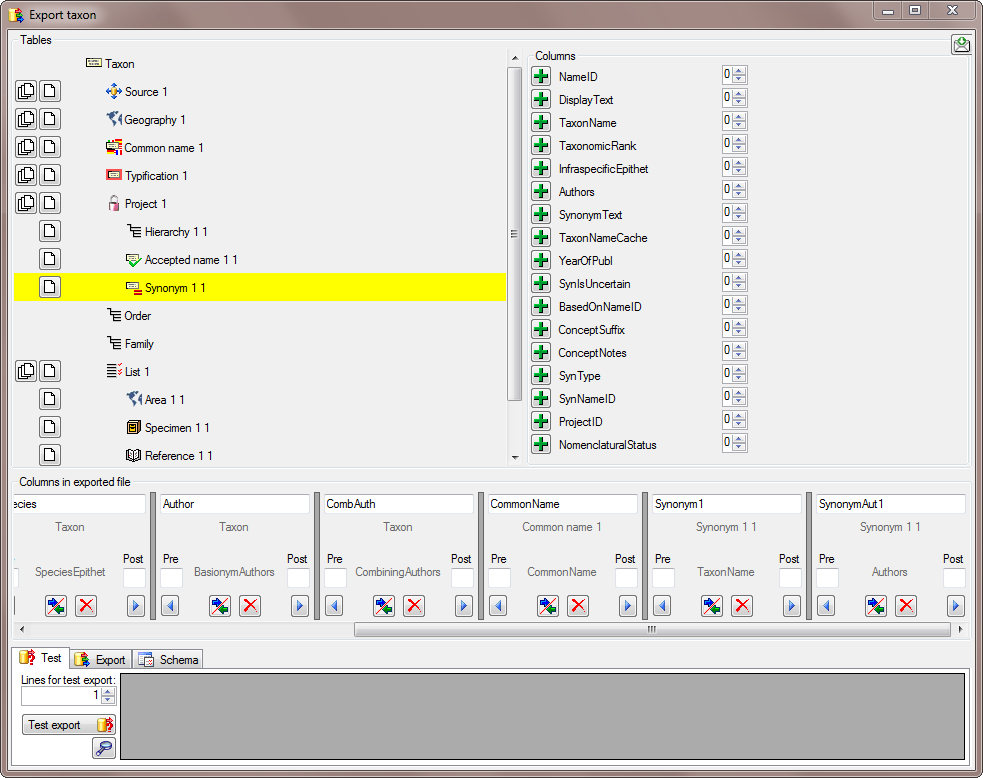

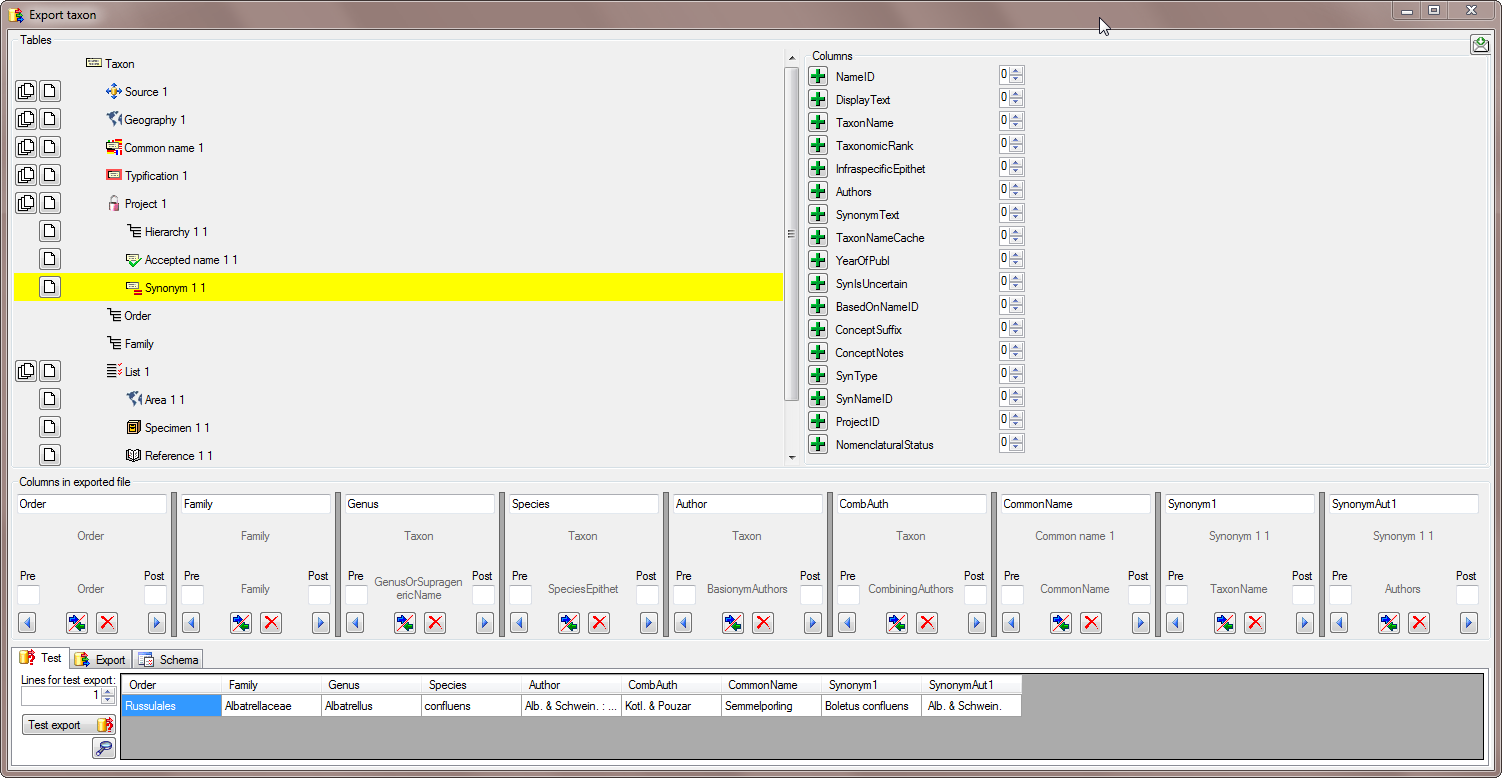
After all columns that should be exported and their
transformations are defined, we start Test export
to see the result as shown below.
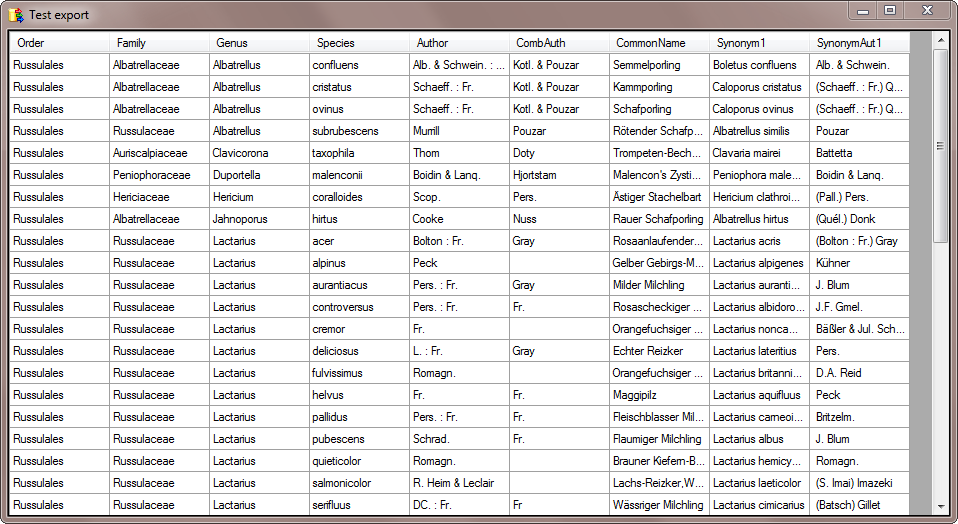
Click on the
 button to open the result in a separate window
(see below).
button to open the result in a separate window
(see below).
To export the data change to the
tab and click on the Export data
button. The result is shown in the
textbox below and stored in the specified file (see below).
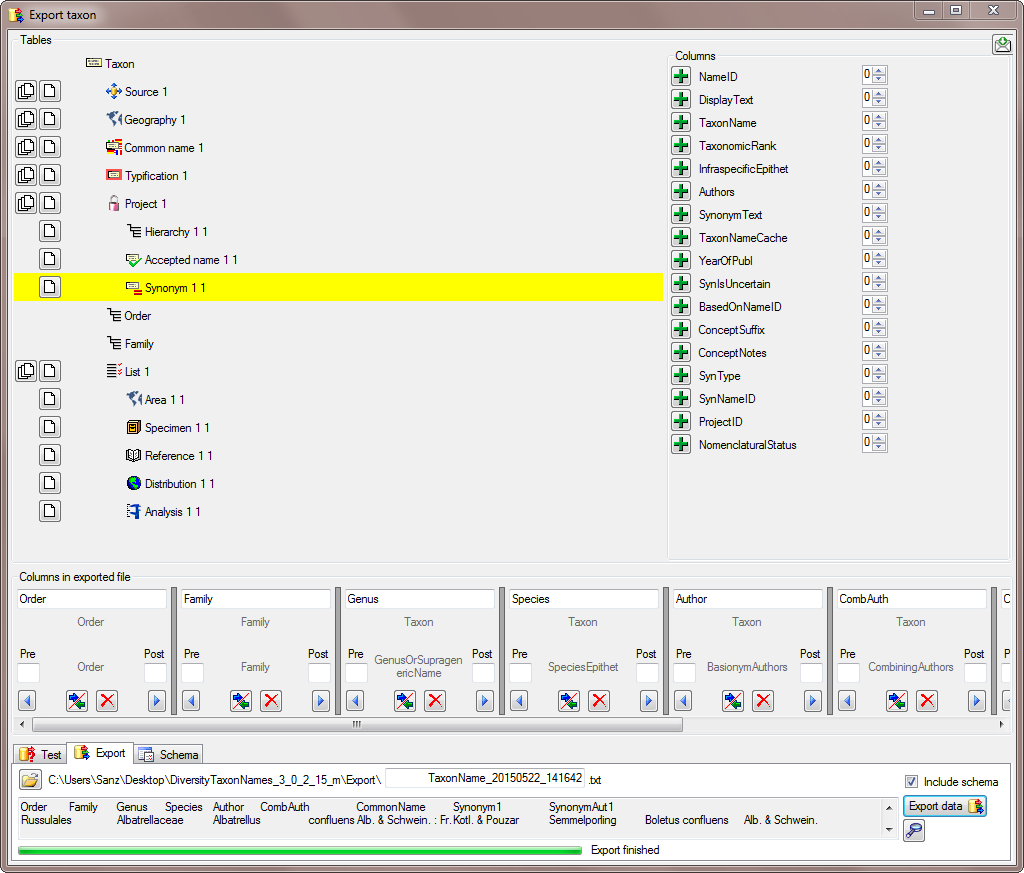
Together with the exported data, a schema is stored, containing all settings of the export. This schema may be reused for subsequent exports of the same type (see below).