With this import routine, you can import data from
text files (as tab-separated
lists) into the database. Choose Data -> ImportWizard  and then the type of data that
should be imported, e.g.
and then the type of data that
should be imported, e.g.
 Import Taxa ... from the menu. A window
as shown below will open that will lead you through the import of the data. The
window is separated in 3 areas. On the left side, you see a list of possible
data related import steps according to the type of data you choosed for the
import. On the right side you see the list of currently selected import steps.
In the middle part the details of the selected import steps are shown.
Import Taxa ... from the menu. A window
as shown below will open that will lead you through the import of the data. The
window is separated in 3 areas. On the left side, you see a list of possible
data related import steps according to the type of data you choosed for the
import. On the right side you see the list of currently selected import steps.
In the middle part the details of the selected import steps are shown.
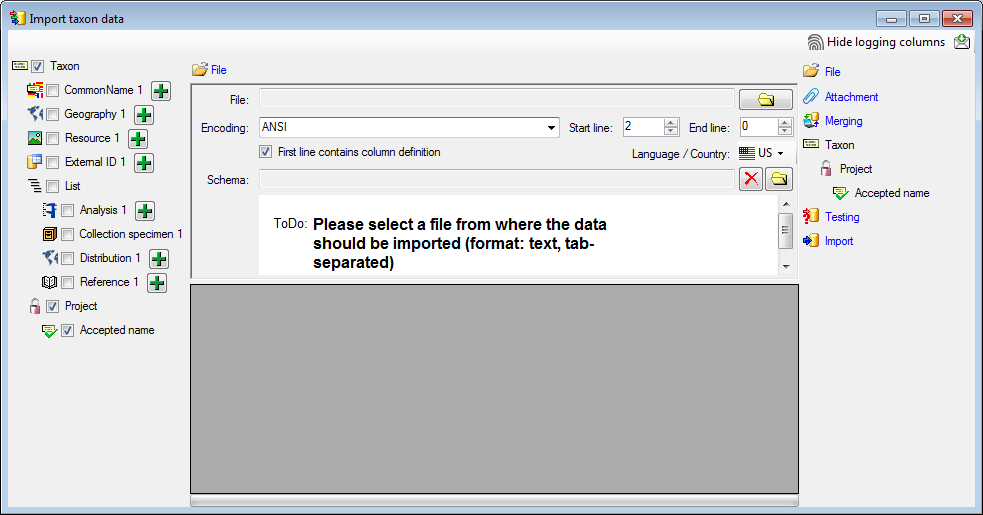
As a first step, choose the
 File from where the data should be
imported. The currently supported format is tab-separated
text. Then choose the Encoding of the file, e.g. Unicode. The Start line and End line
will automatically be set according to your data. You may change these to
restrict the data lines that should be imported. The
not imported parts in the file
are indicated as shown below with a gray background. If the
File from where the data should be
imported. The currently supported format is tab-separated
text. Then choose the Encoding of the file, e.g. Unicode. The Start line and End line
will automatically be set according to your data. You may change these to
restrict the data lines that should be imported. The
not imported parts in the file
are indicated as shown below with a gray background. If the
 First line contains the column
definition this line will not be imported as well. If your data contains
e.g.
date information where notations differ between countries (e.g. 31.4.2013 -
4.31.2013), choose the Language / Country to ensure a correct interpretation
of your data. Finally you can select a prepared Schema (see chapter
Schema below) for the import.
First line contains the column
definition this line will not be imported as well. If your data contains
e.g.
date information where notations differ between countries (e.g. 31.4.2013 -
4.31.2013), choose the Language / Country to ensure a correct interpretation
of your data. Finally you can select a prepared Schema (see chapter
Schema below) for the import.
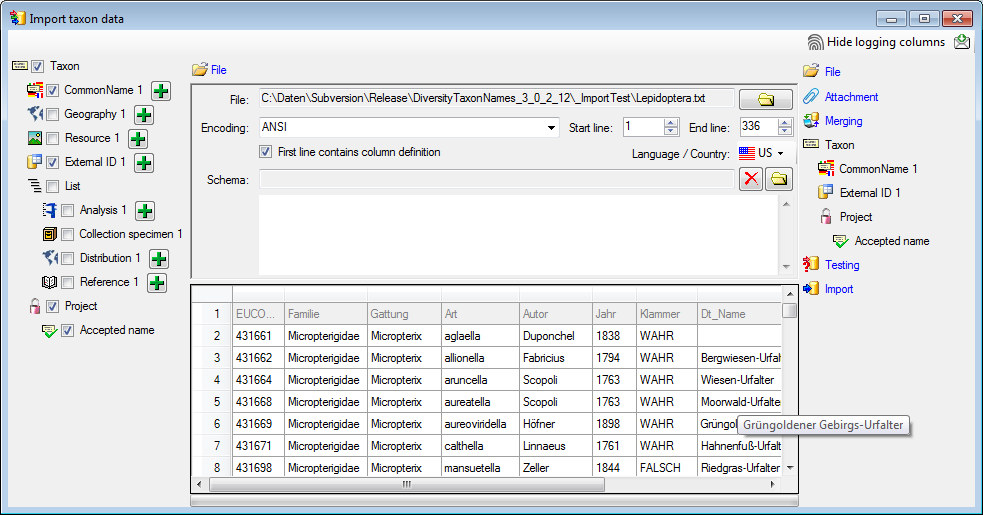
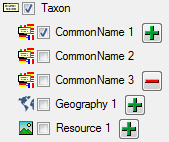
In the selection list on the left side of the window (see below) all possible import steps for the data are listed according to the type of data you want to import.
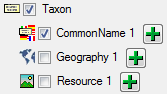
The import of certain tables can be paralleled. To add
parallels click on the
 button (see below). To remove parallels, use the
 button. Only selected ranges will appear
in the list of the steps on the right (see below).
button. Only selected ranges will appear
in the list of the steps on the right (see below).
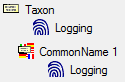
To import informations of
logging columns like who created and changed the data, click on  button in the header line. This will
include a additional substeps for every step containing the logging columns (see
below). If you do not import these data, they will be automatically filled by
default values like the current time and user.
button in the header line. This will
include a additional substeps for every step containing the logging columns (see
below). If you do not import these data, they will be automatically filled by
default values like the current time and user.
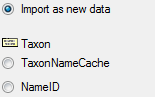
You can either import your data as new data or
 Attach them to data in the database.
Select the import step
Attachment from the list.
All tables that are selected and contain columns at which you can attach data
are listed (see below). Either choose the first option
Attach them to data in the database.
Select the import step
Attachment from the list.
All tables that are selected and contain columns at which you can attach data
are listed (see below). Either choose the first option
 Import as new data or one of the
columns the attachment columns offered like SeriesCode in the table Series in
the example below.
Import as new data or one of the
columns the attachment columns offered like SeriesCode in the table Series in
the example below.
If you select a column for attachment, this column will be marked with a blue background (see below and chapter Table data).

You can either import your data as new data or
 Merge them with data in the database.
Select the import step
Merge from the list. For every table you can choose between
Merge them with data in the database.
Select the import step
Merge from the list. For every table you can choose between
 Insert,
  Merge,
 Update and
Attach (see below).
Update and
Attach (see below).
The
Insert option will import the
data from the file independent of existing data in the database.
The Merge option will compare the
data from the file with those in the database according to the
 Key columns (see below). If no
matching data are found in the database, the data from the file will be
imported, otherwise the data will be updated..
Key columns (see below). If no
matching data are found in the database, the data from the file will be
imported, otherwise the data will be updated..
The
Update option will compare the
data from the file with those in the database according to the
Key columns. Only
matching data found in the database will be updated.
The
Attach option will compare the
data from the file with those in the database according to the
Key columns. The found data will not
be changed, but used as a reference data in depending tables.

To set the source for the columns in the file,
select the step of a table listed underneath the
Merge step. All columns available for importing data will be
listed in the central part of the window. In the example shown below, the first
column is used to attach the new data to data in the database.
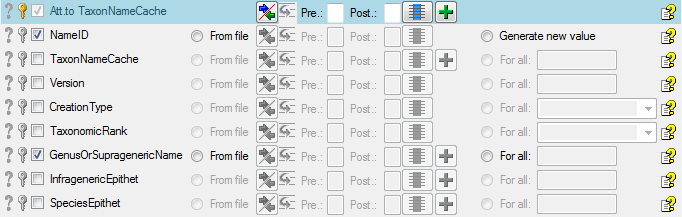
A reminder in the header line will show you what actions are still needed to import the data into the table:
= No
column has been selected so far.
 =
If data will be imported depends on the content of decisive colums, so at least
one must be selected.
=
If data will be imported depends on the content of decisive colums, so at least
one must be selected. =
The position in the file must be given if the data for a column should be taken
from the file.
= For
all merge types other than insert columns for comparision with data in the
database are needed.
= For every you have to decide whether the data are taken from the file or a
value is entered for all
=
The position in the file must be given if the data for a column should be taken
from the file.
= For
all merge types other than insert columns for comparision with data in the
database are needed.
= For every you have to decide whether the data are taken from the file or a
value is entered for all = You
have to select a value from the provided list
= You
have to select a value from the provided list
 =
You have to enter a value used for all datasets
=
You have to enter a value used for all datasets
The handling of the columns in described in the chapter columns.

To test if all requirements for the import are met
use the Testing step. You can use a
certain line in the file for you test and then click on the Test data in
line: button. If there are still unmet requirements, these will be listed in
a window as shown below.
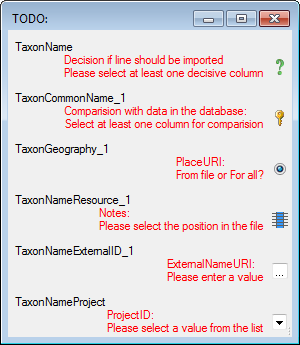
If finally all requirements are met, the testing function will try to write the data into the database and display any errors that occurred as shown below. All datasets marked with a red background, produced some error.
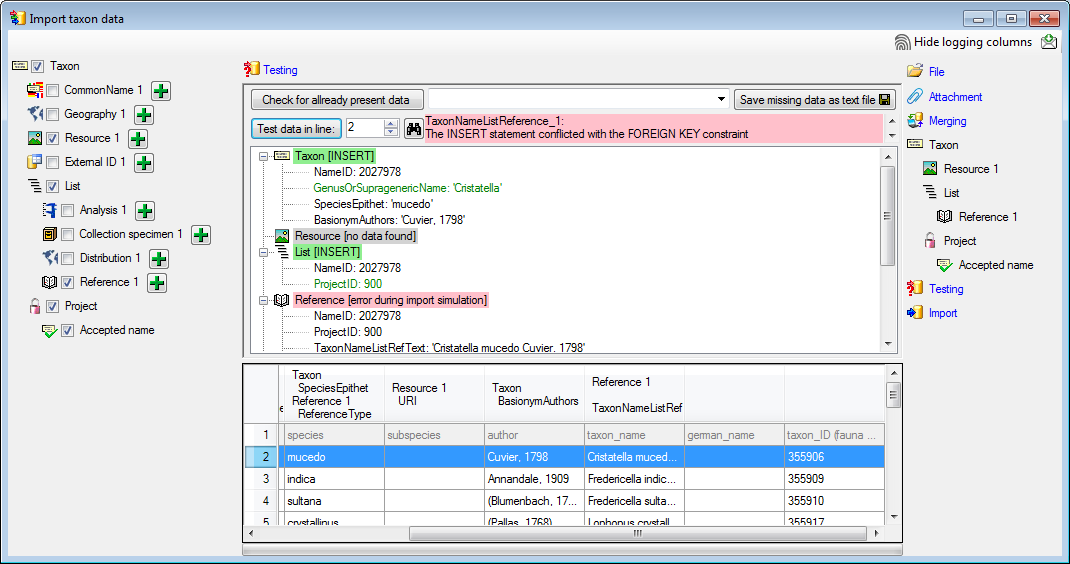
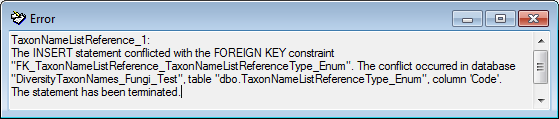
To see the list of all errors, double click in the error list window in the header line (see below).
If finally no errors are left, your data are ready for import. The
colors in the table nodes in the tree indicate the handling of the datasets:
INSERT,
MERGE,
UPDATE,
No difference.
Attach,
No data. The colors of the table colums indicate whether a colum is
decisive
, a key column
or an attachment column
.
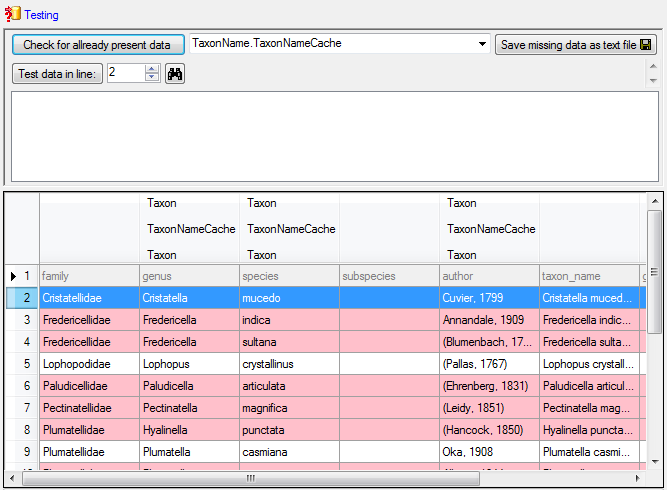
If you suspect, that the import file contains data
allready present in the database, you may test this an extract only the missing
lines in a new file. Choose the attachment column (see chapter Attaching data)
and click on the button Check for allready present data. The data
allready present in the database will be marked red (see below). Click on
the button Save missing data a text file  to store
the data not present in the database in a new file for the import. Please keep
in mind, that this comparision will be performed without
any transformations of the data, that means the data in the file must
match exactly those in the database.
to store
the data not present in the database in a new file for the import. Please keep
in mind, that this comparision will be performed without
any transformations of the data, that means the data in the file must
match exactly those in the database.

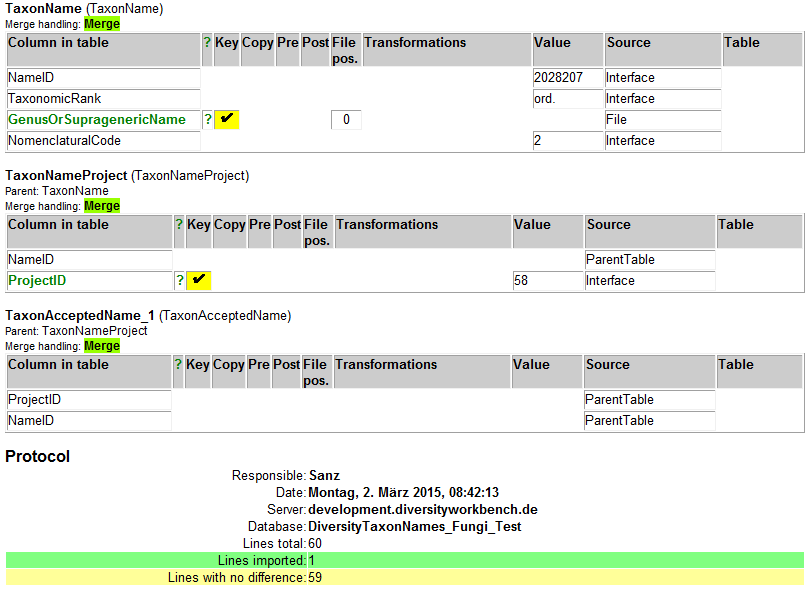
With the last step you can finally start to import the data into the database. If you want to repeat the import with the same settings and data of the same structure, you can save a schema of the current settings (see below).
| Schedule for import of tab-separated text files into DiversityTaxonNames | |||
| Target within DiversityTaxonNames: TaxonName | |||
| Schedule version: | 1 | Database version: | 02.05.14 |
| Lines: | 3 - 5 | First line contains column definition: | ? |
| Encoding: | ANSI | Language: | US |
| Column in table | ? | Key | Copy | Pre | Post | File pos. | Transformations | Value | Source | Table |
|---|---|---|---|---|---|---|---|---|---|---|
| NameID | 2027929 | Interface | ||||||||
| TaxonomicRank | fam. | Interface | ||||||||
| GenusOrSupragenericName | ? | ? | 0 | File | ||||||
| NomenclaturalCode | 3 | Interface |
| Column in table | ? | Key | Copy | Pre | Post | File pos. | Transformations | Value | Source | Table |
|---|---|---|---|---|---|---|---|---|---|---|
| NameID | ParentTable | |||||||||
| ProjectID | ? | ? | 58 | Interface |
| Column in table | ? | Key | Copy | Pre | Post | File pos. | Transformations | Value | Source | Table |
|---|---|---|---|---|---|---|---|---|---|---|
| ProjectID | ParentTable | |||||||||
| NameID | ParentTable |
Lines that could not be imported will be marked with a red background while imported lines are marked green (see below).
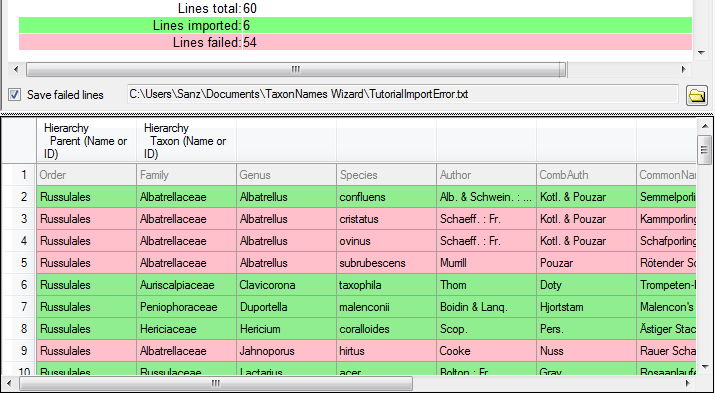
If you want to save lines that produce errors during the import in a separate file, use the Save failed lines option. The protocol of the import will contain all settings acording to the used schema and an overview containing the number of inserted, updated, unchanged and failed lines (see below).