To import the hierarchical relation between the
taxa choose Data ->  Import Wizard ->
Import Hierarchy ... from the menu.
For every hierarchical rank, you have to import the relations between the taxa.
We start with the relations from the species to the family (the genus as
intermediate rank between species and family is omitted in this example).
Import Wizard ->
Import Hierarchy ... from the menu.
For every hierarchical rank, you have to import the relations between the taxa.
We start with the relations from the species to the family (the genus as
intermediate rank between species and family is omitted in this example).
As described in the previous steps, open the file
ImportTutorial.txt shipped with this application. In the
 Merging step leave the table on
 Insert (see below).
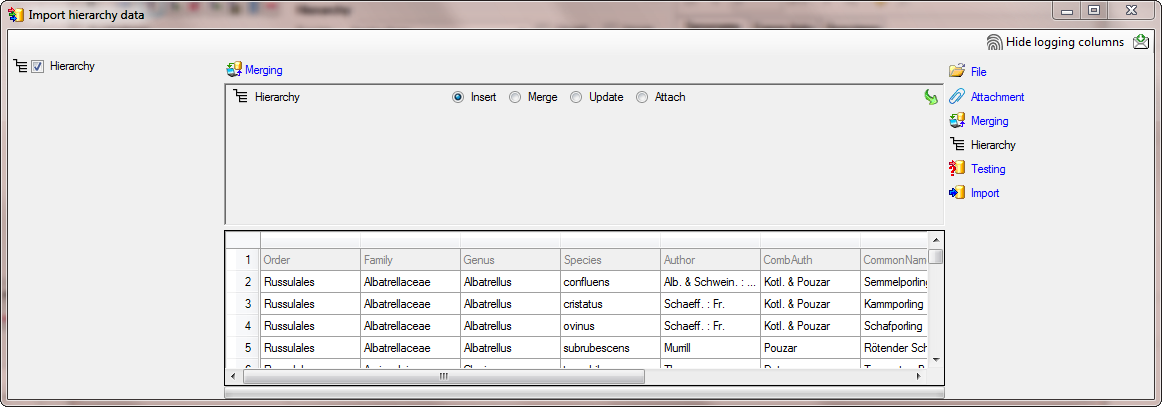
In the
Hierachy step, select the
columns Taxon (Name or ID) and
Higher taxon (Name or ID) as
 Decisive columns
(see below).
Decisive columns
(see below).

For the column ProjectID,
select
 For all as shown below and
select the project of your choice from the list (e.g. DiversityWorkbench if
available).
For all as shown below and
select the project of your choice from the list (e.g. DiversityWorkbench if
available).

As the file does not contain the IDs of the name,
we let the program determine the ID on basis of the name. To enable the program
to detect the ID we need to provide the whole name from the data in the file. We
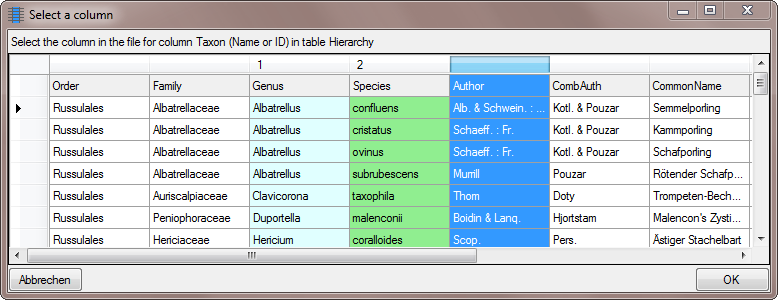
start with the column Taxon (Name or ID). As first step,
click on the
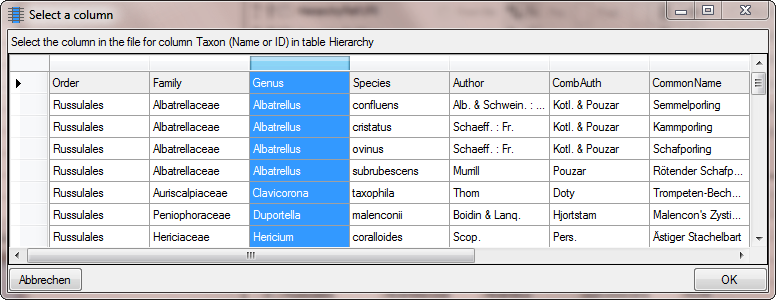
 button to set the source for the
genus, the first part of the taxonomic name. A window as shown below will open.
Mark the column as shown below an click on the OK button.
button to set the source for the
genus, the first part of the taxonomic name. A window as shown below will open.
Mark the column as shown below an click on the OK button.
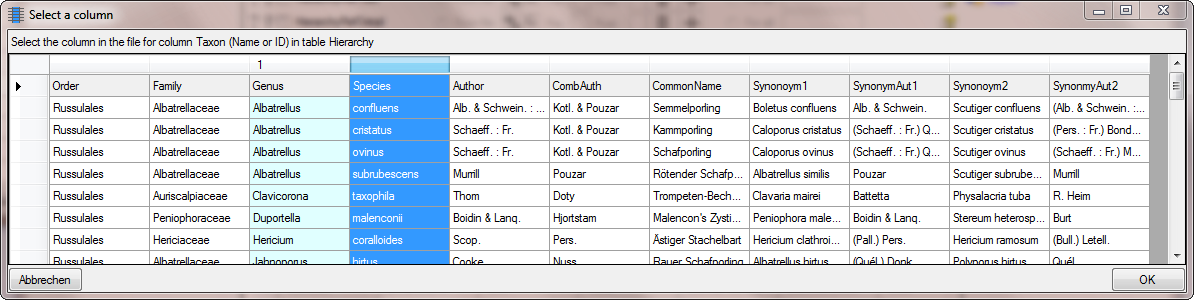
Next we need the species epithet as second part of
the names. Click on the  button to add another column. A window as shown
below will open where where the previous selected column for the Genus is marked
with 1. We select the column containing the species epithet (see below) and
click OK.
button to add another column. A window as shown
below will open where where the previous selected column for the Genus is marked
with 1. We select the column containing the species epithet (see below) and
click OK.
Now we need the authors as last part of the names.
Again click on the button to add a column and select the source as
shown below.
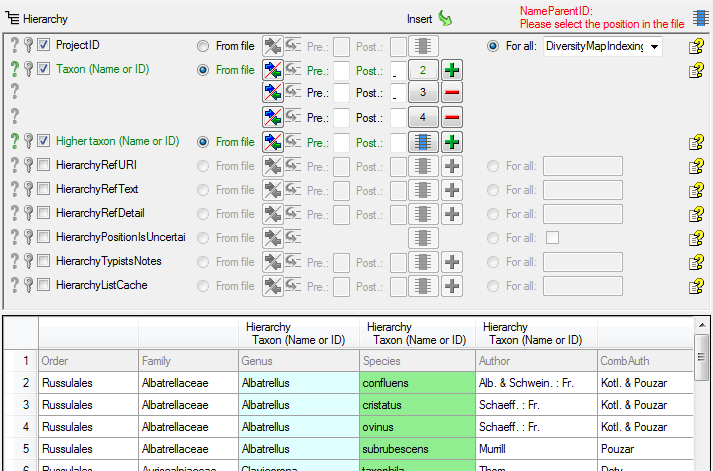
As shown below, enter a space in the Postfix for the first 2 columns.
If combining authors do exist for a name, the
authors of the basionym are set in brackets. To ensure the correct build-up of
the name, we need to add a transformation. Click on the  button to enter the a
 filter as shown below where an opening
bracket ( is inserted in dependence of the content of the column of the
combining authors.
filter as shown below where an opening
bracket ( is inserted in dependence of the content of the column of the
combining authors.
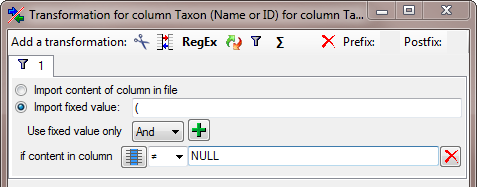
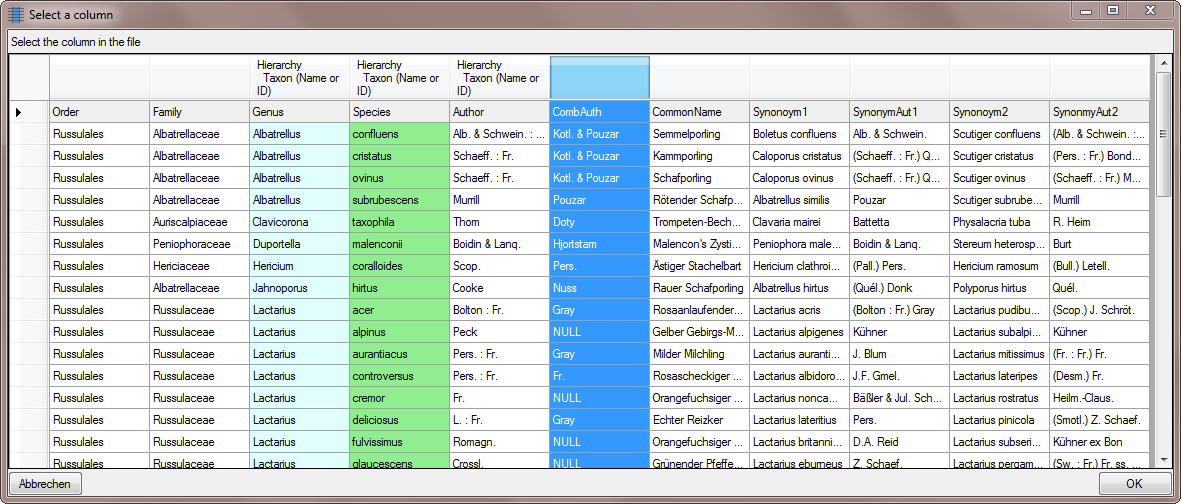
To set the column for the filter, click on the
button and choose the column
containing the combining authors as shown below.
The final Transformation should look like shown below.
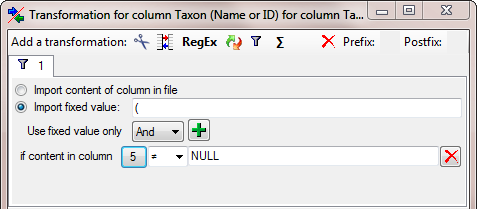
After adding the optional opening bracket we add
the authors of the basionym. Click on the
button and select the column as shown below.
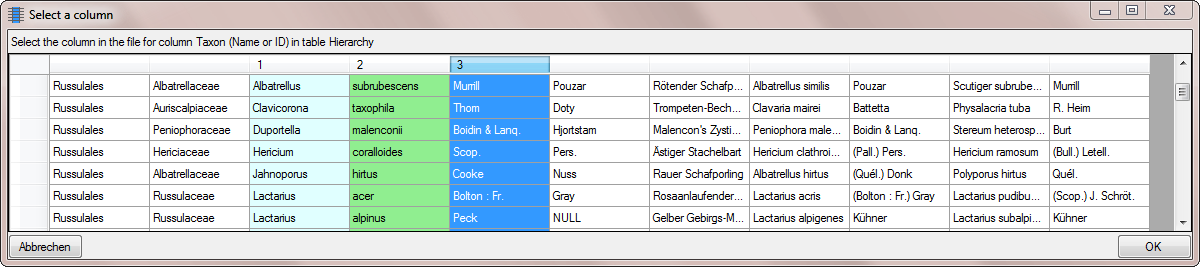
As final step for the authors of the basionym we
need the optional closing bracket. Click on the
button and select the column as shown above. For the
new colum enter another
filter transformation as shown below. To set the
column for the filter, click on the
button as described for the
opening bracket.
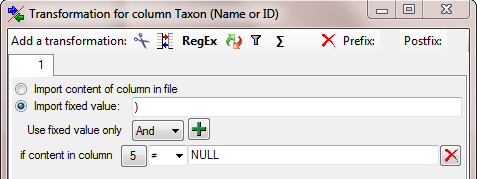
Finally we need the combining authors, provided they do
exist. Click on the button and select the column containing the
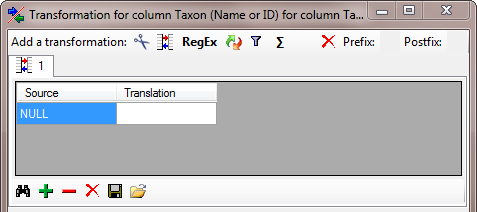
combining authors. As these are missing for some names we have to add a transformation where the content NULL is
translated into nothing. Click on the button to add a transformation and in the
window that will open, click on the
 button to add a translation
(see below).
button to add a translation
(see below).
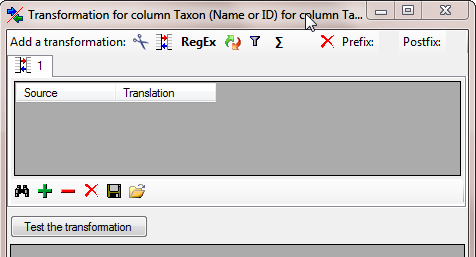
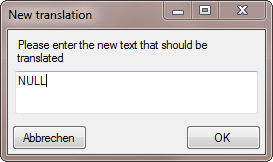
To add a value that should be translated, click on
the button and type NULL into the window as shown below.
The final transformation should look like shown in the image below.
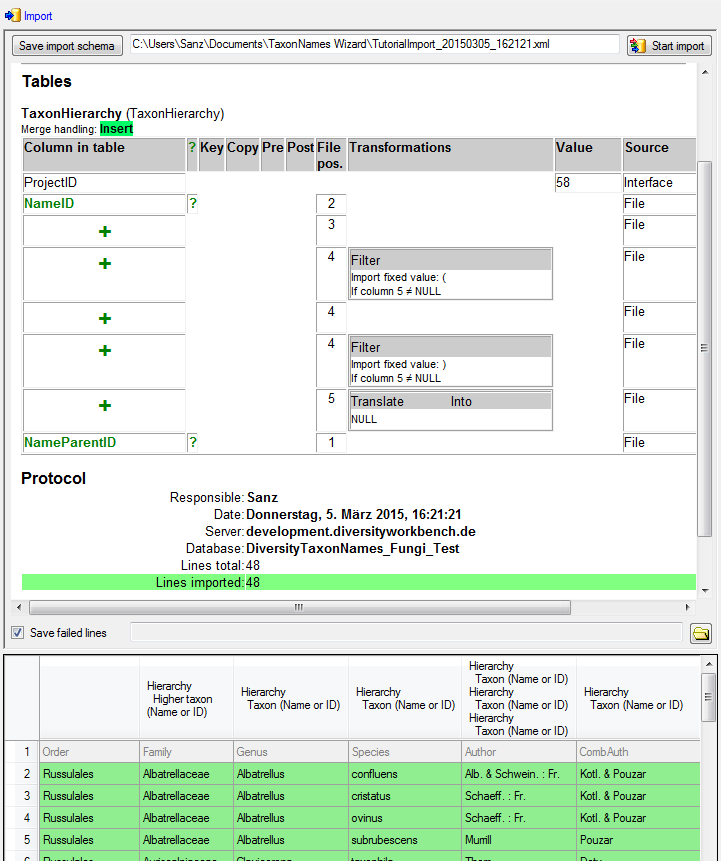
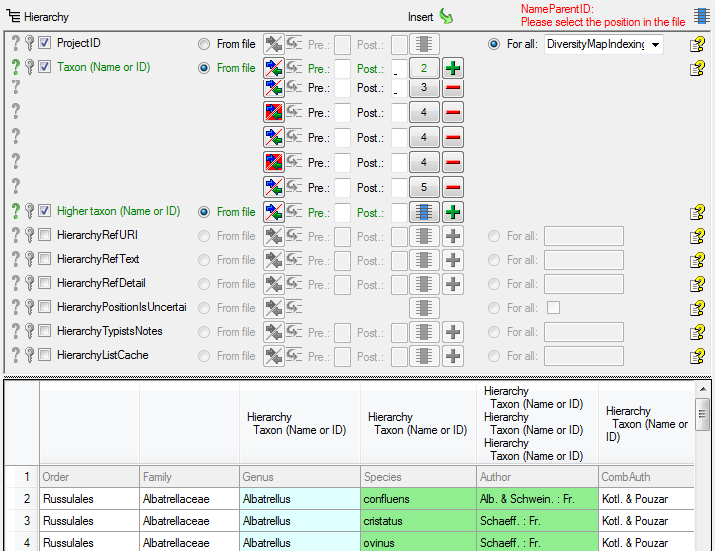
The final build-up for the Taxon should look like in the image below.
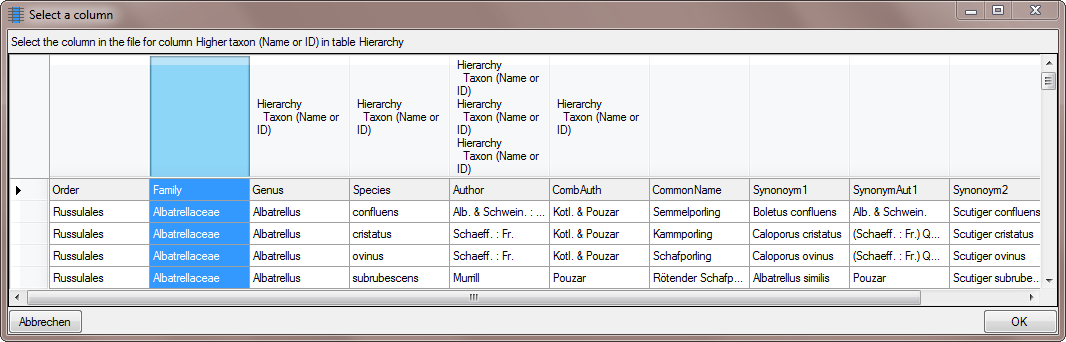
Now we enter the higher taxon, in this example
the family. Click on the
button and choose the column
containing the family as shown below.
Now the
Hierarchy step is finished and
should look like shown below.
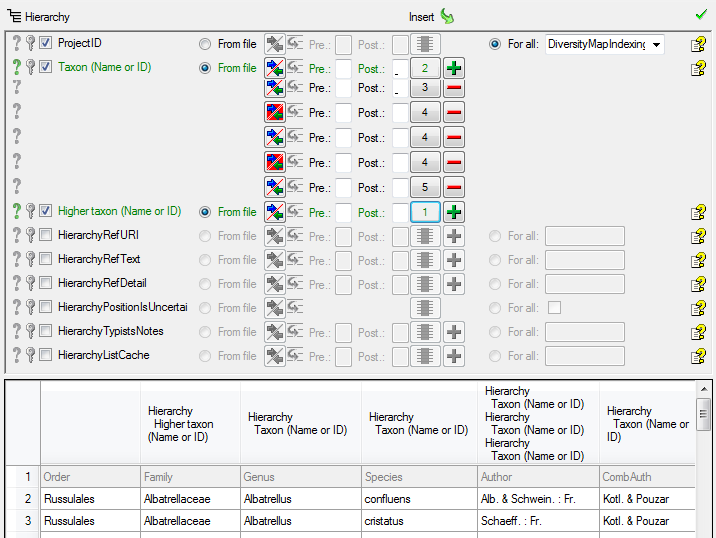
In the  Testing steps use the test for a
check if you missed any settings described above. The result of the test should
appear like shown below.
Testing steps use the test for a
check if you missed any settings described above. The result of the test should
appear like shown below.

Finally
 Import the data according to your
settings. The result of the import should appear like shown below.
Import the data according to your
settings. The result of the import should appear like shown below.