To import the synonyms, choose Data ->  Import Wizard ->
import Synonyms ...
from the menu. A window as shown below will open.
Import Wizard ->
import Synonyms ...
from the menu. A window as shown below will open.
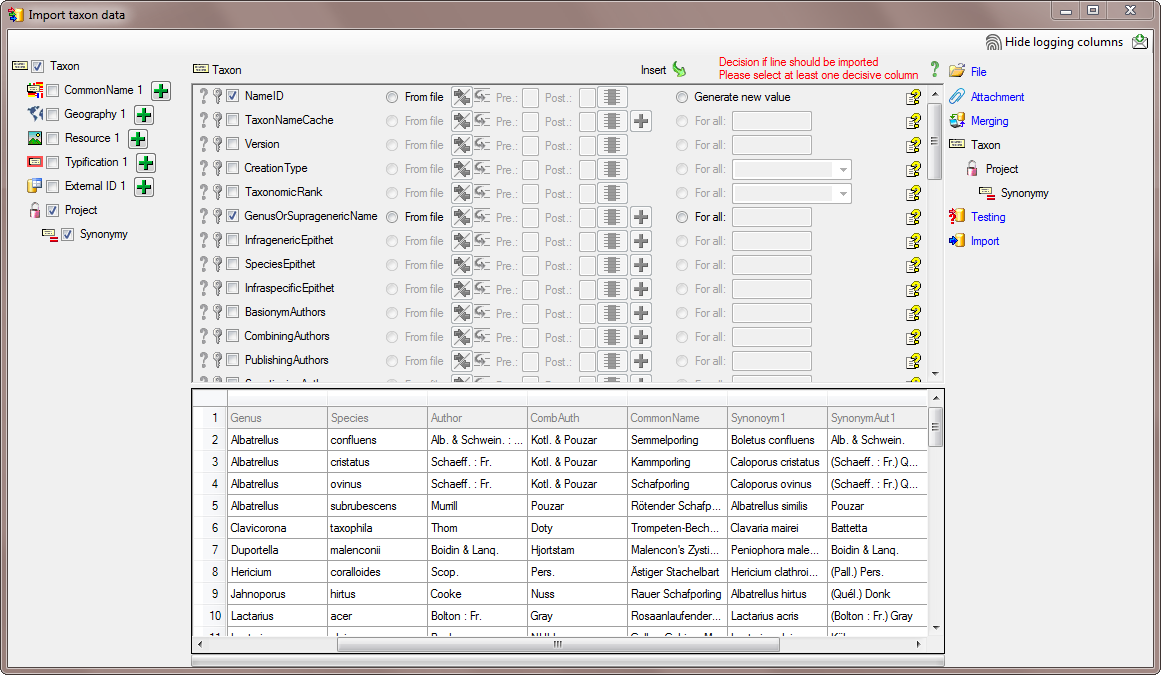
In the
 Taxon step choose
 From file for the
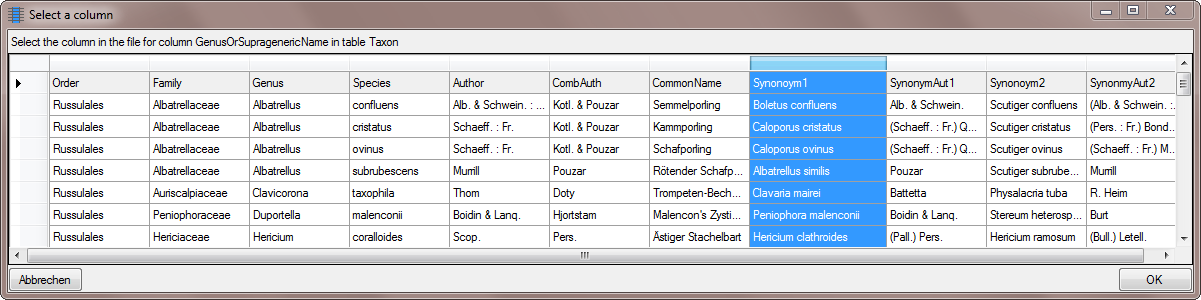
Genus and select the colums
Synonym1 as
shown below.
From file for the
Genus and select the colums
Synonym1 as
shown below.
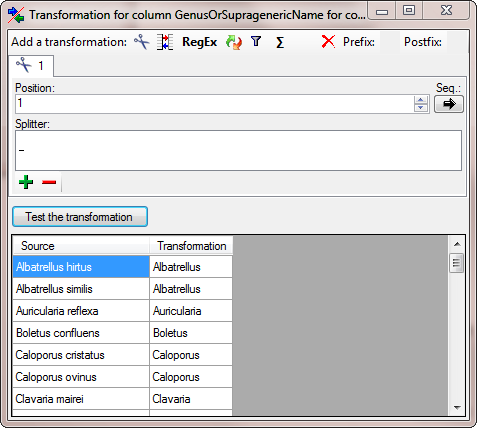
To get only the genus from the name in the source,
add a transformation for the column. Click on the  button and in the window as shown below add a
 cutting transformation. Enter a space as
Splitter. A Test of the transformation should produce the result as shown below.
cutting transformation. Enter a space as
Splitter. A Test of the transformation should produce the result as shown below.
Next select the SpeciesEpithet and again
From file (see below).
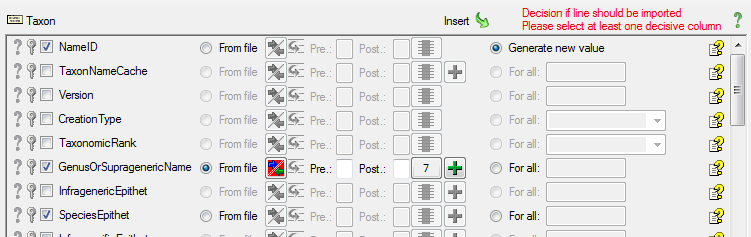
Select the same column as for the genus (see below).
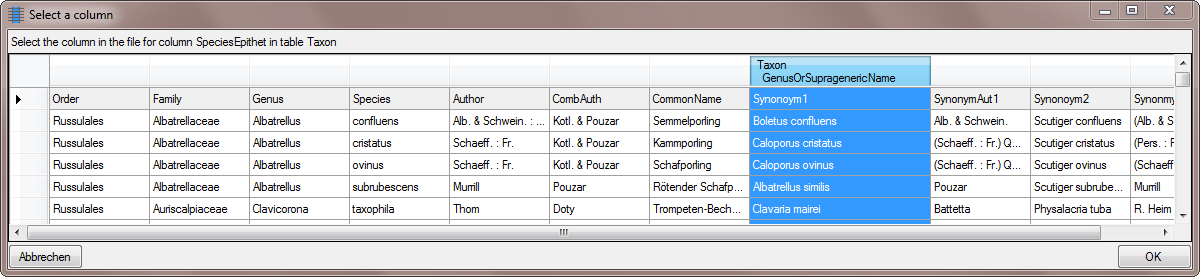
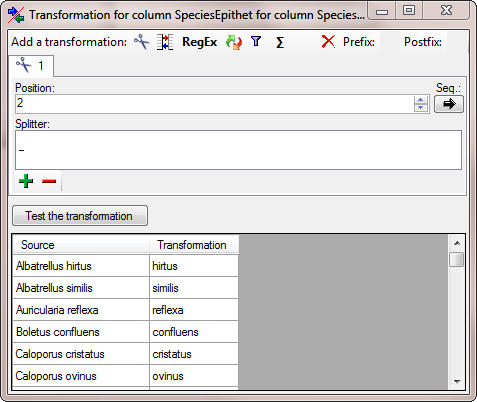
... and as for the genus add a
cutting transformation with a space as
splitter but this time set the Position to 2 (see below).
Choose the columns for the genus and the epithet as
 Decisive columns
(see below). Next we turn to the authors of the synonym. Select the
From file for
BasionymAuthors ...
Decisive columns
(see below). Next we turn to the authors of the synonym. Select the
From file for
BasionymAuthors ...
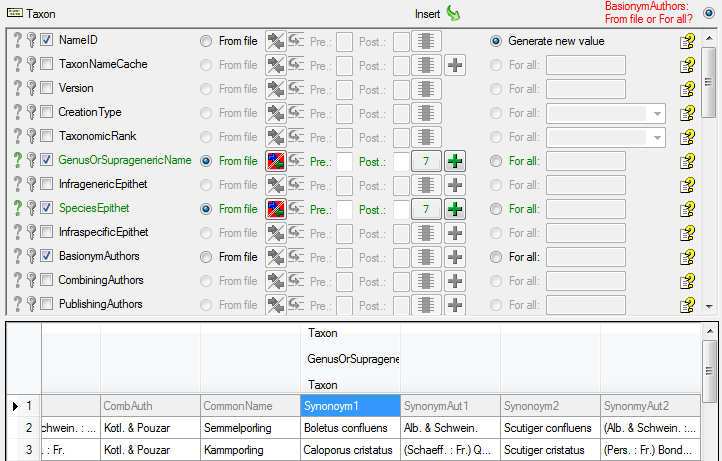
And choose the SynonymAut1 Column as shown below.
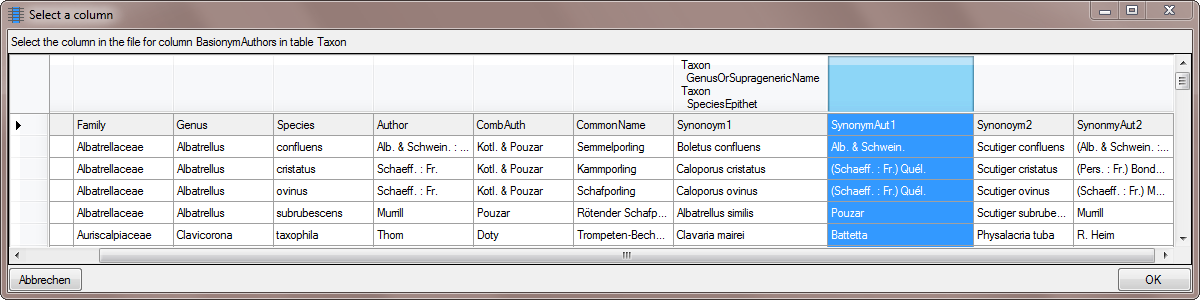
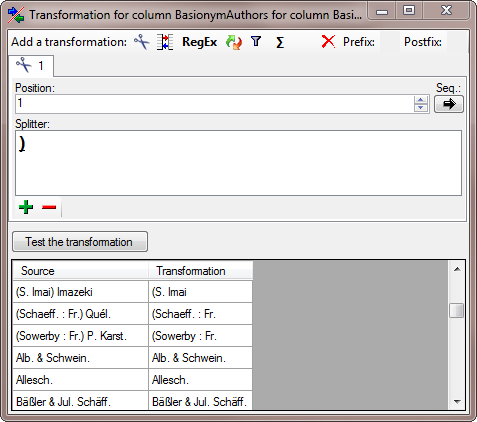
To cut out the basionym authors we add a
cut transformation as shown below. Enter
) as splitter.
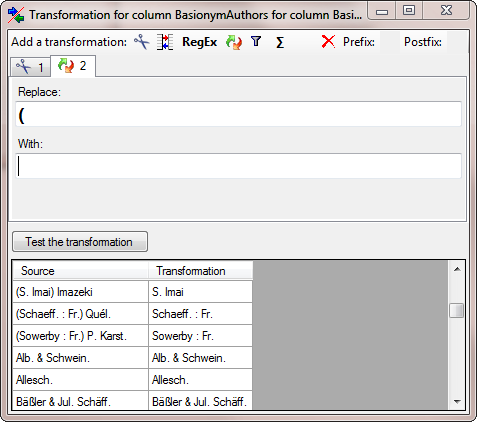
Next we add a  Replace transformation to get
rid of the leeding bracket (see below).
Replace transformation to get
rid of the leeding bracket (see below).
Now we turn to the combining authors ...
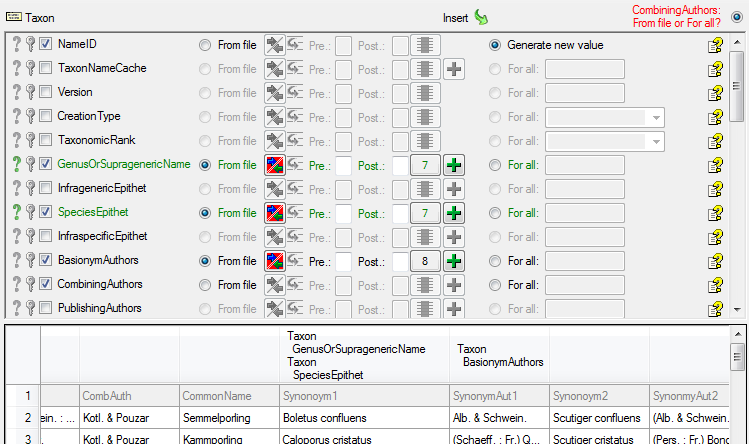
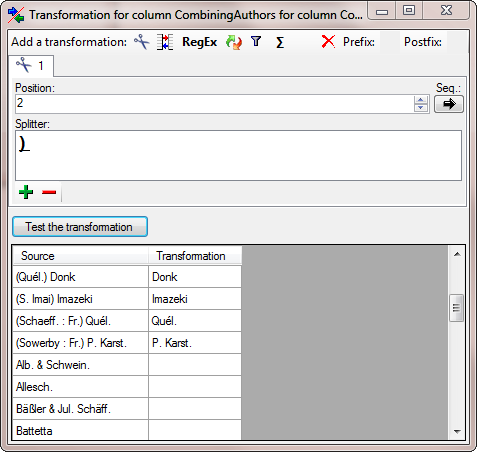
Again we add a
cut transformation with ) as
Splitter, but 2 as Position (see below).
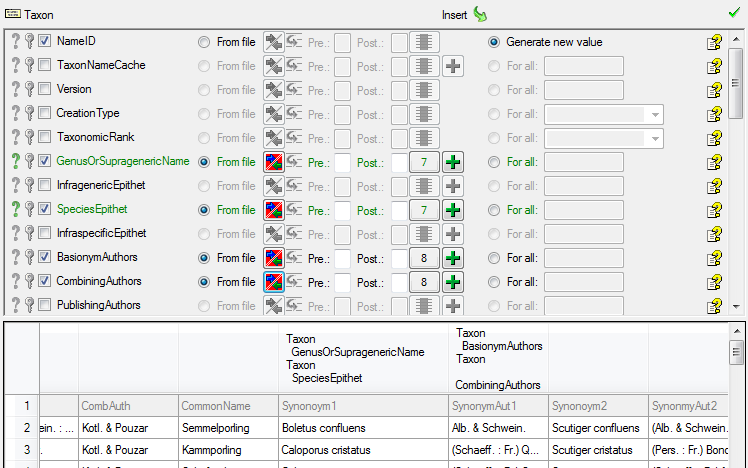
The window now should look like below.
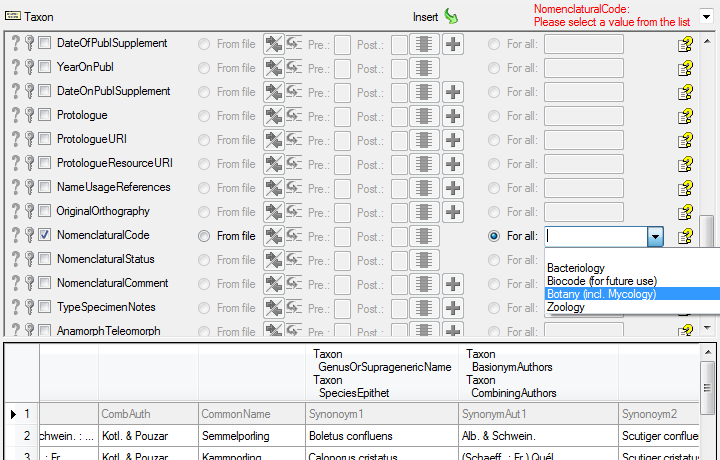
As a last entry in the taxon step we choose Botany for the Nomenclatural Code (see below).
In the  Project step select
For all, choose the
project where you want to import the data and set this column as
Decisive column.
Project step select
For all, choose the
project where you want to import the data and set this column as
Decisive column.

In the
Synonymy step select
From file for the
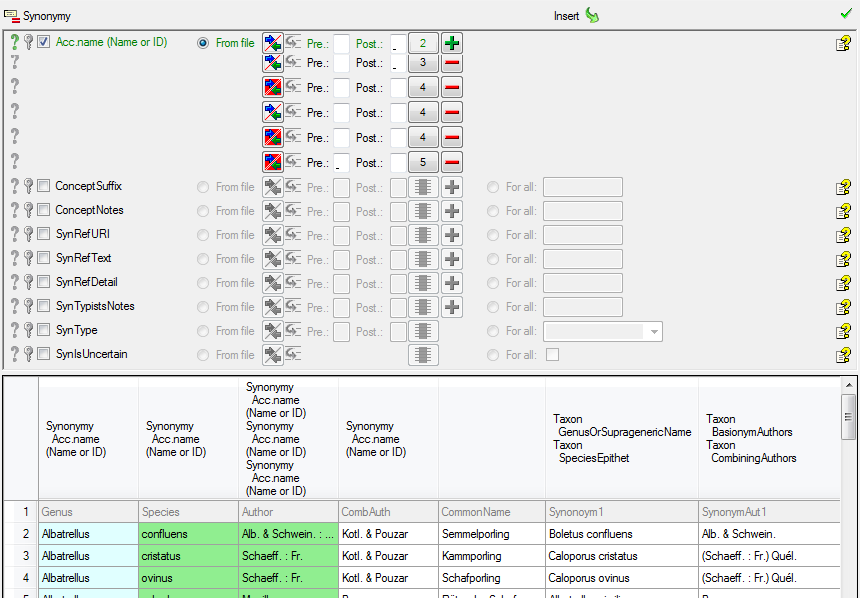
accepted name. Now we must combine the accepted name from the entries in the
file to match the entry in the database.

Select the Genus column for the first part of the accepted name (see below).
Click on the  button to add another column and choose the
Species column as shown below as source.
button to add another column and choose the
Species column as shown below as source.
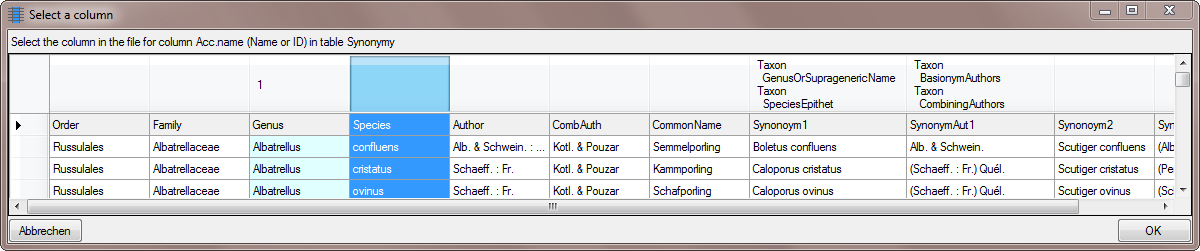
For both columns enter a space into the Postfix (see below).
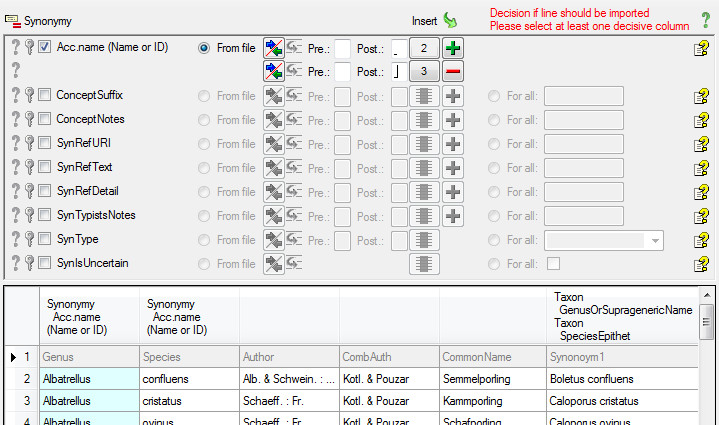
Next we add the authors. For the basionym authors we need to add brackets if combining authors do exist. Select the Author column ...
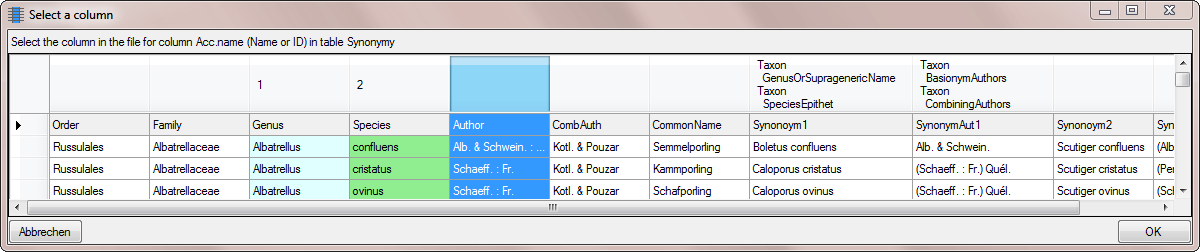
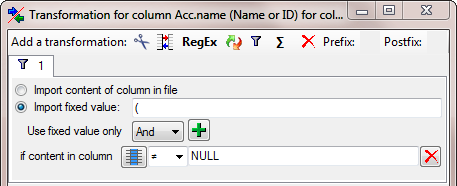
... and add a  filter transformation (see below). Here
we choose
Import fixed value and
enter ( as a value. As condition we choose that the colum of the
combining autors should not contain the string NULL.
filter transformation (see below). Here
we choose
Import fixed value and
enter ( as a value. As condition we choose that the colum of the
combining autors should not contain the string NULL.
To complete this transformation click on the
 button and select the column
containing the combining authors (see below).
button and select the column
containing the combining authors (see below).
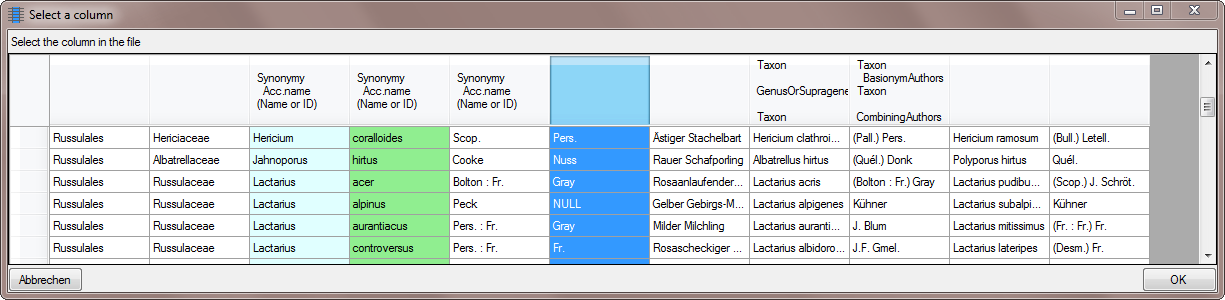
To add the basionym authors themselves, click on the button and choose the corresponding source as shown below.
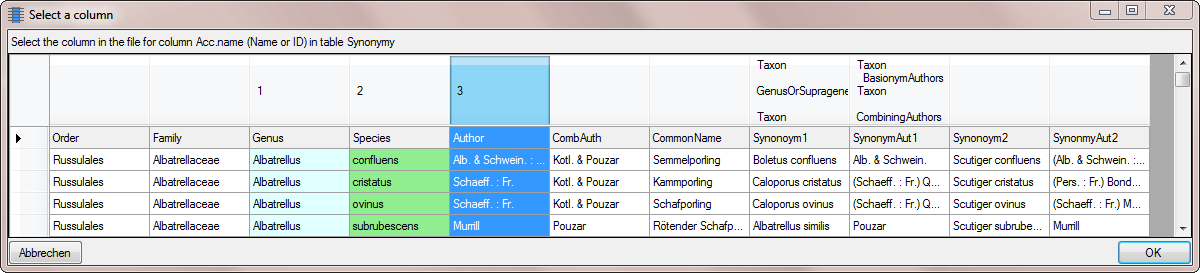
Next we need the closing bracket for the basionym
authors. As before we click on the button and for the new entered columns we add
a
filter transformation as shown below.
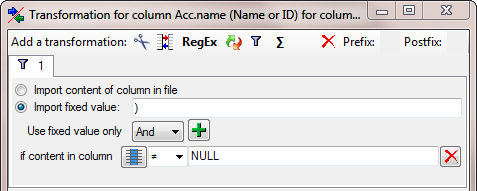
Enter ) as fixed value and as before select that the source for the
combining authors should be unequal to NULL.
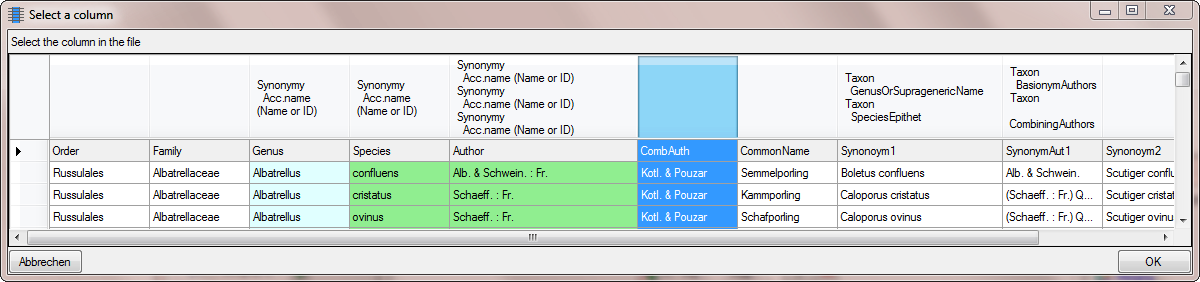
Finally we get the values for the combining authors. Add another column and select the corresponding column in the source (see below).
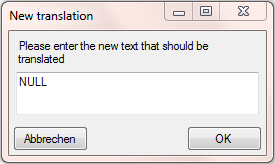
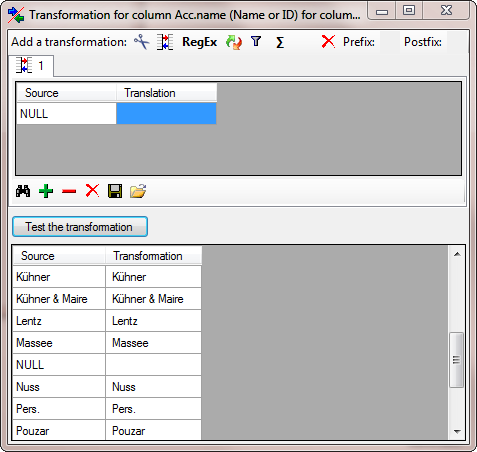
To remove the NULL value, we add a translation transformation. As only string that should be translated, we click on the button and enter NULL (see below).
Now the translation should look like below.
As final action in the
Synonym step we
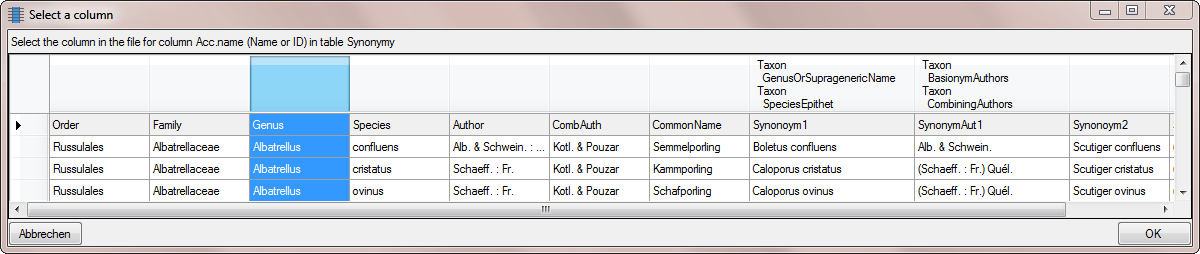
choose the column for the Acc.name as
Decisive column
(see below).
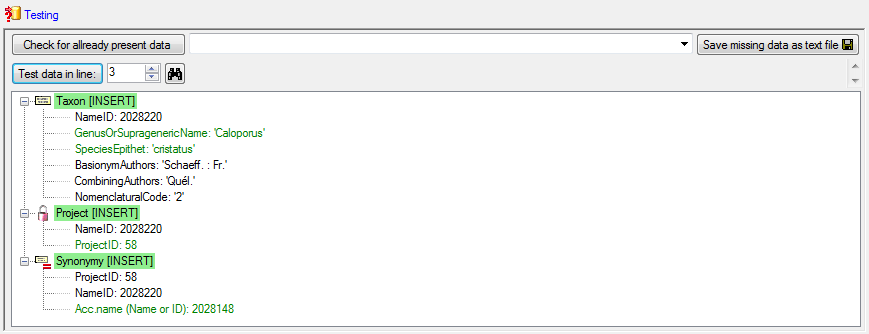
A final  Testing will detect any missed settings.
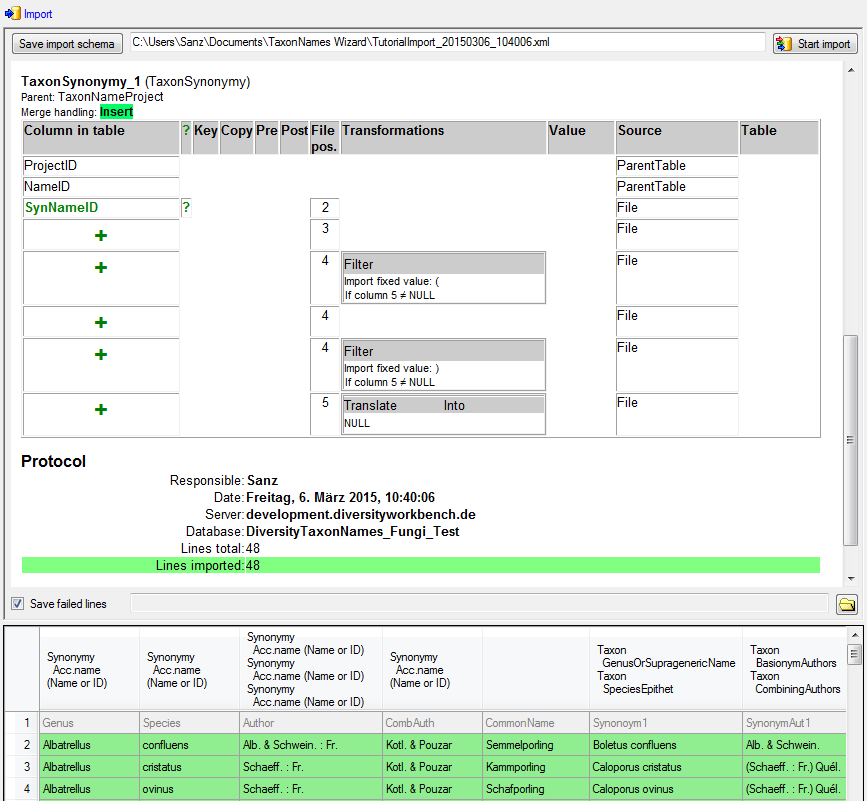
After the final test is passed, we can  Import the data as shown below. The schema will automatically be created
and is available for subsequent imports.
Import the data as shown below. The schema will automatically be created
and is available for subsequent imports.