
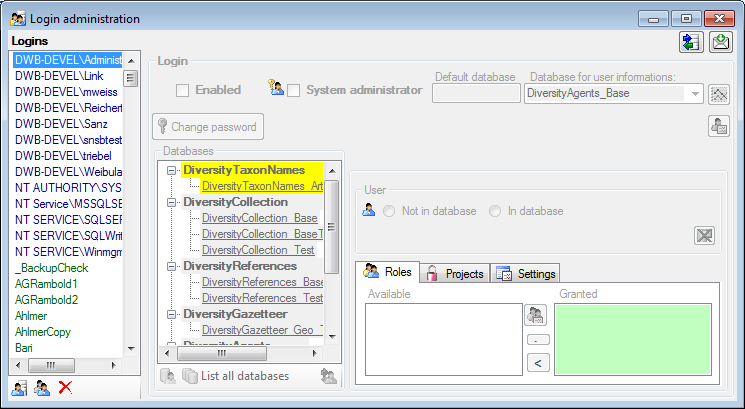
To administrate the logins on the database server, their permissions and roles respectively as well as access to projects choose Administration - Database - Logins ... from the menu. A window will open as shown below.
To see the activity of a login
click on the
 button. A window will open
as shown below
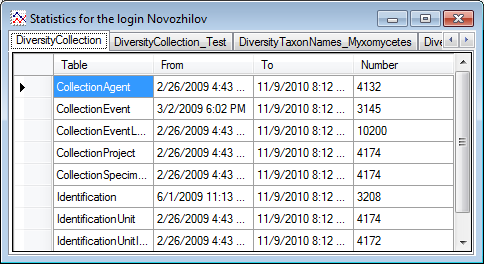
listing all databases and tables together with the timespan
(From - To) and the
number of data sets where any activity of the current login has
been found.
button. A window will open
as shown below
listing all databases and tables together with the timespan
(From - To) and the
number of data sets where any activity of the current login has
been found.
To see the current activity on the server click on the
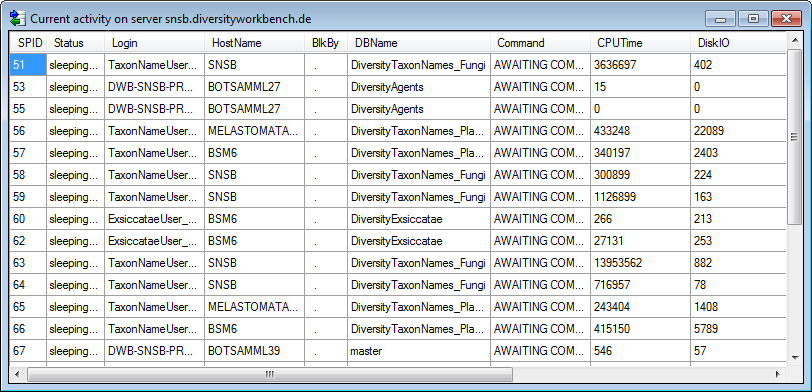
 button. A window as shown below will open
listing all user related processes on the server.
button. A window as shown below will open
listing all user related processes on the server.
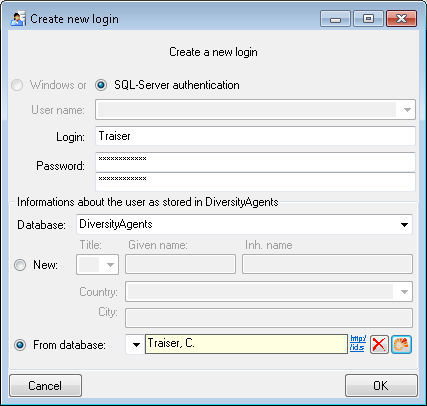
To create a new login click on the
 button. A window will open as shown
below.
button. A window will open as shown
below.
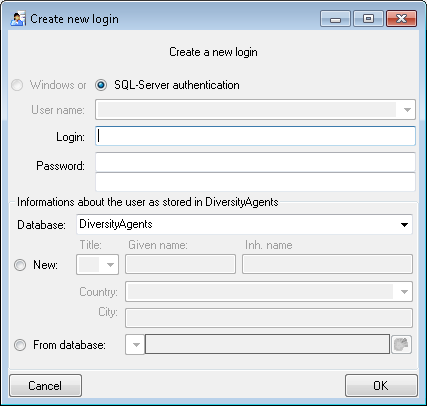
Here you can enter the name of the
new login, the
password and the information about the user which will be stored
in a
DiversityAgents database. You may either create a new entry in
this database or select
an existing one: Click on the
 button to
search for a name in
the database (see below).
button to
search for a name in
the database (see below).
To copy a login including all permissions etc. into
a new login, select the original login in the list and click on the
 button.
To edit the access for a login on
the server
select the login in the list. If a login should be disabled
, uncheck the enabled checkbox
(see below).

All databases on the server will be listed with the current database showing a yellow background. The databases where the login has no access will be listed in gray while the databases accessible for a login are black.
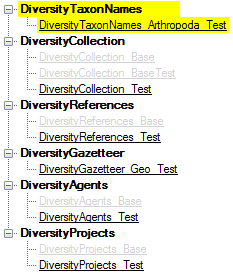
To allow the access to a database select the database from the list and choose database as shown below.

Use the > and < buttons to add or remove roles for the login in the database (see below).
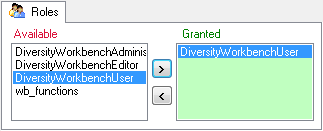
Depending on the database you can
edit the list of
projects accessible for a login (see below). Projects are
related to the module
DiversityProjects. To get additional information about a project
select it in the
the list and click on the
button.
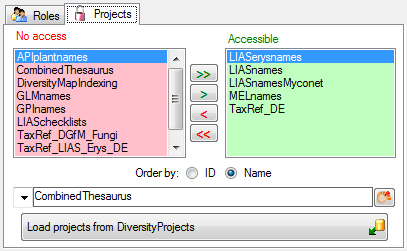
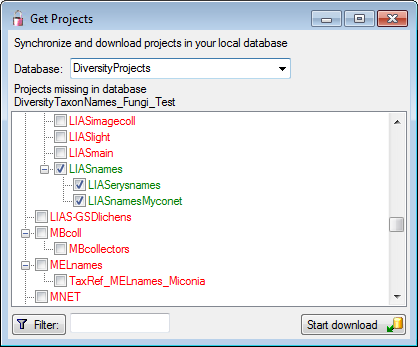
To load additional projects click
on the Load
projects
 button. A window will open as
shown below.
Projects already in the database will be listed in
green, missing projects in
red (see below). Check all projects you need in your
database and click the Start download
button.
button. A window will open as
shown below.
Projects already in the database will be listed in
green, missing projects in
red (see below). Check all projects you need in your
database and click the Start download
button.
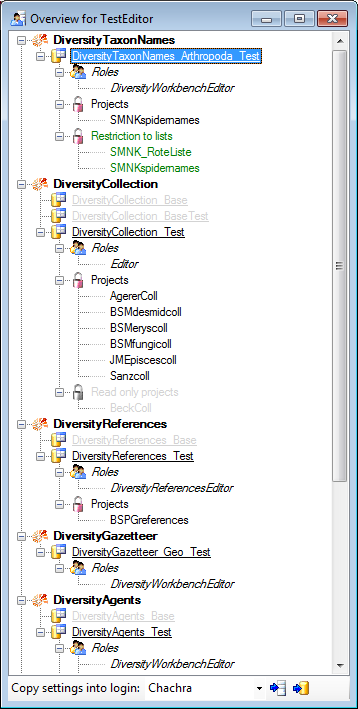
If you see an overview of all permissions and
project for a login, click on the
 button. A window a shown below will
open. It lists all
modules and their
button. A window a shown below will
open. It lists all
modules and their
 databases, the
 roles and
 projects for a login.
To copy the permissions and projects of the current
login to another login, select the login where the settings should be copied to
from the list at the base of the window and click on the  button to copy the settings for all
databases or the
button to copy the settings for all
databases or the
 button to copy the settings of the
selected database into this login.
button to copy the settings of the
selected database into this login.
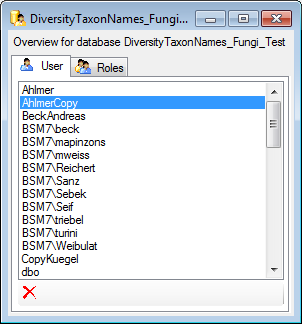
If you see an overview of all user and roles in a
database, click on the
 button. A window a shown below will
open. It lists all
button. A window a shown below will
open. It lists all
 user and
roles in the database.
user and
roles in the database.
To remove a user, select it in the list and click
on the
 button.
If you select one of the databases, at the base a
 button may appear. This indicates,
that there are windows logins listed where the name of the login does not match
the logins of the server. This may happen if e.g. a database was moved from one
server to another. To correct this, click on the button. A list of deviating
logins will be shown, that can be corrected automatically.
button may appear. This indicates,
that there are windows logins listed where the name of the login does not match
the logins of the server. This may happen if e.g. a database was moved from one
server to another. To correct this, click on the button. A list of deviating
logins will be shown, that can be corrected automatically.
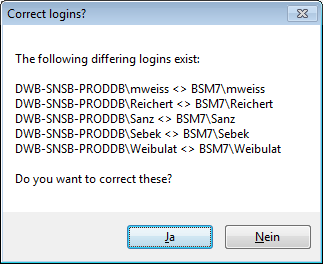
If logins with the same name but different server are found, one of them has to be deleted to make the correction possible. You will get a list where you can select those that should be removed.
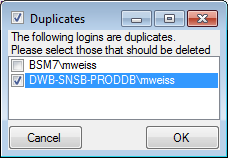
Select the duplicate logins that should be removed and click OK.