In DiversityTaxonNames the hierarchy of a taxon is represented by the relation to a parent taxon, e.g. Rosa canina - Rosa.
To enable the search within the whole hierarchy is cached as a text string e.g. ( ... Rosales
| Rosaceae | Rosa | ... ).
After changes in the hierarchy this string should be updated.
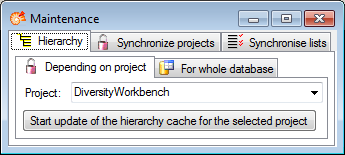
Choose Administration -  Maintenance ... from
the menu. A window as shown below will open. You can either update the
hierarchy cache for a single project or the whole database. For the first
option, choose the project that should be updated and click the start button to perform the update.
For the whole database just click on the
Maintenance ... from
the menu. A window as shown below will open. You can either update the
hierarchy cache for a single project or the whole database. For the first
option, choose the project that should be updated and click the start button to perform the update.
For the whole database just click on the
 button.
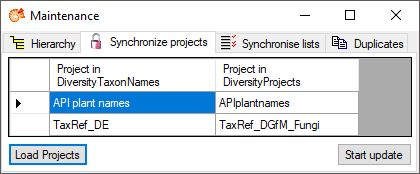
In DiversityTaxonNames names of projects
 and
lists
and
lists
 are cached according to the original data in DiversityProjects. If the
original names are changed, you can use the maintenance to synchronise the local
names with the original data (see image below). Click on the Load projects
resp. Load lists button to find all entries with names different from the
originals. To update the names in the local cache, click on the Start update
button.
are cached according to the original data in DiversityProjects. If the
original names are changed, you can use the maintenance to synchronise the local
names with the original data (see image below). Click on the Load projects
resp. Load lists button to find all entries with names different from the
originals. To update the names in the local cache, click on the Start update
button.
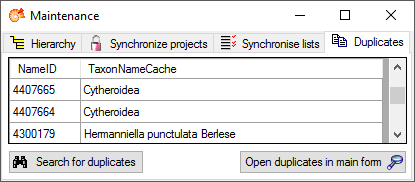
If for any reason there are duplicates of taxa in DiversityTaxonNames
these can be listed in the
 Duplicates part. Click no the
 Search for duplicates button
to list all duplicates independent of the project as shown in the image below.
To edit the detected duplicates, click on the Open duplicates in main form
Search for duplicates button
to list all duplicates independent of the project as shown in the image below.
To edit the detected duplicates, click on the Open duplicates in main form
 button.
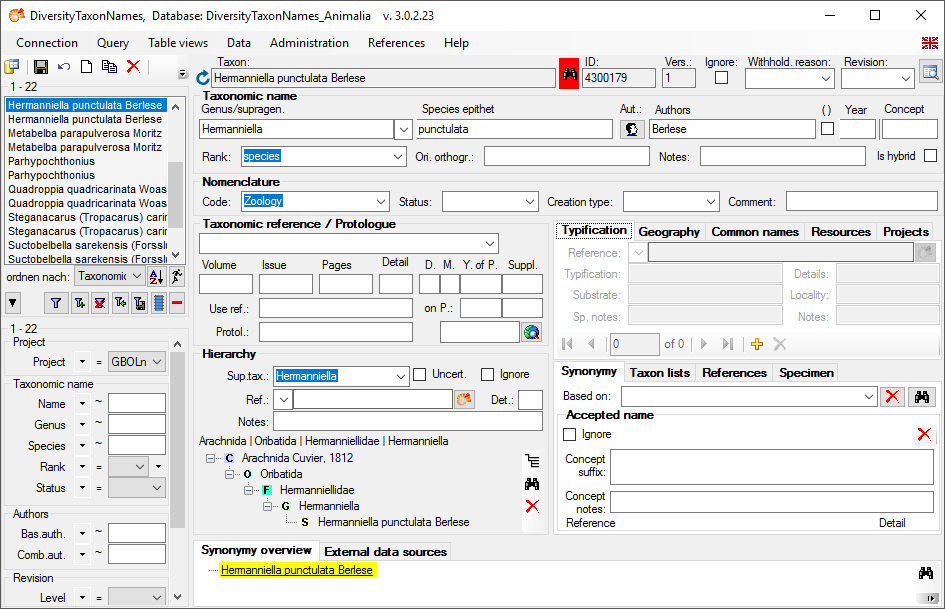
In the main form any duplicate will be marked by the appearence of
a
 button as shown below. Click on
the
button to change between the
duplicates of a name.
button as shown below. Click on
the
button to change between the
duplicates of a name.
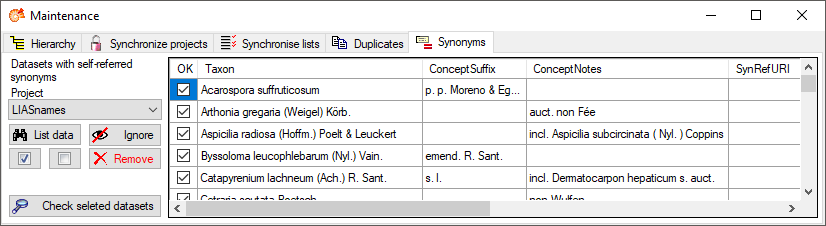
In DiversityTaxonNames synonyms by accident may refer
to themselves. In the
 Symonyms section you
can remove these entries. Choose project and click on the
List data botton. If self-referring
synonyms are detected the names containing these will be listed as shown
below. With the
Symonyms section you
can remove these entries. Choose project and click on the
List data botton. If self-referring
synonyms are detected the names containing these will be listed as shown
below. With the
 resp.
resp.
 button you can check resp. uncheck all items in the list. If you want to
inspect the detected data in the main form, check those that should be
shown and click on the
Check selected datasets button. If you
want to keep the data but ignore them, click on the
button you can check resp. uncheck all items in the list. If you want to
inspect the detected data in the main form, check those that should be
shown and click on the
Check selected datasets button. If you
want to keep the data but ignore them, click on the
 Ignore
button. To remove the entries from the synonymy table, click on the
Ignore
button. To remove the entries from the synonymy table, click on the
 Remove botton (see image below) (tutorial:
 ).
).