
The application provides two main options to search for a taxonomic name. The results of any search will be listed in the listbox on the left side of the main form (selected names). To choose one of the found names just click on it.
For a direct search of a name enter the search conditions
in the fields provided in the "Query conditions". You may alter the visible field
as described under options
. You can change this arrangement using the 
 button to place the query options on the left side of the item list.

The available operators for text values are = for exactly equal entries or ~ for similar entries. Here you can choose "%" (any sequence of characters) and "_" (one character) as wildcards. For more details of SQL-wildcards refer to the manual or SQL-Server.
If you omit to select a project and the synonymy for a name is defined in several projects, you will get an entry in the resultset for every project as shown in the example below.
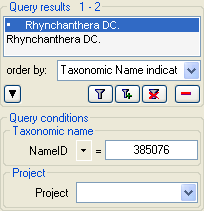
If you want to hide the Query conditions
area, click on the
 button. The Query conditions area will be hidden.
To show it again click on the
button. The Query conditions area will be hidden.
To show it again click on the
 button. To change the displayed fields
for searching specimen click on the
button. To change the displayed fields
for searching specimen click on the  button to change the query options
.
button to change the query options
.
After you have specified your search phrase click on
 .
This starts the search for any name matching your phrase. If you want to add the
searched name to those allready listed then click on
.
This starts the search for any name matching your phrase. If you want to add the
searched name to those allready listed then click on  .
If the list of items is longer than your maximal number of returned items you can
browse the next items with the
.
If the list of items is longer than your maximal number of returned items you can
browse the next items with the
 button. To move back to the previous block of items click on the
 button. If you want to remove entries from the
selected list, choose them and click on the
button. If you want to remove entries from the
selected list, choose them and click on the  button.
This will not delete the data from the database, but remove them from your
query result. With the
button.
This will not delete the data from the database, but remove them from your
query result. With the  resp.
resp.  button you may change the order of the
results between ascending and descending.
To speed up the query you may use the optimized version (Standard query:
button you may change the order of the
results between ascending and descending.
To speed up the query you may use the optimized version (Standard query:  Optimized query:
  ).
).
Within the query options you have several possibilities to specify your search restriction. Use the drop down button to change between the operator. The available operators are shown in the table below.
| Operator | Meaning | Example |
|---|---|---|
| Text | ||
| ∼ | search for an entry like ... | Pinus s[iy]lvestris % (you can use wildcards) |
| = | search for an entry exactly equal to ... |
Pinus silvestris L. |
| ≠ | search for an entry not like ... | Pinus s[iy]lvestris % (you can use wildcards) |
| ∅ | search for an entry where a value is missing ... | |
| • | search for an entry where a value is present ... | |
| - | search for an entry between ... and ... | 2000 - 2005 |
| | | search within a list of entries, separated by "|" or return | 2000 | 2003 | 2005 |
| Numeric | ||
| = | search for an entry exactly equal to ... | 2006 |
| < | search for an entry lower than ... | 2006 |
| > | search for an entry bigger than ... | 2006 |
| - | search for an entry between ... and ... | 2000 - 2005 |
| ∅ | search for an entry where a value is missing ... | |
| • | search for an entry where a value is present ... | |
| | | search within a list of entries, separated by "|", space, tab or return | 2000 | 2003 | 2005 |
| Date | ||
| = | search for an entry exactly equal to ... | 20.3.2006 |
| < | search for an entry lower than ... | 20.3.2006 |
| > | search for an entry bigger than ... | 20.3.2006 |
| ∅ | search for an entry where the date is missing ... | |
| • | search for an entry where the date is present and complete ... | |
| Hierachy | ||
| = | search for an entry exactly equal to ... | M-Fungi |
| ≠ | search for an entry that is not equal to ... | M-Fungi |
| ∅ | search for missing entry ... | |
| • | search for present entry ... | |
| Δ | search including childs in a hierarchy ... | M-Fungi |
| XML | ||
| / | Search for entries containing a given XML node | settings |
| ¬ | Search for entries not containing a given XML node | settings |
| ∅ | search for missing entry ... | |
| • | search for present entry ... | |
For yes/no fields you will get an
checkbox with 3 options:
 = yes,
 = no,
= no,
 = undefined
If you want to indicate accepted names in the result list, choose View, indicate accepted names
If prefined queries are available for a database,
you can choose these querries under Query, Predefined queries.
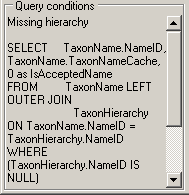
The command for the retrieval will be shown in the Query conditions area. Click
on the button
to start the predefined query.
Query results
To indicate the synonymy of the names in the query results check the menu Query, Indicate synonymy. The synonymy of the names will then be indicated as shown in the image below.

An accepted name will not be indented. Synonyms and names with no synonymy defined will be indented. The syononyms will be marked with a sign to indicate the synonymy as described in the list below.
| Sign in list | meaning |
| not indented | Accepted name |
| indented, no sign | No synonymy defined |
| ≡ | homotypic synonym |
| = | heterotypic synonym |
| – | unknown synonymy |
| ≈ | duplicate, isonym or orthographic variant |
| p.p. | pro parte resp. more than one synonymy defined |
| • | final revision |