

With DiversityTaxonNames you can document list for taxonomic names like e.g. checklists. The taxon lists may refers to a project defined in DiversityProjects (see Administration - User ... in the menu). To edit the taxon lists choose Administration → Taxon lists ... from the menu. A window as shown below will open, where you can enter, edit or delete taxon lists. The administrative functions are only available for administrators.
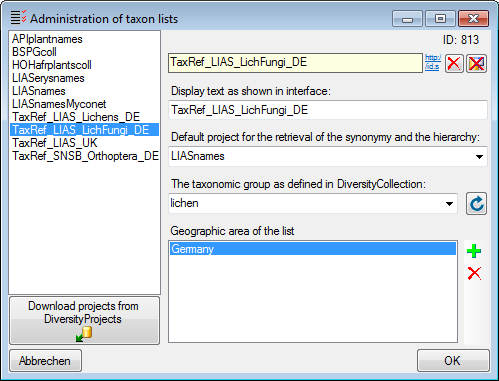
For the detailed documentation of the
Taxon lists please use DiversityProjects. To load projects into
the list, click on the Download projects from DiversityProjects
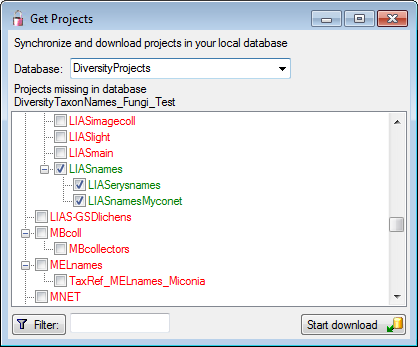
 button (see above). A window as shown below will open. If several Databases
for DiversityProjects are available on your server you have to choose one of
these. The projects available in the DiversityProjects database will be listed
as shown below where those already present are checked and green, while missing
projects are red. Check those projects you need as lists and click the Start
download
button.
button (see above). A window as shown below will open. If several Databases
for DiversityProjects are available on your server you have to choose one of
these. The projects available in the DiversityProjects database will be listed
as shown below where those already present are checked and green, while missing
projects are red. Check those projects you need as lists and click the Start
download
button.
For access to the related data choose the tab Taxon lists (see below).
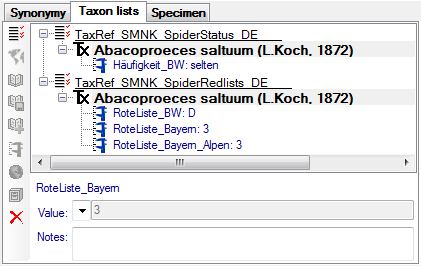
To enter a new list, click on the  button.
This will open a window where you can choose from the available taxon
lists. Choose the list in which you want to include your name and click OK.
button.
This will open a window where you can choose from the available taxon
lists. Choose the list in which you want to include your name and click OK.
The geographical area can be definded for a single
name (via
 Distribution) or for the whole taxon list. The entries refer to the World geographical scheme
for recoding plant distributions.
To enter the geographic area for the whole list, click
on the
Distribution) or for the whole taxon list. The entries refer to the World geographical scheme
for recoding plant distributions.
To enter the geographic area for the whole list, click
on the
 button. A form will open where you can choose geographical places from the
module DiversityGazetteer. To open the link to the module, click on the
button. A form will open where you can choose geographical places from the
module DiversityGazetteer. To open the link to the module, click on the
 button and search for the region as described in the chapter Module related
entry.
button and search for the region as described in the chapter Module related
entry.
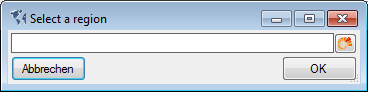
If you need a certain region not provided in the list, just type the name of the region and click OK. The new region will be listed directly underneath the list (see below).

For every name in a taxon list, you can enter the
references where the informations for the list are derived from. To add a
reference, select the list for which you want to add a reference and click on
the
 button. The entry for the reference
will appear underneath the taxon as shown below. To edit this entry, select it
in the hierarchy and use the contols underneath the tree. You may link the
reference to an external source like DiversityReferences or one of the provided
webservices.
button. The entry for the reference
will appear underneath the taxon as shown below. To edit this entry, select it
in the hierarchy and use the contols underneath the tree. You may link the
reference to an external source like DiversityReferences or one of the provided
webservices.
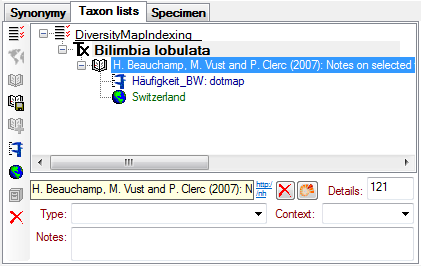
If you want to transfer the informations of a
reference together with depending
 analysis and
distribution entries to another name,
select the reference in the tree und click on the
analysis and
distribution entries to another name,
select the reference in the tree und click on the
 button. As a result you can use
the
button. As a result you can use
the
 button to insert these informations
at a different place.
button to insert these informations
at a different place.
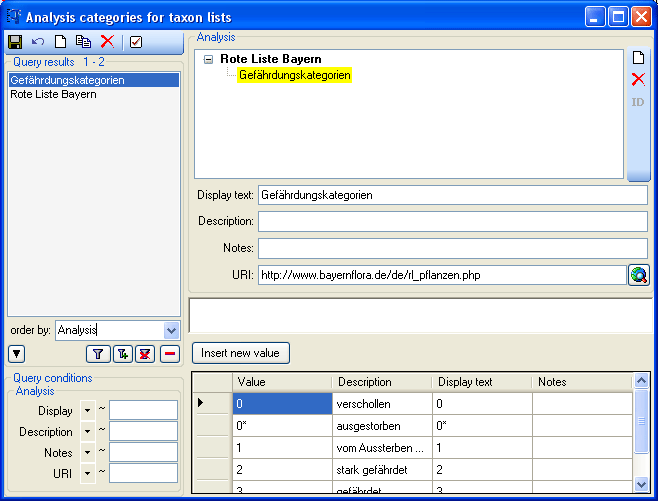
To edit the analysis used within the database, choose Administration - Analysis categories ... from the menu. A window will open, where you can define new types of analysis or edit existing ones. The analysis tyes may be organized within hierarchies as shown below. For categorized analysis you can define value lists, from which the user can choose.
For a name within a list, you can enter an analysis either directly for the name or a reference linked to this name. Select the name or the reference in the tree and click on the button to enter a new analysis. Depending on the definition of the analysis To edit the analysis used within the database, select it in the tree and use the area below the the tree. Depending on the definition of the analysis (see above) the values are either typed or selected from a list.
To prevent a analysis from publication
e.g. via the cache database in DiversityCollection, enter a
withholding reason in the corresponding field
 . The sorting in an interface is
set via the sorting. To check the current sorting click on the
. The sorting in an interface is
set via the sorting. To check the current sorting click on the
 button.
For every entry in a taxon list, you can
document the
distribution of a taxon (see below). This information may be linked to the
taxon or a reference (see below).
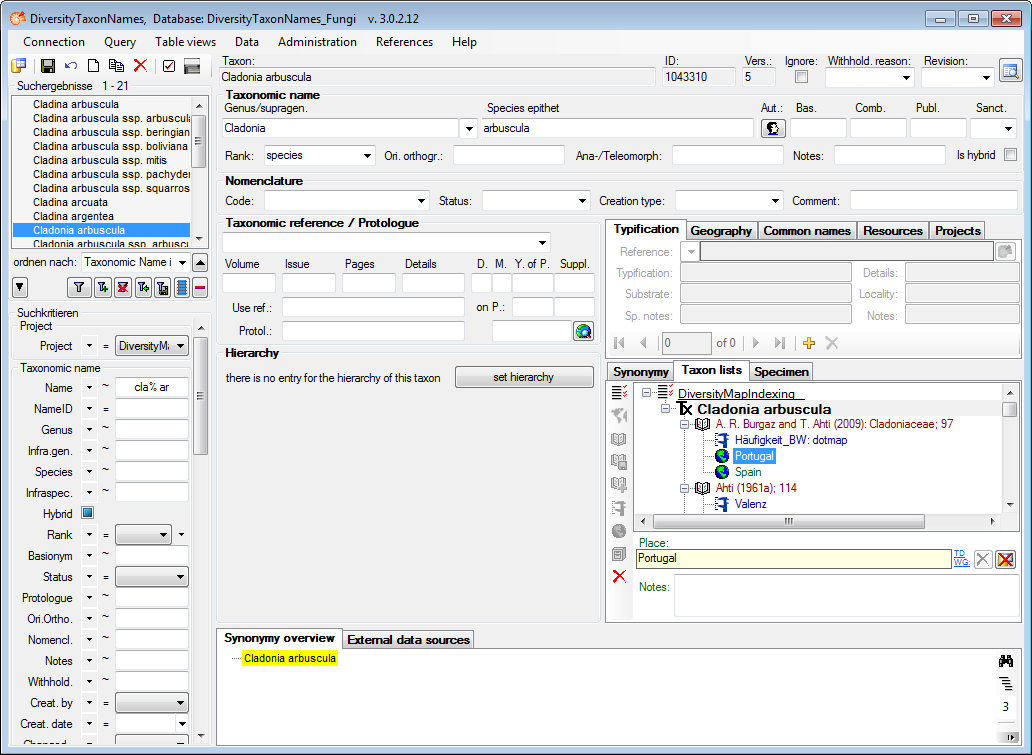
Choose either the list taxon or the reference in
the tree and click on the button to insert a new
distribution. The entries refer to the World geographical scheme
for recoding plant distributions. A form will open where you can choose
geographical places from the module DiversityGazetteer. To open the link to the
module, click on the
button and search for the region as described in the chapter Module related
entry.
If you need a certain region not provided in the list, just type the name of the region and click OK.
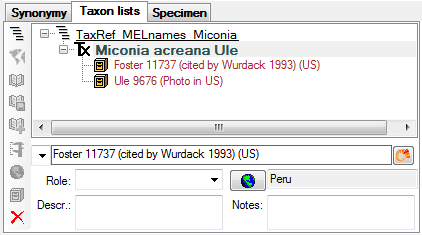
For every entry in a taxon list, you can document
the collection specimen linked to this taxonomic name (see below). The entries may be linked to the module DiversityCollection.
To enter a distribution for the specimen, use the
button. A window will open (see above), where
you can select a geographic region as defined in the World geographical scheme
for recoding plant distributions.
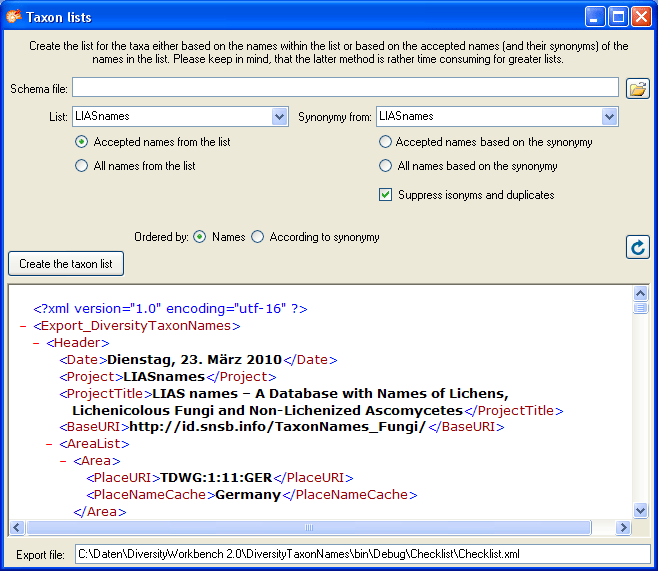
To export the taxon lists resp. checklist, choose
Data -> Export taxon list ... from the menu. A window as shown below
will open. By default the data will be exported as XML (see below). Choose a schema file of your choice to convert the XML-output in a HTML document. You have several
options
for the export in regard of the names as shown in the window below. The
export may be based
on the names in the list and can be restricted to the accepted names among these
(see below - left). In the second option (see below - right), the accepted names
for all names in the list will be selected and the taxon list will contain only
these names and optionally their synonyms. Regarding the synonyms,
if you want to suppress the export of isonyms and duplicates, use the according
checkbox. For long lists, the second method will
be rather time consuming, as the synonymy must be checked for every single name.
The synonymy for the exort may be derived from any available project. The path of
the exported file (either *.xml or *.html) is shown in the field Export file at
the bottom of the form. The names
in the list may be sorted according to the names or the synonymy where synonyms
will be inserted after their assigned accepted names. The format the XML-export
with a schema file of your choice, choose the schema file and click on the
 button.
The tables involved in the storage for the taxon list are documented in the taxon list tables part.