Subsections of Download
Diversity exsiccatae
Installation
Resources
To run a module of the Diversity Workbench framework, you need access to a database and an installation of the respective client.
The following instructions explain how to install the DiversityCollection client. All other modules are installed in the same way.
If you do not yet have an account for your institutional DWB platform, please contact your institution’s DWB administrator. If you wish to set up and use your own personal, institutional, domain-specific, or research-group-internal database environment, see Installation
of a database for more information.
A German-language video demonstrates the installation using the DC client as an example. Please note that the initial steps in the video are outdated, as the downloads are now available via this manual, as described below.  .
Download
All DiversityWorkbench modules can be downloaded free of charge.
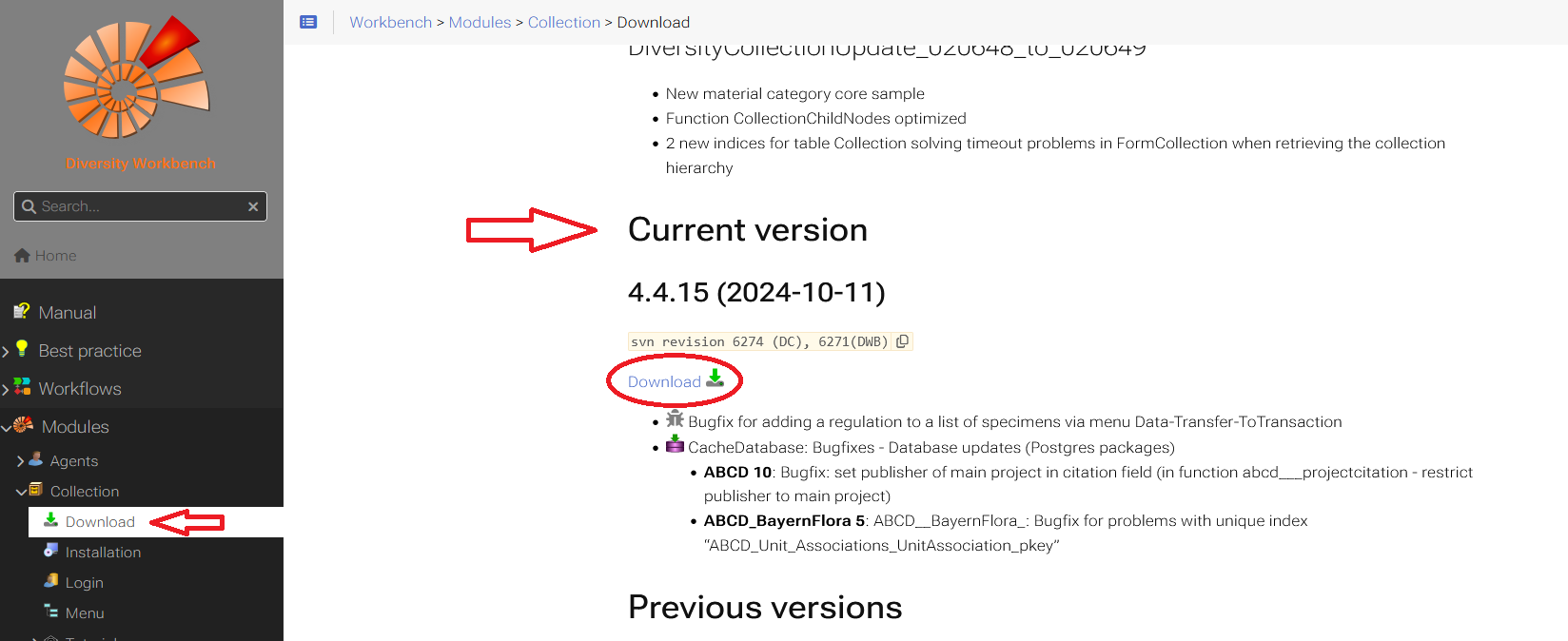
Within each module in the manual, you will find a Download menu item. There, you can download the latest version in the Current version section.
Installation of the client
The client is currently based on the .Net framework version 4.8 from Microsoft. If not already present, the software will prompt you to install it.
After downloading the client, unzip the .zip folder. The extracted setup folder contains two files: an .msi and a .bat file.
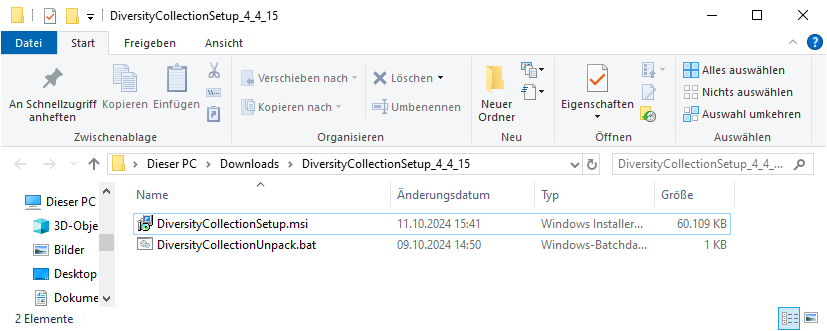
If you want to install the client on your computer, start the installation by double-clicking the .msi file.
If necessary, you can adjust the installation location in the next step.
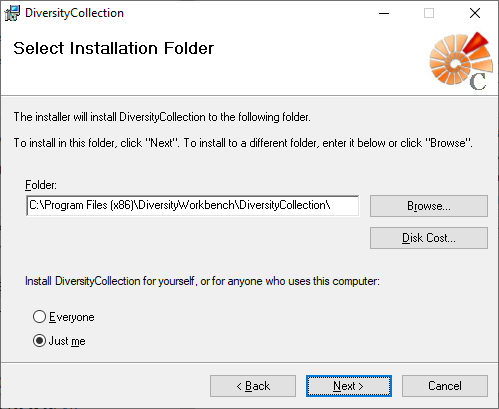
Once the installation is complete, the software will be added to the program menu (see below) and a shortcut will be created on the desktop.
In the next chapter Database Login the login process is explained.
Run program without installer
There are several reasons why you might prefer to run
DiversityCollection without installation. E.g. if you lack
administrative permissions on your computer or if you want to use
several different versions of DiversityCollection in parallel.
Therefore, the downloaded .zip file contains a .bat file. With this .bat file, a folder DiversityCollection_x_x_x is created on your desktop containing all relevant files to run the client DiversityCollection.
You have to unzip the downloaded .zip file to a local folder. The unzipped folder contains the .msi file and the .bat file. Within this unzipped! folder start the .bat file with a
double-click. You might get a security warning, as shown in the section
Windows protection warning.
The batch file unpacks the program files to a folder on your desktop named DiversityCollection_x_x_x,
where "x_x_x" stands for the program version.
To start the DiversityCollection program, go to the folder and double-click on the file  DiversityCollection.exe.
The login process is explained in the next chapter Database Login.
The software will be placed in the programs directory, as shown below.
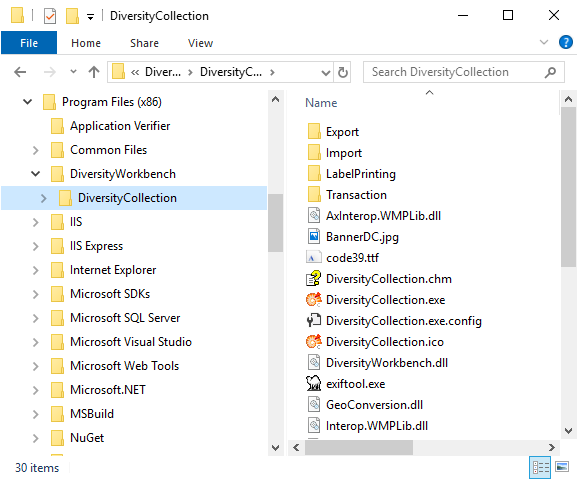
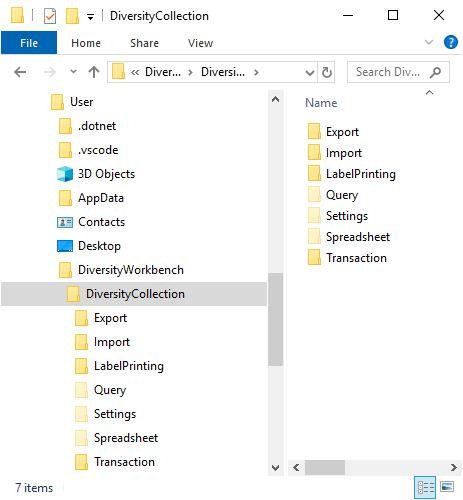
Additionally, a folder is created in the user directory. This folder contains files and templates, for example, for label printing. It also contains hidden folders, such as Query. User input is saved there so that it can be loaded again the next time the program is started.
Windows protection warning
If you receive the following warning from Windows

please click on Weitere Informationen. A button Trotzdem ausführen will appear.

Please click on Trotzdem ausführen to install the software.

Subsections of Editing
Diversity exsiccatae
Editors

To add a new editor to the list click on the  Button. To delete an selected editor from the list click on
the
 delete button.
To open the module DiversityAgents to get more infomation about an
editor, click on the Button.
Diversity exsiccatae
Evaluation
In the evaluation part, further informations on the exsiccatal series
are entered like the taxonomic coverage or the purpose of the exsiccatal
series.


The geographcal regions covered in the exsiccatal series are in the
corresponding area. To insert a new region, click on
the Button and select a region offered by the module
DiversityGazetteer. To delete a region, select it in the list and click
on the button.

Diversity exsiccatae
Examples
The list of the examples is shown with their images in the list. If an
example misses an image, this will be indicated with an
 entry in the list.

To add a new example to the list click on the
Button. An window will open, where you can search for an image file. If
you want to create an example without an image, just click OK without
selecting any image. If you later want to add an image to you example
click on the  button and select an image
file. A form will open, where you can search for an image.

Click OK to take the image in your example.
To delete an selected example from the list click on the
Button. If you want to link to a collection
specimen from the module DiversityCollection , click on
the Button.To zoom a sector of the image, just drag
the mouse over the image. A red square will indicate the zoomed area. To
adapt the size of the image to the available space in the form click on
the  button. To change the orientation of the
image use the appropriate buttons (
 flip horizontal,
 flip
vertical,
 rotate
right,
 rotate left).
Only the file names are stored in the database. The directory for the
file must be set in the menu under Adminstraton - Image folder … .
Diversity exsiccatae
Publication span
Details about the Publication span are entered in the area Publication
span. The span of the numbers will be shown in the
sequence overview.

Diversity exsiccatae
References

To add a new reference to the list click on the
Button. To delete an selected reference from the list click on
the delete button.
To open the module DiversityReferences to get more infomation about an
reference, click on the Button.
Diversity exsiccatae
Sequence
Details about the sequence are entered in the area “Title or author /
editor changes”.

To enter a preceding exsiccatal series, click on
the button. This will open a form where you can search for an exsiccatal series. If you want to remove the relation
to a preceding exsiccatal series, click on the button. To change to a different exsiccatal series shown in the hierarchy, select it and click on the button.
If there happens to be a loop or a selfreference in the sequence the
client will show you this by highlighting the hierarchy as shown below.

The button will be activated. You can
change to the exsiccatal series that should be to topmost one in a
sequence by using the button. Than click the button to remove the reference to the
predecessor of this series.
Diversity exsiccatae
Table editors
For the data selected in the main window the table editors offer a
direct access to the tables of the database. The menu Data -
 Table editors provide an editor for
 Exsiccata…,
 Editor… and
 Example…
A window with the content of the table will open. Columns with a gray
background can not be edited here. Columns with a light gray background
are linked to the contents of lookup tables that can be changed
according to the contents of these tables. Columns containing an ID
related to a lookuptable show the related value from the lookup table.
To see the ID behind, click on the ID button.
Select  Set timeout … from the menu to
increase the default timeout from 5 seconds to a higher value, e.g. for
greater amounts of data.
Editing
You can either edit the contents of the table directly or perform
changes to any number of marked fields. To mark a whole column use
the  button. Once you have selected the
contents to change, select one of the modes of change that appear in the
upper left corner. The modes of change are:
 Insert: Insert the given value at the beginning
of the content
 Append: Append the given value at the end of
the content
 Replace: Replace a string in the content with
the given value
 Clear: Remove the content
After selecting the change mode, enter the text in the field where
necessary and click on the corresponding button to perform the changes
Filtering
To filter the content of the table, click in the column that should be
used for filtering. Then choose the mode of comparision:
- = : The content must be exactly like the given value
- ~ : The content must contain the given value
- ≠ : The content must be different to the given value
If you want the filtering to be case sensitive, choose the
 a<>A option. After all parameters are set,
click on the
 filter button. To undo the filtering, click
on the
 button. This will reset the data to the
last saved version. If you want your changes to be saved, click the
 button before you reset the filtering. If you close
the window all changes so far will be saved automatically. So if you do
not want to save your changes, click on the
button before closing the window.
Export
To export the data as a tab separated text file, click on the
 button. The file will be automatically saved in
the client-folder.
Log data
To see the log data of the table, you can click on the
 button. The content of the log table can not be
changed, but is read only.
Diversity exsiccatae
Database login
To use a module from the DiversityWorkbench framework, such as “DiversityCollection”, you need access to a database. If you do not yet have an account for your institutional DWB platform, please contact your institution’s DWB administrator. If you wish to set up and use your own personal, institutional, domain-specific, or research-group-internal database environment, you will find instructions here.
Connect to a database
-
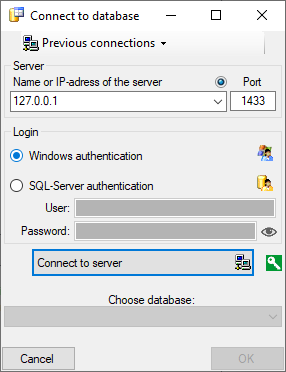
At the top left of the main window, go to Connection → Database … or click the Connect button  . A dialog form “Connect to database” opens.
-
In the “Server” section, add the server name or the IP address and the port number.
-
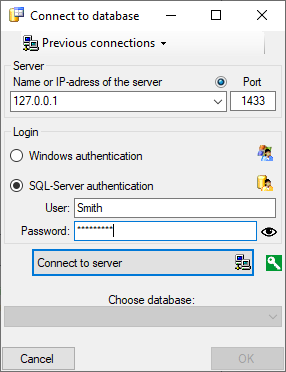
In the “Login” section, choose an option:
-
Click on the Connect to server button.
-
If the connection information is valid, you can Choose a database from the drop-down list at the bottom.
-
Choose the database you want to work with and click OK.
-
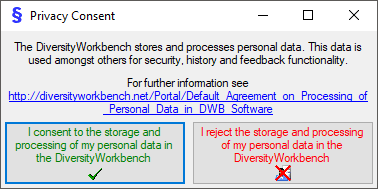
If you access a database for the first time, you will be asked to consent
to the storage and processing of your personal data (see below)
according to the General Data Protection Regulation.
Without your consent the access is not possible.
Important
The standard port number for SQL-Server is 1433 and is set as
default. If the database server is configured to use a different port, you must change the port number in the port input field.
Previous connection
If you have been connected to a database in previous sessions, you can select one of these connections:
- At the top of the “Connect to database” dialog form, click on the Previous connections button
 .
- Select a connection from the drop-down list. This inserts the name or IP address and the port in the corresponding input fields in the server section.
- To log into a database, proceed as described above starting from step 3.
Testing a connection
To test the connection, you can send a ping by clicking the button  .
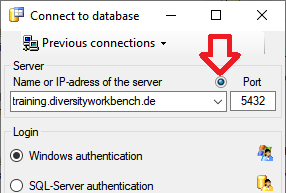
As a first step the IP resp. Server will be tested. If the connection to the server is successful, the port will be tested as a second step.
Switch between databases
- At the top left, go to Connection → Database … or click on the Connect button .
- If you are already connected to a server, you can select a database from the drop-down list Choose database at the bottom of the dialog box.
Reset and Cancel
Reset:
If you are connected to a server, there is a Reset button below the “Login” section of the “Connect to database” dialogue box.
Click the Reset button to change your server or login settings.
Cancel:
If you do not want to change anything, click on Cancel.
Encryption
By default, the connection to the databases is encrypted.
The icon  next to the Connect to server button indicates an encrypted connection.
By clicking on the icon, you can switch to an unencrypted connection, indicated by the icon
 .
Videos
- Login to a database: .
Diversity exsiccatae
Query
Once you are connected to your database, you can search across all data. A wide range of search options is available.
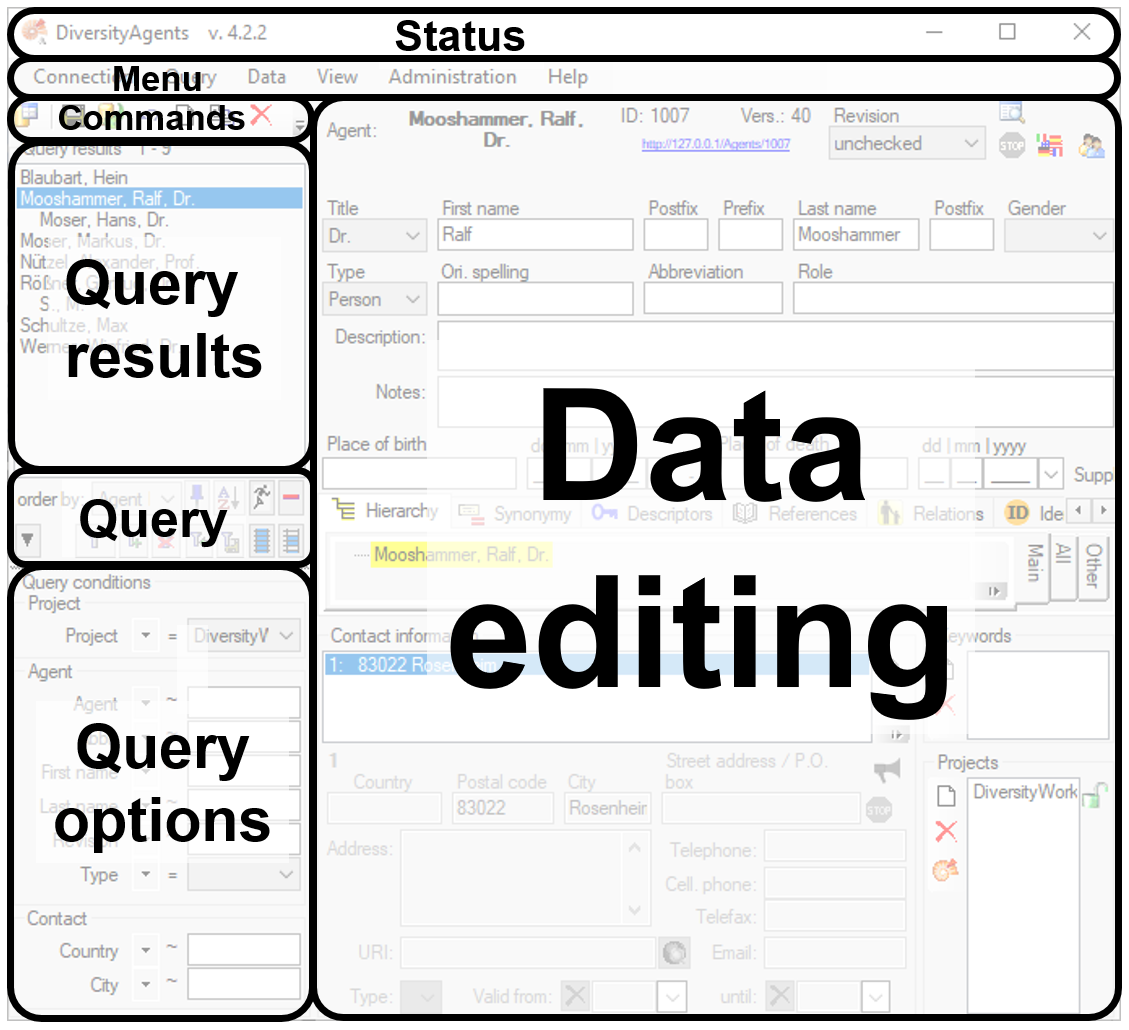
All functions related to querying can be found on the left-hand side of the main window.
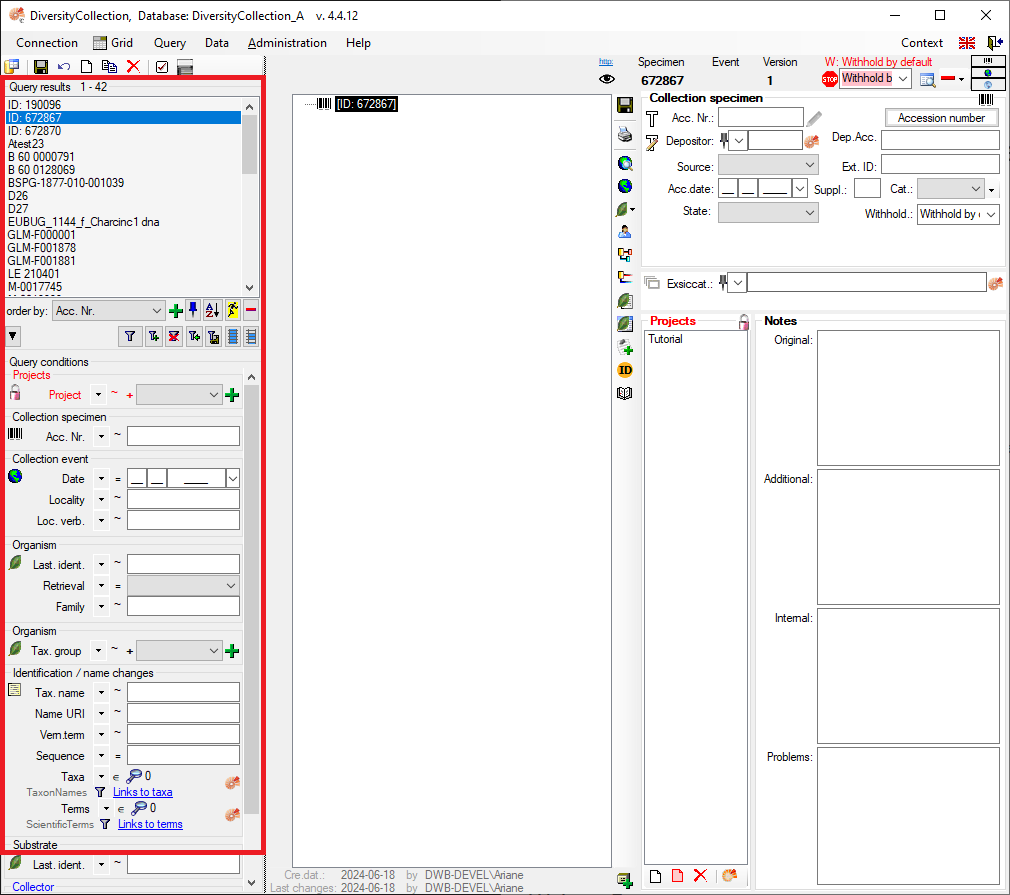
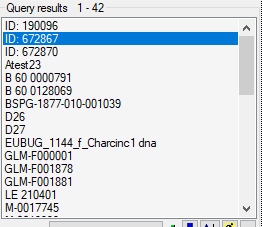
The upper part of the query section contains the list of all results, titled “Query Results”.
Below this, you will find a section containing all the buttons relevant to the search.

Below the query buttons, you will find the “Query Conditions” section. This is where you can enter all available search criteria.
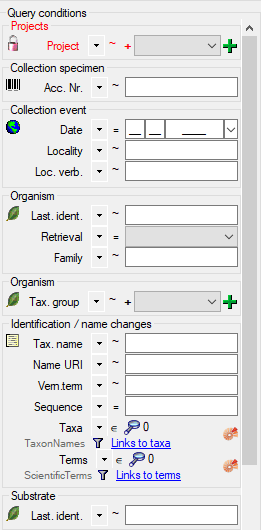
Display the Entire Dataset
To display the entire dataset, start a search without specifying any criteria in the “Query conditions” section:
-
In the middle of the query section on the left-hand side of the main window, click on the “Filter” button.
-
A list of the results will be displayed in the “Query Results” section. The number of results is shown above the list, next to the “Query Results” label.
Filter a Search
Below the query buttons, at the bottom of the query section, you will find the “Query Conditions”.
- Enter the filter criteria for your search. For example, you can select a project from the dropdown list.
- You can combine as many criteria as needed to narrow down your results.
- Start the query by clicking the “Filter” button .
- A list of results will be displayed in the “Query Results” section. The number of results is shown above the list, next to the “Query Results” label. If no results match the query, the list remains empty and the label “No match” is displayed.
Edit and Customise Query Conditions
You can choose which query conditions are displayed in the main window, and you can change this at any time.
- At the top left, above the query results list, click the “Checkbox” button
 .
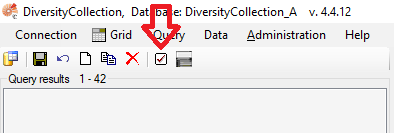
- Select any query conditions you want to use for your searches by selecting the respective checkboxes in the treeview.
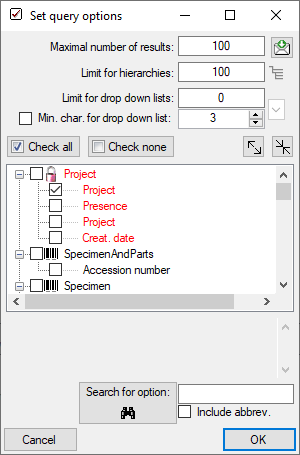
Customise the Interface
Hide/Show the Entire Query Section
In the main window, go to the menu item Query → Show Query.
Hide the “Query Conditions” Section
On the left side of the “Query Buttons”, in the middle of the query section, click the “Arrow” button  .
Switch Between Vertical and Horizontal Arrangement
You can change the layout of the query elements from vertical to horizontal and vice versa. To do this, click the button located below the main menu bar:
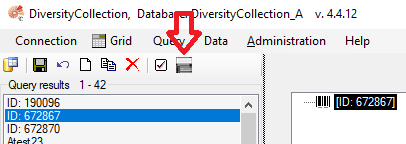
Edit the Result List
Add Results to the Existing List
You can add new results, based on different query conditions, to your current result list.
- Enter the new filter criteria for your additional search.
- Start the query and add the results to the existing list by clicking the button
 .
- The new results will be appended to the existing list.
Remove Result Items from the List
You can remove entries from your current result list:
- Select the entries you want to remove.
- Click the button
 .
Important This does not delete the data from the database. It only affects the current display in the results list.
Many Result Columns
The option to display a result list with many columns is described in the
chapter Many Columns.
Query Conditions
Remember the Last Query
By default, the values you entered for the previous query will be remembered. Your query criteria will be pre-filled when the programme starts. To change this behaviour, click the Pin button
 .
Query Annotation
The query for annotations differs from a standard query (see below).
In addition, you can specify the type of annotation (Annotation
 , Problem
 , Reference
 ) and the linked table (see
Annotation).

Duplicates
Certain query condition fields allow you to add up to three duplicates of the same condition. For adding a ‘duplicate’ search criteria, click the green “Plus” button  . Remove a ‘duplicate’ search condition with a click on the red “Minus” button . The restrictions can be combined with AND
+ and OR |. To switch between these modes, click the resp. + or | icon.
Query Modules
In the “Query Conditions” section, some values may be linked to other modules. For example, within the “Identification” group, the fields “Taxa” and “Terms” are linked to the “DiversityTaxonNames” and “DiversityScientificTerms” modules, respectively. You can also add “linked” values to your query condition.
- Select the operator that determines how the entries are used in the search. An explanation of all available operators can be found in the table below.
- To connect to the linked module, click the “Ammonite” button located to the right of the relevant query field.
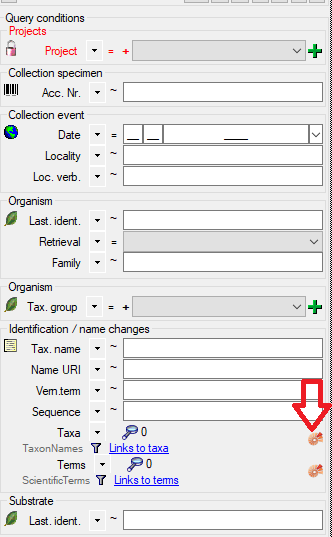
- A query window for the linked module will open.
- Search for values within the linked module and click “Ok” to confirm your section.
- If you want to view a list of the selected items, click the Magnifying Glass button
 .
Info: There is also a detailed available, which explains all possible operators and how to use them.
| Operator |
Meaning |
Example |
| ∈ |
Search for entries with a list |
Rosa | Rosa caninia \ |
| ∉ |
Search for entries not within a list |
Rosa | Rosa caninia | ... |
+H  |
search for entry including lower hierarchy |
Picea | Picea abies | ... |
+S  |
search for entry including synonyms |
Picea abies | Pinus abies | ... |
+HS  |
search for entry including lower hierarchy and synonyms |
Picea | Picea abies | Pinus abies | ... |
|
Change filter mode between link and text |
http://tnt.diversityworkbench.de/TaxonNames_Plants/4269 <> Picea abies L. |
Videos
- Introduction on how to use the query conditions:
- How to use special query conditions:
- Tutorial on how to query modules:
- Tutorial on how to save a query:
.
Wildcards in SQL
There are 4 different possibilities for wildcards in SQL:
| Operator |
Description |
Example |
Result |
| % |
any string consisting of no, one or many characters |
Pinus % |
will find anything like Pinus, Pinus sylvestris, Pinus strobus etc. |
| * |
same effect as % (see above) |
|
|
| _ |
a single character |
Pinus s_lvestris |
will find Pinus sylvestris and Pinus silvestris etc. |
| […] |
any character out of a given range like [abcde] or [a-e] |
Pinus s[iy]lvestris |
will find Pinus sylvestris and Pinus silvestris |
| [^…] |
any character not in a given range like [^abcde] or [^a-e] |
Pinus s[^i]lvestris |
will find Pinus sylvestris but not Pinus silvestris |
Many colunns
The option to include several columns in the result list is only
available for optimized queries  . To display
several columns in the result list, click on the
button next to the order by column (see below). A window will open where
you can select the next column for the sorting. Underneath the order by
column the second column for the sorting will be added. To remove this
sorting column you can click on the button. By
default the width for the columns is set to 10. You can change this
according to content. To set the width to the maximal length of the
current content, click on the
 button.
To change the sorting of the added order column click on the
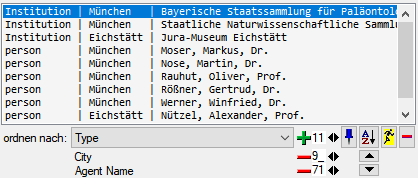
button. The colums are separated via "
| " as shown in the image below.
For an introduction see the videos:
- Mehrspaltige Suche:
- Sortierung:
Subsections of Internals
Diversity exsiccatae
Database
Organisation of the data
The main data are kept in the table Exsiccata. Editors are listed in the
table ExsiccataEditor, examples in the table ExsiccataExample and
geographicla regions in the table ExsiccataRegion.

Descriptions of tables and columns
Diversity Exsiccatae
TABLES, VIEWS, FUNCTIONS, PROCEDURES, ROLES
The following objects are not included:
- Logging tables
- Enumeration tables
- System objects
- Objects marked as obsolete
- Previous versions of objects
TABLES
Table Exsiccata
An Exsiccata is a series of specimen issued in a publication like form.
| Column |
Data type |
Description |
Nullable |
Relation |
| ExsiccataID |
int |
ID of the exsiccata (primary key) |
NO |
- |
| Version |
int |
The version of the datasetDefault value: (1) |
YES |
- |
| ExsAbbreviation |
nvarchar (255) |
Std. abbreviation (authors/editors, std. abbrev. of title) |
NO |
- |
| ExsTitle |
nvarchar (255) |
Exact title (create a new entry if title spelling changed considerably, link entries using PrecededBy/SupersededBy) |
NO |
- |
| EditingInstitution |
nvarchar (255) |
Issuing/Editing institution (If no editors are known, at least this must be entered) |
YES |
- |
| EditingLocationOri |
nvarchar (255) |
Original spelling of city/country where the exsiccata has been issued |
YES |
- |
| EditingLocationCurrent |
nvarchar (255) |
Current spelling of city/country where the exsiccata has been issued |
YES |
- |
| EditingLocationEnglish |
nvarchar (255) |
Current English spelling of city/country where the exsiccata has been issued |
YES |
- |
| PrecededBy |
int |
An earlier exsiccata publication appeared under different title or editors (Reference to entry in this database) |
YES |
Refers to table Exsiccata |
| ExsNumberFirst |
nvarchar (20) |
If known: number of the first exsiccata that was issued by the current editors under the current title |
YES |
- |
| ExsNumberLast |
nvarchar (20) |
If known: number of the last exssiccata that was issued by the current editors under the current title |
YES |
- |
| ExsPublYearFirst |
nvarchar (20) |
If known: publication year of the first exsiccata that was issued by the current editors under the current title |
YES |
- |
| ExsPublYearLast |
nvarchar (80) |
If known: publication year of the last exsiccata that was issued by the current editors under the current title |
YES |
- |
| Notes |
nvarchar (2000) |
Annotation, please add your name and a date for each annotation |
YES |
- |
| Problems |
nvarchar (MAX) |
Please explain here if you have a problem, this field will later be checked |
YES |
- |
| Fungi |
smallint |
check if exsiccata covers fungal species (default) 1 or -1= Yes it does, 0=No it does not, Null/empty = don’t know |
YES |
- |
| Algae |
smallint |
check if exsiccata covers Algae/Cyanophyta |
YES |
- |
| Bryophytes |
smallint |
check if exsiccata covers mosses/bryophytes |
YES |
- |
| Pteridophytes |
smallint |
check if exsiccata covers pteridophytes |
YES |
- |
| HigherPlants |
smallint |
check if exsiccata covers higher plants |
YES |
- |
| Zoocecidia |
smallint |
check if exsiccata covers galls on plants caused by animals |
YES |
- |
| Educational |
smallint |
Educational purpose of the exsiccata, 1 or -1= Yes, 0=No, Null/empty = don’t know |
YES |
- |
| Scientific |
smallint |
Scientific purpose of the exsiccata, 1 or -1= Yes, 0=No, Null/empty = don’t know |
YES |
- |
| GroupSpecific |
smallint |
Exsiccata is restricted to a taxonomic entity or ecologically delimited group, e.g. family or lichens on leaves, 1 or -1= Yes, 0=No, Null/empty = don’t know |
YES |
- |
| LogUpdatedWhen |
datetime |
The last time when this dataset was updatedDefault value: getdate() |
YES |
- |
| LogUpdatedBy |
nvarchar (50) |
ID of the person to update this data set lastDefault value: [dbo].UserID |
YES |
- |
| Bacteria |
smallint |
check if exsiccata covers pteridophytes |
YES |
- |
trgInsExsiccata
set last changes in ProjectProxy
Table ExsiccataEditor
The editors that published an exsiccatal series.
| Column |
Data type |
Description |
Nullable |
Relation |
| ExsiccataID |
int |
Reference to ExsiccataID in Exsiccata (foreign Key) |
NO |
Refers to table Exsiccata |
| Name |
nvarchar (255) |
Enter as last name, comma, first names, use blanks after comma and period |
NO |
- |
| EditorAgentURI |
varchar (255) |
The URI of the Agent, e.g. as stored within the module DiversityAgents |
YES |
- |
| Sequence |
datetime |
(automatically set during entry, to maintain the sequence of editors)Default value: getdate() |
NO |
- |
| LogUpdatedWhen |
datetime |
The last time when this dataset was updatedDefault value: getdate() |
YES |
- |
| LogUpdatedBy |
nvarchar (50) |
ID of the person to update this data set lastDefault value: [dbo].UserID |
YES |
- |
Depending on:
trgInsExsiccataEditor
setting the version in the main table
Table ExsiccataExamples
Examples for an exsiccatal series.
| Column |
Data type |
Description |
Nullable |
Relation |
| ExsiccataID |
int |
Reference to ExsiccataID in Exsiccata (foreign Key) |
NO |
Refers to table Exsiccata |
| ExampleID |
int |
A number that defines the sequence in which the examples have been added. |
NO |
- |
| ImageFile |
nvarchar (255) |
Example: Path and file name for an image of the label of the exsiccata example issue |
YES |
- |
| ResourceURI |
varchar (255) |
Optionally: The URI under which the image is recoded in e.g. DiversityResources. |
YES |
- |
| PublishedName |
nvarchar (255) |
Example: Published taxon name of example issue |
YES |
- |
| CollectionName |
nvarchar (255) |
Example: Name or Acronym of collection where the example issue is available. Default is M for München |
YES |
- |
| Number |
nvarchar (50) |
Example: Number of example issue within the exsiccata series |
YES |
- |
| StorageLocation |
nvarchar (255) |
Example: Deposited under (scientific name indicating a storage location) |
YES |
- |
| CollectionSpecimen |
varchar (255) |
Optionally: The Display text of the example specimen as recorded in e.g. DiversityCollection |
YES |
- |
| CollectionSpecimenURI |
varchar (255) |
Optionally: The URI under which the example specimen is recorded in e.g. DiversityCollection |
YES |
- |
| LogUpdatedWhen |
datetime |
The last time when this dataset was updatedDefault value: getdate() |
YES |
- |
| LogUpdatedBy |
nvarchar (50) |
ID of the person to update this data set lastDefault value: [dbo].UserID |
YES |
- |
Depending on:
trgInsExsiccataExamples
setting the version in the main table
Table ExsiccataReference
The references where an exsiccatal series is listed.
| Column |
Data type |
Description |
Nullable |
Relation |
| ExsiccataID |
int |
Reference to ExsiccataID in Exsiccata (foreign Key) |
NO |
Refers to table Exsiccata |
| ReferenceTitle |
nvarchar (255) |
The title of the publication where information on the exiccata was published. Note this is only a cached value where ReferenceURI is present |
NO |
- |
| ReferenceURI |
varchar (255) |
URI (e.g. LSID) of reference where information on the exsiccata was published, e.g. referring to the module DiversityReferences |
YES |
- |
| LogUpdatedWhen |
datetime |
The last time when this dataset was updatedDefault value: getdate() |
YES |
- |
| LogUpdatedBy |
nvarchar (50) |
ID of the person to update this data set lastDefault value: [dbo].UserID |
YES |
- |
Depending on:
trgInsExsiccataReference
setting the version in the main table
Table ExsiccataRegion
The geographic regions that are covered by the specimen within an exsiccatal series.
| Column |
Data type |
Description |
Nullable |
Relation |
| ExsiccataID |
int |
Reference to ExsiccataID in Exsiccata (foreign Key) |
NO |
Refers to table Exsiccata |
| Region |
nvarchar (50) |
A region where the specimens within the exsiccata were collected. |
NO |
- |
| LogUpdatedWhen |
datetime |
The last time when this dataset was updatedDefault value: getdate() |
YES |
- |
| LogUpdatedBy |
nvarchar (50) |
ID of the person to update this data set lastDefault value: [dbo].UserID |
YES |
- |
Depending on:
trgInsExsiccataRegion
setting the version in the main table
VIEWS
View View_Coverage
Coverage and purpose columns of table Exsiccata
| Column |
Data type |
Description |
Nullable |
| ExsiccataID |
int |
ID of the exsiccata (primary key) |
NO |
| Coverage |
varchar (27) |
Combined coverage columns of table Exsiccata |
NO |
| Purpose |
varchar (11) |
Combined Purpose columns of table Exsiccata |
NO |
Depending on:
View ViewBaseURL
Content of function BaseURL() for linked server
| Column |
Data type |
Description |
Nullable |
| BaseURL |
varchar (255) |
Content of function BaseURL() |
YES |
Depending on:
View ViewDiversityWorkbenchModule
Content of function DiversityWorkbenchModule() for linked server
| Column |
Data type |
Description |
Nullable |
| DiversityWorkbenchModule |
nvarchar (50) |
Content of function DiversityWorkbenchModule() |
YES |
Depending on:
FUNCTIONS
Function BaseURL
Returns the basic URL for the database
DataType: varchar (255)
Function DiversityWorkbenchModule
Name of the module
DataType: nvarchar (50)
Function PrivacyConsentInfo
Provides a link to common information about the DiversityWorkbench
DataType: varchar (900)
Function StableIdentifier
The stable identifier published for a exsiccata
DataType: varchar (500)
| Parameter |
DataType |
Description |
| @ExsiccataID |
int |
ID of the exsiccata |
Depending on:
- Exsiccata
- StableIdentifierBase
Function StableIdentifierBase
DataType: varchar (255)
Function UserID
ID of the User as stored in table UserProxy
DataType: int
Depending on:
Function UserName
Name of the User as stored in table UserProxy
DataType: nvarchar (50)
| Parameter |
DataType |
Description |
| @ID |
varchar (10) |
The ID of the user, Primary key |
Depending on:
Function Version
Version of the database
DataType: nvarchar (8)
Function VersionClient
Minimal version of the client compatible with the database
DataType: nvarchar (11)
PROCEDURES
Procedure procCopyExsiccata
Copy a exsiccata
| Parameter |
DataType |
Description |
| @ExsiccataID |
int |
ID of the new exsiccata |
| @OriginalExsiccataID |
int |
ID of the original exsiccata |
| @ExsTitle |
nvarchar (255) |
Title of the new exsiccata |
| @ExsAbbreviation |
nvarchar (255) |
Abbreviation of the new exsiccata |
Depending on:
- Exsiccata
- ExsiccataEditor
- ExsiccataExamples
- ExsiccataReference
- ExsiccataRegion
Procedure procSetVersionExsiccata
Setting the version of a dataset
| Parameter |
DataType |
Description |
| @ID |
int |
ID of the exsiccata |
Depending on:
- Exsiccata
- ProjectProxy
- UserProxy
ROLES
Role DiversityWorkbenchEditor
Role with permission to edit the data
| Permissions |
SELECT |
INSERT |
UPDATE |
DELETE |
EXECUTE |
Type |
| Exsiccata |
|
• |
• |
|
|
TABLE |
| Exsiccata_log |
|
|
|
|
|
TABLE |
| ExsiccataEditor |
|
• |
• |
• |
|
TABLE |
| ExsiccataEditor_log |
|
|
|
|
|
TABLE |
| ExsiccataExamples |
|
• |
• |
• |
|
TABLE |
| ExsiccataExamples_log |
|
|
|
|
|
TABLE |
| ExsiccataReference |
|
• |
• |
• |
|
TABLE |
| ExsiccataReference_log |
|
|
|
|
|
TABLE |
| ExsiccataRegion |
|
• |
• |
• |
|
TABLE |
| ExsiccataRegion_log |
|
|
|
|
|
TABLE |
| View_Coverage |
|
|
|
|
|
VIEW |
| ViewBaseURL |
|
|
|
|
|
VIEW |
| ViewDiversityWorkbenchModule |
|
|
|
|
|
VIEW |
| BaseURL |
|
|
|
|
|
FUNCTION |
| DiversityWorkbenchModule |
|
|
|
|
|
FUNCTION |
| PrivacyConsentInfo |
|
|
|
|
|
FUNCTION |
| StableIdentifier |
|
|
|
|
|
FUNCTION |
| StableIdentifierBase |
|
|
|
|
|
FUNCTION |
| UserID |
|
|
|
|
|
FUNCTION |
| UserName |
|
|
|
|
|
FUNCTION |
| Version |
|
|
|
|
|
FUNCTION |
| VersionClient |
|
|
|
|
|
FUNCTION |
| procCopyExsiccata |
|
|
|
|
• |
PROCEDURE |
| procSetVersionExsiccata |
|
|
|
|
• |
PROCEDURE |
Role DiversityWorkbenchUser
Role restricted to ReadOnly
| Permissions |
SELECT |
INSERT |
UPDATE |
DELETE |
EXECUTE |
Type |
| Exsiccata |
• |
|
|
|
|
TABLE |
| Exsiccata_log |
|
|
|
|
|
TABLE |
| ExsiccataEditor |
• |
|
|
|
|
TABLE |
| ExsiccataEditor_log |
|
|
|
|
|
TABLE |
| ExsiccataExamples |
• |
|
|
|
|
TABLE |
| ExsiccataExamples_log |
|
|
|
|
|
TABLE |
| ExsiccataReference |
• |
|
|
|
|
TABLE |
| ExsiccataReference_log |
|
|
|
|
|
TABLE |
| ExsiccataRegion |
• |
|
|
|
|
TABLE |
| ExsiccataRegion_log |
|
|
|
|
|
TABLE |
| View_Coverage |
• |
|
|
|
|
VIEW |
| ViewBaseURL |
• |
|
|
|
|
VIEW |
| ViewDiversityWorkbenchModule |
• |
|
|
|
|
VIEW |
| BaseURL |
|
|
|
|
• |
FUNCTION |
| DiversityWorkbenchModule |
|
|
|
|
• |
FUNCTION |
| PrivacyConsentInfo |
|
|
|
|
• |
FUNCTION |
| StableIdentifier |
|
|
|
|
• |
FUNCTION |
| StableIdentifierBase |
|
|
|
|
• |
FUNCTION |
| UserID |
|
|
|
|
• |
FUNCTION |
| UserName |
|
|
|
|
• |
FUNCTION |
| Version |
|
|
|
|
• |
FUNCTION |
| VersionClient |
|
|
|
|
• |
FUNCTION |
| procCopyExsiccata |
|
|
|
|
|
PROCEDURE |
| procSetVersionExsiccata |
|
|
|
|
|
PROCEDURE |
Diversity exsiccatae
Version
For information about the version of the client application choose
Help, Info…
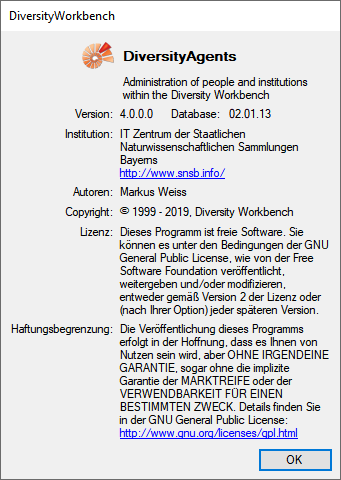
The current version in the example above is 4.0.0 for the client and 2.1.13 for the database
Diversity exsiccatae
License
This manual is copyrighted work licensed under a Creative Commons
License.
All material in this manual is the property of the contributing authors
and fully copyrighted. By choosing this way of publication, the
contributing authors have agreed to license the work under a Creative
Commons License permitting reproduction, distribution, and derivative
works, requiring attribution, notice, and share-alike, and prohibiting
commercial use.
For information about the license of the client software choose
Help, Info…
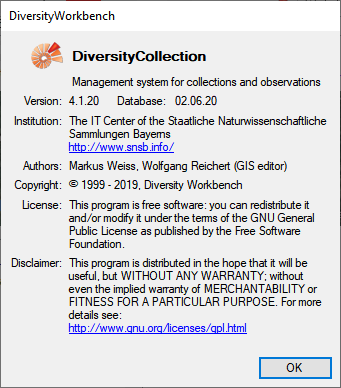
The client software is free software: you can redistribute it and/or
modify it under the terms of the GNU General Public License as published
by the Free Software Foundation.
The client software is distributed in the hope that it will be useful,
but WITHOUT ANY WARRANTY; without even the implied warranty of
MERCHANTABILITY or FITNESS FOR A PARTICULAR PURPOSE. See the GNU
General Public License (GPL) for
more details.
Diversity exsiccatae
Data Access
Access to the data
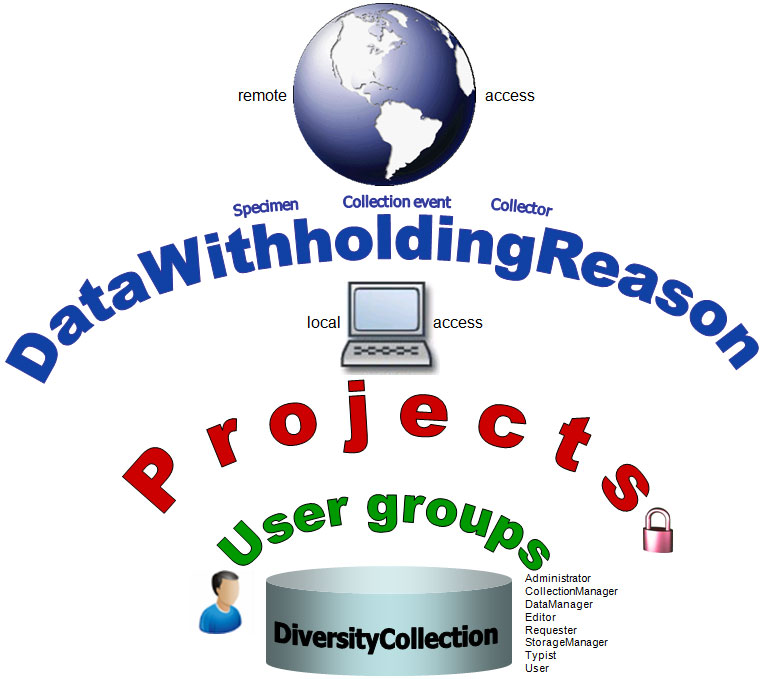
To get access to the data, you have to fulfill several requirements. In
DiversityCollection, you must be a member of one of the user groups. You can only access data, which is listed in the
projects you have access to. For external users data may
be blocked by entries in the data withholding reasons or due to a data embargo.
Subsections of Access
Diversity exsiccatae
Login Administration
Login Administration
To administrate the logins on the database server, their permissions and
roles respectively as well as access to projects choose
Administration - Database - Logins ... from the menu. A window
will open as shown below.
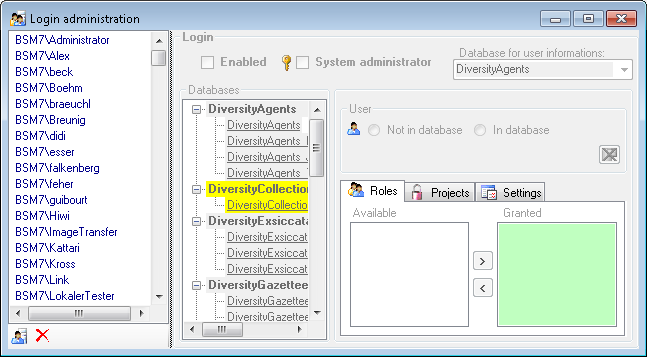
To set the website where information about details concerning the
General Data Protection
Regulation
are shown, click on the  button.
Creation of login
To create a new login click on the  button. A
window will open as shown below. A login that should be able to create
new logins must to be a System administrator.
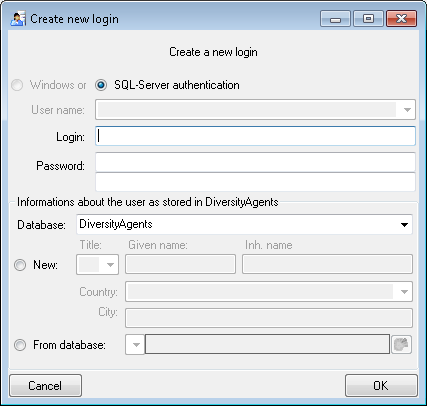
Here you can enter the name of the new login, the password and the
information about the user which will be stored in a DiversityAgents
database. You may either create a new entry in this database or select
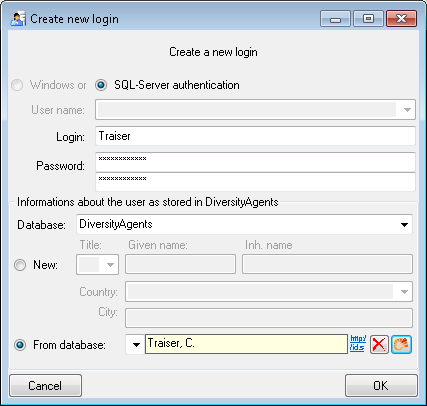
an existing one: Click on the DWB button
to search for a name in the database (see below).
Copy a login
To copy a login including all permissions etc. into a new login, select
the original login in the list and click on the
 button.
Edit a login
To edit the access for a login on the server select the login in the
list. If a login should be disabled , uncheck
the enabled checkbox (see below).

All databases on the server will be listed with the current database
showing a yellow background. The databases where the login has [no
access] will be listed in
[gray] while the databases accessible for a
login are black.
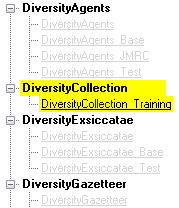
Access of a login to a database
To allow the access to a database select the database from the list and
choose database as shown below.

The state and date of
the privacy consent according to the General Data Protection
Regulation
is shown in dependence of the selected database.
 DiversityExsiccatae.exe a generic editor.

 Editors
 Publication span
 Examples


.svg?class=inlineimg) Bugfix - Using new verion for database update


 Transfer previous settings: Transfer the settings for IP-Address and port of the server, name of the database, login etc. of a previous version of the client to the current version.
 Current acivity on server …: List the processes on the database server.
 Quit: Quit the application and stop all processes started by the application.


 Manual: Opens the online manual.

 Feedback history …: Opens a window for browsing former feedback.
 Edit feedback …: Opens a window for editing the feedbacks sent to the administrator (for admins only).
 Websites: Websites related to DiversityCollection.


 Update database …: Update the database to the current version.


 - To save the changes in a dataset click on the
 - To propagate the changes in a dataset to linked modules click on the
 - To undo the changes a dataset click the
 - To copy a specimen, choose it from the list and click on the button
 - To change the arrangement of the query click on the
 button.