Diversity projects

Download

Current version

4.2.1 (2023-05-28)

Download

  • Additional query column Hierarchy

  • Additional query options for presence of agent, license, reference, resource and descriptor

  • Archive: AgentRole included, Bugfix getting table data, several bugfixes restoring archive

  • Table editors: ProjectSettings included and bugfix for editing data

  • Database updates

    • 02.01.25: ProjectArchive etc.: Missing permissions; ProjectUser: Adding ReadOnly for locking a project; ProjectHierarchyAll for listing projects including hierarchy; View_ProjectHierarchyAll: Content of function ProjectHierarchyAll;

Upcoming version

4.3.0

  • Formatting of licence fixed
  • Insert of year restricted to valid values
  • Links to webresources fixed
  • Feedback
    • creation of additional mail fixed
    • Obsolete menu items removed

Future updates

SQL Server 2016

For this version you need SQL Server 2016 or higher

  • New table JsonCache containing the data related to a project as JSON. In the menu accessible via Administration → Json cache … or in the header click on the Show JsonCache button to see the json cache for the current project.

  • Database updates

    • 02.01.26: Table JsonCache; Views JsonCache_FullAccess and JsonCache_Public; procFillJsonCache; setting Project in function ProjectParents to nvarchar(255); setting Project in function ProjectHierarchy to nvarchar(255); setting Project in function ProjectChildNodes to nvarchar(255);

Previous versions

4.2 (2023-05-08)

  • Bugfixes in Workbench.dll


4.1.59 (2023-03-29)

  • Bugfix remote query
  • Bugfix adding new project
  • Webbrowser replaced with webview in GFBio form
  • Adaption of main form to new size of ProjectDescription
  • Adaption of dataset to new size of ProjectDescription
  • Several bugfixes when setting a project
  • Several bugfixes setting width in many order column query
  • Bugfix transfer previous settings

Database updates

  • 02.01.24: Disabling Regulation in ProjectType_Enum; setting Project.ProjectDescription to nvarchar(MAX); setting ProjectDescription in function ProjectParents to nvarchar(MAX); setting ProjectDescription in function ProjectHierarchy to nvarchar(MAX); setting ProjectDescription in function ProjectChildNodes to nvarchar(MAX);

4.1.58 (2023-03-06)

  • Button for removal of embargo date
  • Bugfix documentation index
  • Bugfix import wizard translation source table
  • Many column query enabled
  • Several new order columns

Database updates

  • 02.01.23: Missing Descriptions; View_ProjectDescriptor and View_ProjectSetting for query; Generic SetUserProjects; ProjectAgentRole_Enum - Data Owner and Source Institution if missing; new function ProjectDataLastChanges; Set types if missing;

4.1.57

  • Icons according to type

Subsections of Download

Diversity projects

Installation

Resources

To run a module of the Diversity Workbench framework, you need access to a database and an installation of the respective client. The following instructions explain how to install the DiversityCollection client. All other modules are installed in the same way.

If you do not yet have an account for your institutional DWB platform, please contact your institution’s DWB administrator. If you wish to set up and use your own personal, institutional, domain-specific, or research-group-internal database environment, see Installation of a database for more information.

A German-language video demonstrates the installation using the DC client as an example. Please note that the initial steps in the video are outdated, as the downloads are now available via this manual, as described below. .

Download

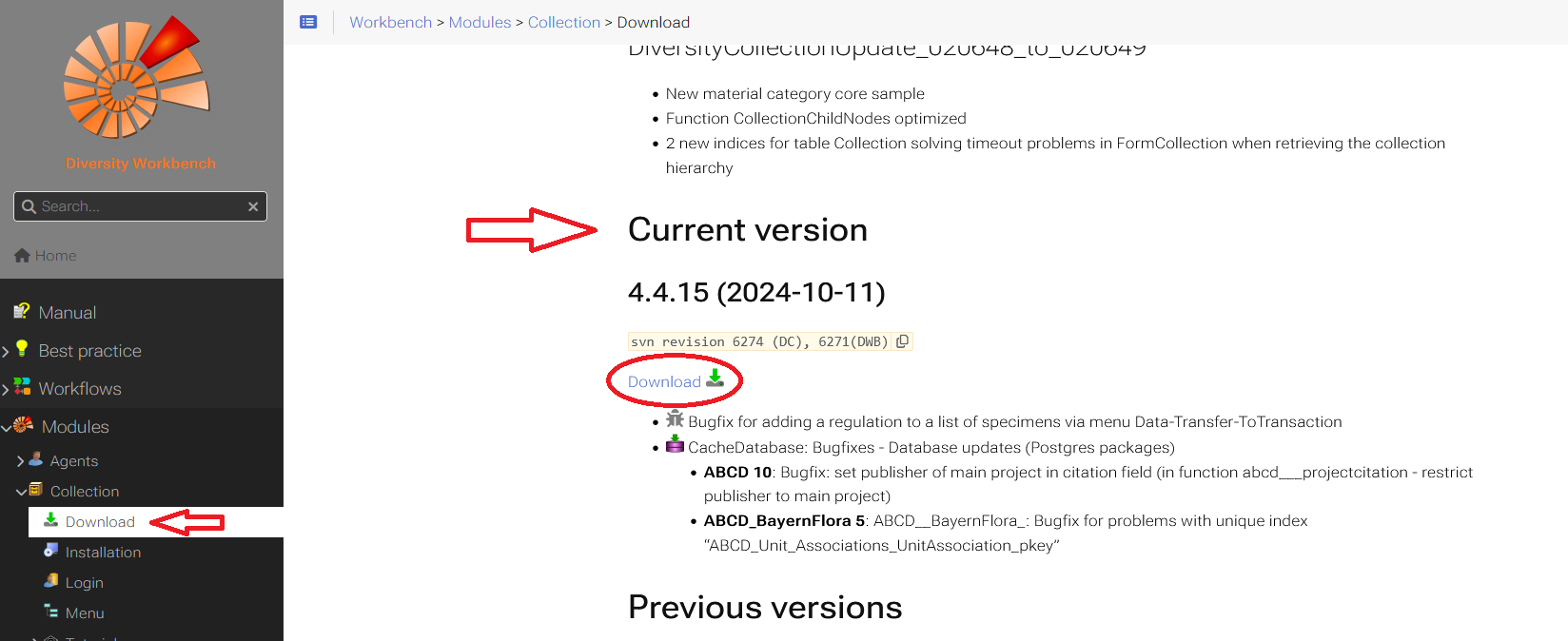
All DiversityWorkbench modules can be downloaded free of charge. Within each module in the manual, you will find a Download menu item. There, you can download the latest version in the Current version section.

Installation of the client

The client is currently based on the .Net framework version 4.8 from Microsoft. If not already present, the software will prompt you to install it.

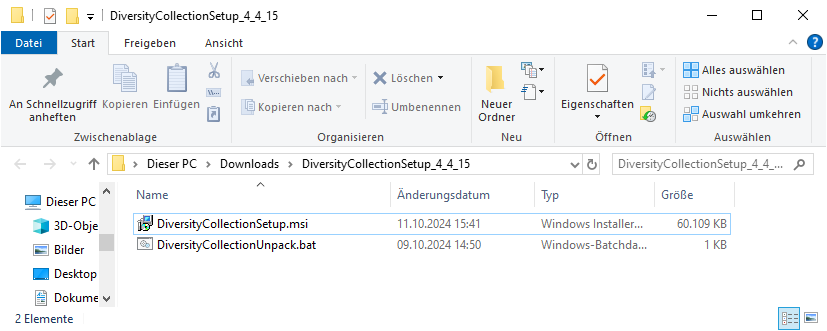
After downloading the client, unzip the .zip folder. The extracted setup folder contains two files: an .msi and a .bat file.

If you want to install the client on your computer, start the installation by double-clicking the .msi file.

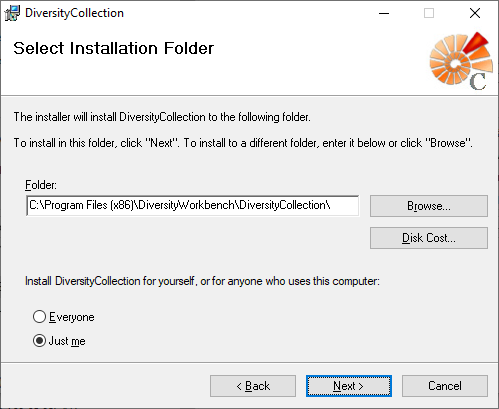
If necessary, you can adjust the installation location in the next step.

Once the installation is complete, the software will be added to the program menu (see below) and a shortcut will be created on the desktop.

In the next chapter Database Login the login process is explained.

Troubleshooting

If you don’t have sufficient permissions on your computer to install anything, you can use the client by following the instructions Run the program without an installer. If you receive a warning from Windows that this computer is protected, follow the instructions Windows protection warning.

Run program without installer

There are several reasons why you might prefer to run DiversityCollection without installation. E.g. if you lack administrative permissions on your computer or if you want to use several different versions of DiversityCollection in parallel.

Therefore, the downloaded .zip file contains a .bat file. With this .bat file, a folder DiversityCollection_x_x_x is created on your desktop containing all relevant files to run the client DiversityCollection.

You have to unzip the downloaded .zip file to a local folder. The unzipped folder contains the .msi file and the .bat file. Within this unzipped! folder start the .bat file with a double-click. You might get a security warning, as shown in the section Windows protection warning.

The batch file unpacks the program files to a folder on your desktop named DiversityCollection_x_x_x, where "x_x_x" stands for the program version.

To start the DiversityCollection program, go to the folder and double-click on the file DiversityCollection.exe.

The login process is explained in the next chapter Database Login.

Technical notes and additional information

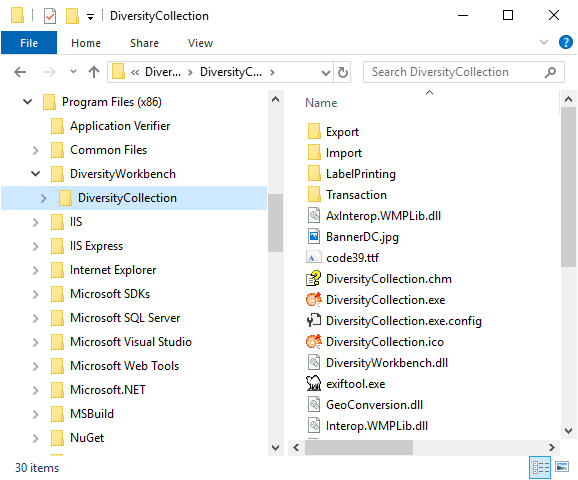
The software will be placed in the programs directory, as shown below.

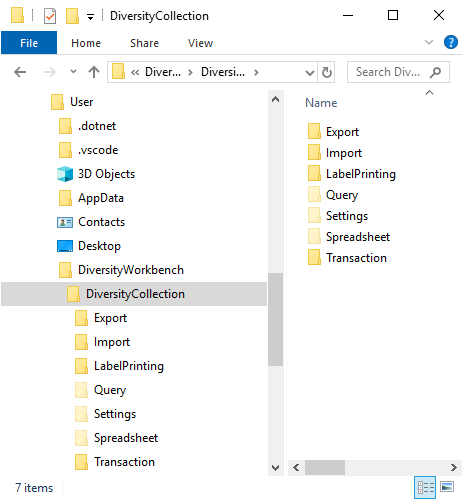
Additionally, a folder is created in the user directory. This folder contains files and templates, for example, for label printing. It also contains hidden folders, such as Query. User input is saved there so that it can be loaded again the next time the program is started.

Windows protection warning

If you receive the following warning from Windows

please click on Weitere Informationen. A button Trotzdem ausführen will appear.

Please click on Trotzdem ausführen to install the software.