Diversity Projects
Import wizard
The import wizard is the general way to import data into a Diversity Workbench module database. It allows the import from tab separated text files (tsv) into the database tables. The key import steps, the definition of a mapping from tab seperated columns in the text file to the coresponding database table columns, is designed in the import wizard. As the mapping can be sometimes cumbersom to develop, the import wizard allows to save the mapping for repeated import of equaly structured tsv files.
The examples below are from the module  DiversityAgents, but are valid for any other module as well.
With the current solution please ensure that there are no concurrent imports in the same database.
With this import routine, you can import data from text files (as
tab-separated lists) into the database. A short introduction is
provided in a video
 .
Choose Data →
.
Choose Data →  Import
→
Import
→  Wizard →
  Agent
from the menu. A window as shown below will open that will lead you
through the import of the data.
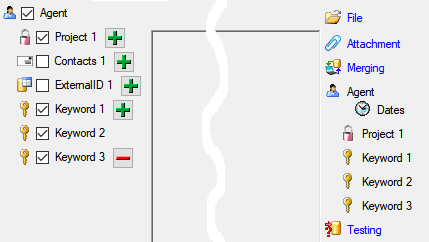
The window is separated in 3 areas. On the left side, you see a list of possible data related import steps according to the type of data you choose for the import. On the right side you see the list of currently selected import steps. In the middle part the details of the selected import steps are shown.
Agent
from the menu. A window as shown below will open that will lead you
through the import of the data.
The window is separated in 3 areas. On the left side, you see a list of possible data related import steps according to the type of data you choose for the import. On the right side you see the list of currently selected import steps. In the middle part the details of the selected import steps are shown.
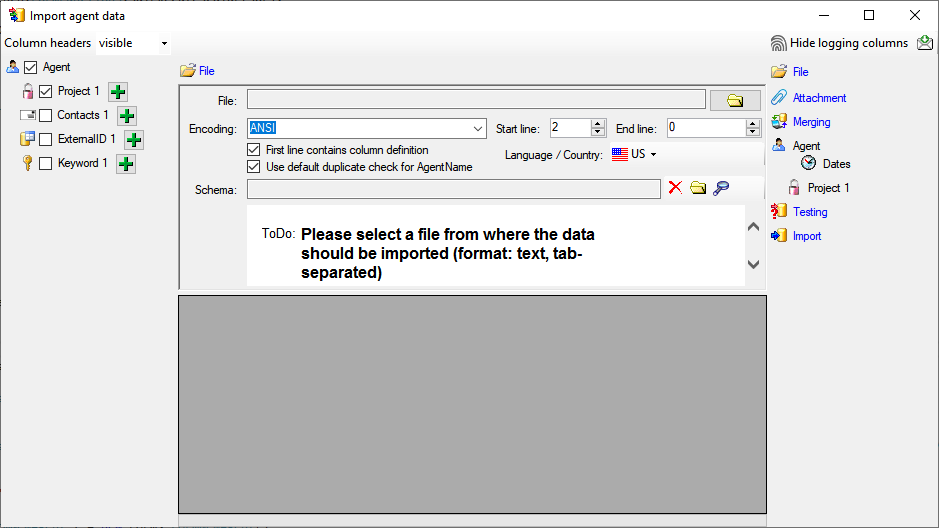
Choosing the File and Settings
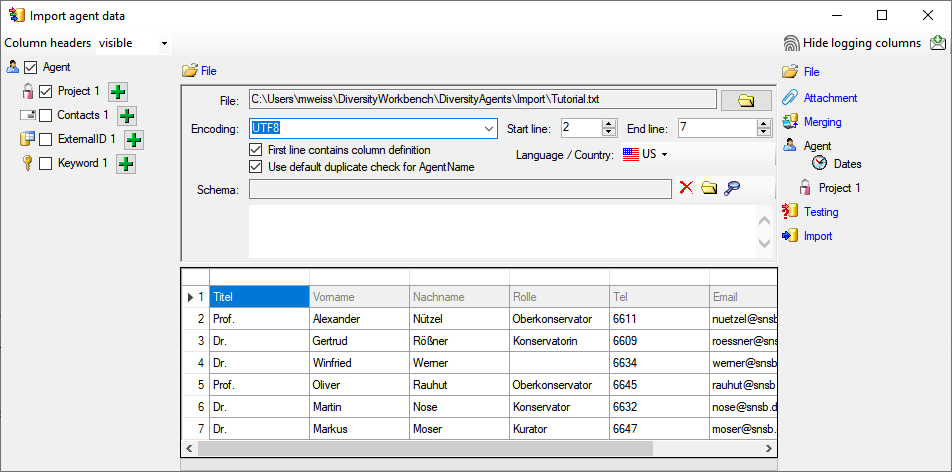
Choosing the data ranges
In the selection list on the left side of the window (see below) all
possible import steps for the data are listed according to the type of
data you want to import.
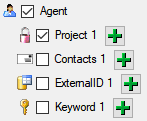
The import of certain tables can be paralleled. To add parallels click
on the  add button (see below). To remove parallels, use
the
add button (see below). To remove parallels, use
the  button. Only selected ranges will appear in
the list of the steps on the right (see below).
button. Only selected ranges will appear in
the list of the steps on the right (see below).
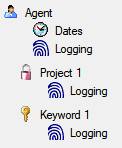
To import information of logging columns like who created and changed
the data, click on the  include logging columns button in the header line. This will include additional substeps for every step containing the
logging columns (see below). If you do not import these data, they will
be automatically filled by default values like the current time and
user.
include logging columns button in the header line. This will include additional substeps for every step containing the
logging columns (see below). If you do not import these data, they will
be automatically filled by default values like the current time and
user.
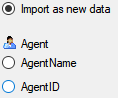
Attaching data
You can either import your data as new data or
 Attach
them to data in the database. Select the import step
Attachment
from the list. All tables that are selected and contain columns at which
you can attach data are listed (see below). Either choose the first
option
Attach
them to data in the database. Select the import step
Attachment
from the list. All tables that are selected and contain columns at which
you can attach data are listed (see below). Either choose the first
option  Import as new data or one of the
columns the attachment columns offered like SeriesCode in the table
Series in the example below.
Import as new data or one of the
columns the attachment columns offered like SeriesCode in the table
Series in the example below.
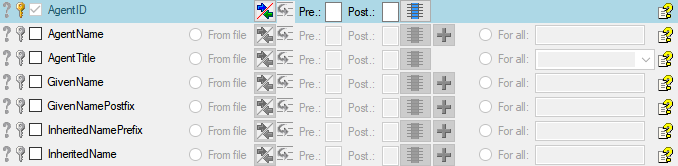
If you select a column for attachment, this column will be marked with a
blue background (see below and chapter Table data).

Merging data
You can either import your data as new data or  Merge them with data in the
database. Select the import step
Merge from the list. For
every table you can choose between
Merge them with data in the
database. Select the import step
Merge from the list. For
every table you can choose between  Insert,
  Merge,
 Update and
Attach (see below).
Update and
Attach (see below).
The Insert option will import the data
from the file independent of existing data in the database.
The Merge option will compare the data
from the file with those in the database according to the
 Key columns (see below). If no matching data are
found in the database, the data from the file will be imported.
Otherwise the data will be updated.
Key columns (see below). If no matching data are
found in the database, the data from the file will be imported.
Otherwise the data will be updated.
The Update option will compare the data
from the file with those in the database according to the
Key columns. Only matching data found in the
database will be updated.
The Attach option will compare the data from
the file with those in the database according to the
Key columns. The found data will not be changed, but used as a
reference data in depending tables.

Empty content will be ignored e.g. for the
Merge or Update option. To remove
content you have to enter the value NULL. As long as the column will
allow emty values, the content will be removed using the NULL value.
Table data
To set the source for the columns in the file, select the step of a
table listed underneath the Merge step. All
columns available for importing data will be listed in the central part
of the window. In the example shown below, the first column is used to
attach the new data to data in the database.
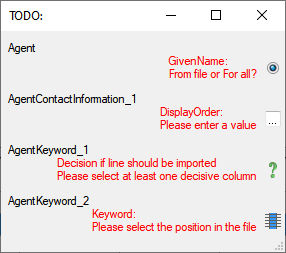
A reminder in the header line will show you which actions are still
needed to import the data into the table:
- Please select at least one column
 = No
column has been selected so far.
= No
column has been selected so far.
- Please select at least one decisive column
 = If data will be imported depends on the content of decisive
columns, so at least one must be selected.
= If data will be imported depends on the content of decisive
columns, so at least one must be selected.
- Please select the position in the file
 =
The position in the file must be given if the data for a column
should be taken from the file.
=
The position in the file must be given if the data for a column
should be taken from the file.
- Please select at least one column for comparison
= For all merge types other than insert columns
for comparison with data in the database are needed.
- From file or For all = For every you
have to decide whether the data are taken from the file or a value
is entered for all
- Please select a value from the list
 = You have
to select a value from the provided list
= You have
to select a value from the provided list
- Please enter a value
 = You have to enter
a value used for all datasets
= You have to enter
a value used for all datasets
The handling of the columns in described in the chapter
columns.
Testing
 - To test if all requirements for the import are met use the
Testing step. You can use a certain line in
the file for your test and then click on the Test data in line: button. If there are still
unmet requirements, these will be listed in a window as shown below.
- To test if all requirements for the import are met use the
Testing step. You can use a certain line in
the file for your test and then click on the Test data in line: button. If there are still
unmet requirements, these will be listed in a window as shown below.
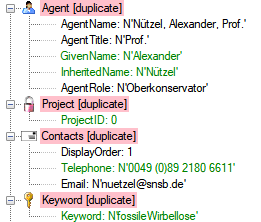
If finally all requirements are met, the testing function will try to
write the data into the database and display any errors that occurred as
shown below. All datasets marked with a red
background, produced some error.
To see the list of all errors, double click in the error list
window in the header line (see
below).

If finally no errors are left, your data are ready for import. The
colors in the table nodes in the tree indicate the handling of the
datasets:
- INSERT
- MERGE
- UPDATE,
- No difference
- Attach
- No data
The colors of the table columns indicate whether a column is decisive
, a key column or an attachment column .
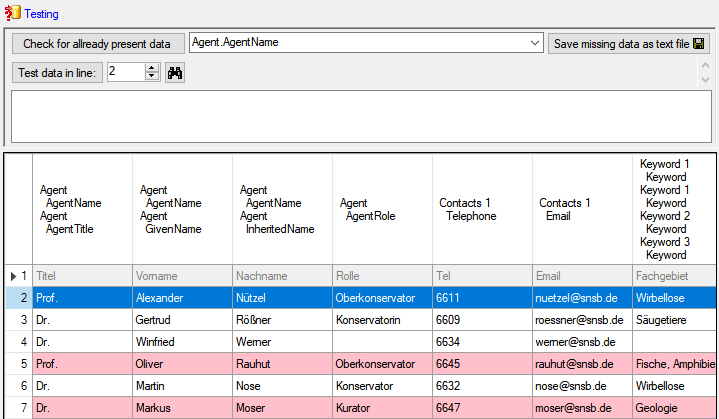
If you suspect, that the import file contains data already present in
the database, you may test this and extract only the missing lines in a
new file. Choose the attachment column (see chapter Attaching data) and
click on the button Check for already present data. The data already
present in the database will be marked red
(see below). Click on the button
Save missing data as text file  to store the
data not present in the database in a new file for the import. The
import of agents contains the option Use
default duplicate check for AgentName that is selected by default. To
ensure the employment of this option the column AgentName must be filled
according to the generation of the name by the insert trigger of the
table Agent (InheritedNamePrefix + ' ' + Inheritedname + ', ' +
GivenName + ' ' + GivenNamePostfix + ', ' + InheritedNamePostfix +
', ' + AgentTitle - for details, see the
documentation of the database).
to store the
data not present in the database in a new file for the import. The
import of agents contains the option Use
default duplicate check for AgentName that is selected by default. To
ensure the employment of this option the column AgentName must be filled
according to the generation of the name by the insert trigger of the
table Agent (InheritedNamePrefix + ' ' + Inheritedname + ', ' +
GivenName + ' ' + GivenNamePostfix + ', ' + InheritedNamePostfix +
', ' + AgentTitle - for details, see the
documentation of the database).
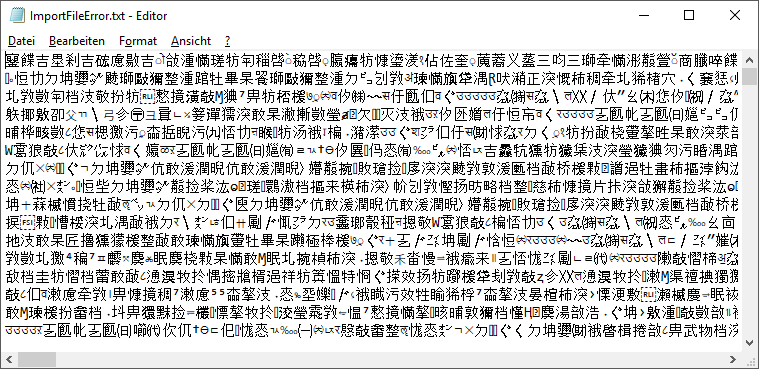
If you happen to get a file with a content as shown below, you may have
seleted the wrong encoding or the encoding is incompatible. Please try
to save the original file as UTF8 and select this encoding for the
import.
Import
- With the last step you can finally start to import the data into the
database. If you want to repeat the import with the same settings and
data of the same structure, you can save a schema of the current
settings (see below). You optionally can include a description of your
schema and with the  button you can
generate a file containing only the description.
button you can
generate a file containing only the description.
Schedule for import of tab-separated text files into DiversityAgents
- Target within DiversityAgents: Agent
- Database version: 02.01.13
- Schedule version: 1
- Use default duplicate check: ✔
- Lines: 2 - 7
- First line contains column definition: ✔
- Encoding: UTF8
- Language: US
Lines that could not be imported will be marked with a red background
while imported lines are marked green (see below).
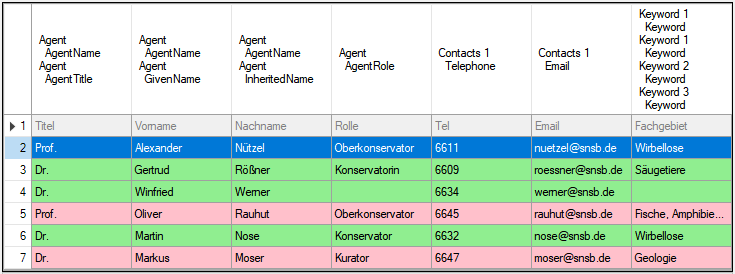
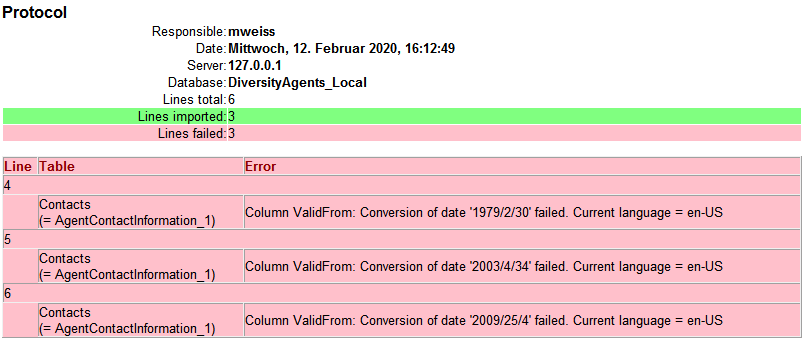
If you want to save lines that produce errors during the import in a
separate file, use the Save failed lines option. The protocol of the
import will contain all settings according to the used schema and an
overview containing the number of inserted, updated, unchanged and
failed lines (see below).
Description
- A description of the schema may be included in the schema itself or with
a click on the Import button generated as a
separate file. This file will be located in a separate directory
Description to avoid confusion with import schemas. An example for a
description file is shown below, containing common settings, the
treatment of the file columns and interface settings as defined in the
schema.
procFillJsonCache is started by an update trigger trgUpd… of the main table in the database
Interface in clients
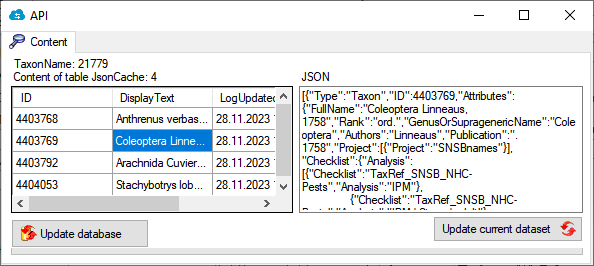
All modules provide data via a cache table. In the header of the clients you can inspect the content of the JsonCache with a click on the  button. For modules with a difference between local and public data, you can inspect the content of the public data with a click of the right mouse button.
Update
Apart of the update via the Trigger (see below) you can update the JsonCache via the  update button underneath the button.
To update the JsonCache for the whole database select Administration - JsonCache… from the menu. a window as shown below will open where you can update the JsonCache for single datasets or the whole database.
Summary
graph TD;
    TaxonName[Main table in database]
    trgUpdTaxonName[trgUpd.. of main table in database]
    TaxonName --> |Update in table| trgUpdTaxonName
    proc[Procedure procFillJsonCache setting the content in table JsonCache]
    trgUpdTaxonName --> proc
graph TD;
    Mainform[Main form]
    ButtonShow[Button show JsonCache of current dataset]
    Mainform --> ButtonShow
    Left[Show Data]
    ButtonShow --> |Left click| Left
graph TD;
    Mainform[Main form]
    Admin[Administration menu]
    Mainform --> Admin
    Cache[JsonCache...]
    Admin --> Cache
    Adminform[Administration form]
    Cache --> Adminform
    AdminUpdateSingle[Update single dataset]
    Adminform --> AdminUpdateSingle
    AdminUpdateDB[Update for whole database]
    Adminform --> AdminUpdateDB
Diversity Agents
Documentation
These are the tools to describe the parts of the database and create
documentations of the structure. To use these tools, choose
Administation -  Database -
 Documentation… from the menu. A
window will open as shown below.
Documentation… from the menu. A
window will open as shown below.

Click on the List objects button to list the objects of
the database. With the button
resp.  button you can select
resp. deselect the types in the type selection and the object in the
list.
button you can select
resp. deselect the types in the type selection and the object in the
list.
Select the objects that should be listed
all button resp. none button you can select resp. deselect the types in the type selection and the object in the list.
Select the objects that should be included in the documentation:
- Tables
- Views
- Roles
- Functions and procedures
- Context
… and exclude the objects that should not be included in the
documentation:
- Logging tables
- Enumeration tables
- Old versions of objects
- System objects
- Deprecated objects
The button Set default seletion will select all items in
the list without:
- System objects
- Older version of an object indicated by the number at the last
position
- Logging tables
- Enumeration tables
- Objects with a description starting with e.g. outdated, deprecated,
obsolete etc.
- HTML options:
- include index for objects
- include NULL / NOT NULL
- include relations and dependencies
- include Description
- exclude standard trigger
- exclude definition
- include permissions for *_Enum etc.
- exclude obsolete columns
- exclude columns starting or ending with the given strings
- include list of tables that are depending on a table
The buttons Add to seletion and
Remove from seletion will use the
given strings with * as wildcard to add resp. remove items from the
selection.
With the Context option you
can show or hide the context area for the html and media wiki tab as
shown above.
To create a documentation choose among the provided options and click on
the button Create ... documentation to create the
documentation in one of the available formats (HTML, MediaWiki,
JSP-Wiki).
Subsections of Documentation
Diversity Agents
Documentation
chm
With the chm tab you can generate index and keyword html files as well
as markdown files for a website generated out of the hhc and hhk files
of the HTML Help Workshop for the creation of chm manual as described in
the video
.
The button Generate keywords for HUGO creates a text file keywords.txt containing the keywords needed for the HUGO manual in a simple format. A pre- or postfix is set for every module to avoid conflicts. Use the Open  button to open the file in a text editor.

Diversity Agents
Documentation
HUGO
In the  HUGO / HTML tab you generate markdown files according to HUGO and the relearn theme.
The conversion and adaptions are explained in a short tutorial:
For enumeration tables the content can be exported as explained in a short tutorial:
In the tab you can fix links in markdown files according to HUGO shortcodes.
The fixes for broken links are explained in a short tutorial:
The adaptions for links for HUGO as related references are explained in a short tutorial:
To map the files in the original links to new files in the documentation follow the steps shown in a short tutorial:
Installation of HUGO
Update des Themes
um das Theme auf die letzte Version zu bringen kann man den Befehl
git submodule update --remote --merge themes/relearn
verwenden
Übersetzung des Bestands an html
- Übersetzung der *.html Seiten mit pandoc in *.md
- Aufbau einer Ordnerstruktur die dem Index der chm Datei entspricht
- Das Basisdokument der Ordner wird in die Ordner verschoben und in _index.md umbenannt
- Dort im Frontmatter steht der Titel der im Menü angezeigt wird, e.g.:
---
title: Installation
---
Überarbeitung der md Dateien
- Korrektur der Bildverweise
- Ordner mit den Bildern in den Ordner static kopieren
- von e.g.
 in 
- ACHTUNG - Case sensitiv. Namen müssen stimmen
- Icons gegebenenfalls freistellen für Darkmode
- Entfernung aller störenden Formatierungsangaben
- Entfernung der Kopfzeile (Überschrift wird von HUGO automatisch erzeugt)
- Korrektur der internen Verweise
- ändern von
[](http://media.snsb.info/Tutorials/dwb/Editing/OeffentlicheKontaktdaten.webm)
zu
[](http://media.snsb.info/Tutorials/dwb/Editing/OeffentlicheKontaktdaten.webm)
- ansonsten wird das Bild gezeigt statt das Video zu starten
- ändern von
zu e.g.
[Contact](editingdata/contact)
- Wenn als Basisadresse in hugo.toml etwas angegeben wurde, e.g.
baseURL = "http://www.diversityworkbench.de" dann muss diese auch für Verweise innerhalb der Files verwendet werden.
- e.g. Bildverweise

- Dateiverweise
[Anmelden](database)
- HUGO relearn erzeugt für Überschriften Anker die man ansteuern kann, e.g. kann man
### Table **AgentResource** über die Adresse database/database/#table-agentresource erreichen. Ein Index Eintrag dafür wäre e.g. [AgentResource](database/database/#table-agentresource). ACHTUNG - Case sensitiv: ### Table **AgentResource** wird in #table-agentresource übersetzt
- Kommentare starten mit # ohne folgendes Leerzeichen
Frontmatter
You can change the frontmatter to a default using the documentation tool
- Steht am Anfang der Datei und ist bei yaml durch
--- oben und unten abgegrenzt, e.g.
---
title: Login administration
linktitle: Logins
weight: 5
menuPre: img/Documentation.svg
alwaysopen: false
---
- Seiten die noch in Entwicklung sind kann man mit
draft: true im Frontmatter markieren. Diese werden dann nicht in die Ausgabe übernommen
- Der Titel wird mit
title: Login administration angegeben. Dieser erscheint dann auch in der Seite als Überschrift
- Der Text im Menü kann abweichend definiert werden mit
linktitle: Logins. Ansonsten erscheit der Titel im Menü
- Die Reihenfolge im Menü kann mit
weight: 5 angegeben werden. Ansonsten wird alphabetisch sortiert
- Ein Logo kann man mit `menuPre: img/LinkedServer.svg
- Wenn das Untermenue erst beim Anwählen geöffnet werden soll:
alwaysopen: false
Template files
Starting with a Dash: If the first line of your Markdown file starts with a dash (-), Hugo might misinterpret it as a YAML delimiter, leading to an error
Bilder
You can adapt the images to a default using the documentation tool
- Icons die e.g. in den Text integriert werden sollen, müssen folgedermassen eingebaut werden:

- Die Bilder am Anfang der Seite werde wie folgt eingebaut:

mit px wird das Bild mitgezoomt, bei vw bleibt es gleich gross
- noch nicht zu svg konvertierte Bilder die im Fliesstest erscheinen sollen werden wie folgt eingebunden:

- sonstige Bilder mit

mit der Angabe ...lightbox=false wird verhindert, dass ein Bild beim Anklicken mit der Maus geöffnet wird. Dies sollte bei Bildern die nicht nach svg konvertiert wurden und nicht im Fliesstext erscheinen nicht verwendet werden, damit der User bei kleinen Bildern diese in Originalauflösung betrachten kann. Unten 2 Beispiele


Für Bilder die aus der Quelle fontawesome kommen kann man hier suchen: fontawesome. Es funktionieren nicht alle die dort bereitstehen. Daher bitte testen!
Links innerhalb des Manuals
Für Links innerhalb des Manuals kann man shortcodes verwenden. Dafür entweder auf den Namen der Datei oder auf Links von Überschriften (ab ##) verwenden. Diese müssen innerhalb des Manuals eindeutig sein. Für Header als erstes Zeichen # dann Überschrift und alles lower case und Leerzeichen werden durch - ersetzt. Beispiel:
## Main form of diversityexsiccatae
wird zu sofern es sich in der gleichen Datei befindet:
2 x { und % relref "#main-form-of-diversityexsiccatae" % und 2 x }
Für Links ausserhalb der Datei werden Verweise unter Einschluss des Dateinamens verwendet:
Verweis auf ein Kapitel innerhalb einer Datei
2 x { und % relref "diversityexsiccatae#main-form-of-diversityexsiccatae" % und 2 x }
bzw. nur auf die Datei
2 x { und % relref "diversityexsiccatae" % und 2 x }
Leerzeichen zwischen 2 x { und % und % und 2 x } entfernen
Links auf das Manual
Von ausserhalb kann e.g. eine Überschrift mit
https://www.diversityworkbench.demodules/diversityexsiccatae/index.html#main-form-of-diversityexsiccatae
aufgerufen werden. Diese können direkt aus dem Manual kopiert werden.
Logo
- hierfür das Logo in den Ordner static kopieren
- im Ordner layouts einen Ordner partials anlegen
- dort eine Datei logo.html anlegen
- in dieser auf das Logo verweisen e.g.:
<h4><b>DiversityAgents</b></h4>
<img src="/DA_4D.svg">
- in static - layouts - partials die Datei menu-footer.html anlegen und anpassen
favicon
Im Ordner static den Ordner images anlegen
Datei favicon.ico in der Ordner static/images kopieren
Einschliessen von Dateien
Das Verzeichnis templates enthält Dateien die in andere Dateien über eine shortcode eingeschlossen werden können, e.g.:
2 x { und % include file="templates/template_workbench.md" % und 2 x }
Diese Dateien dürfen kein frontmatter enthalten. Shortcodes müssen überprüft werden, da diese in der Regel nicht ausgewertet werden.
ER-Diagramm
dieses kann als Mermaid eingebaut werden, e.g.
graph LR;
    A[Agent] --> B[AgentContact<br/>Kontaktdaten der Agents]
    A --> C[AgentReference]
    A --> D[AgentIdentifier]
    A --> E[AgentResource]
    A --> F[AgentExternalID]
    G[AgentExternalDatabase] --> F[AgentExternalID]
soll das Diagramm zoombar sein wird die Version 5.23 des Themes benoetigt. Ausserdem kann der Parameter nur für die Shortcode Version angegeben werden, nicht für die Codefences:
2 x { und % mermaid align="center" zoom="true" % und 2 x }
...
(remove space between 2 x { und  and < resp > and  und 2 x } in header and footer for correct code)
...
2 x { und % /mermaid % und 2 x }
Anpassung des Themes
Konfiguration - in hugo.toml:
```native
baseURL = "http://www.diversityworkbench.de"
languageCode = "en-us"
title = "DiversityAgents"
theme = "relearn"
[outputs]
home = ["HTML", "RSS", "SEARCH", "SEARCHPAGE"]
section = ["HTML", "RSS", "PRINT"]
page = ["HTML", "RSS", "PRINT"]
[params]
themeVariant = [ "auto", "dwb", "dwb-dark" ]
</code></pre>
<h2 id="start-des-testservers">Start des Testservers:</h2>
<ul>
<li>mit einem Terminal in das Verzeichnis des Projekts wechseln</li>
<li>dort <code>hugo server </code> eingeben.</li>
<li>bei Problem mit Sonderzeichen: den Inhalt der Datei config.toml in hugo.toml kopieren und config.toml löschen (beide sollten wenn vorhanden UTF8 sein - werden manchmal als UTF16 angelegt - dieses dann nach UTF8 ändern)
<ul>
<li>Error: “…\diversityworkbench\hugo.toml:1:1”: unmarshal failed: toml: invalid character at start of key: ÿ</li>
</ul>
</li>
<li>Im Browser an die angegebene Adresse navigieren, e.g. <code>localhost:1313</code></li>
<li>Wenn als Basisadresse in hugo.toml etwas angegeben wurde, e.g. <code>baseURL = "http://www.diversityworkbench.de"</code> dann muss die passende Adresse eingeben werden also e.g. <code>localhost:1313</code></li>
</ul>
Diversity Agents
Documentation
With the  MediaWiki tab you can generate markdown files according to MediaWiki.

 Resource
 References
 Identifier
 Descriptor
 License
 Archive
 Bugfix for creating a new database
 Insert of year restricted to valid values
  Links to webresources fixed
  Exception showing resource fixed
  Transfer in table editor fixed
  Avoiding loops in hierarchy
  ReadOnly status fixed
  Feedback
 creation of additional mail fixed
  Obsolete menu items removed
  Bug in optimized Query fixed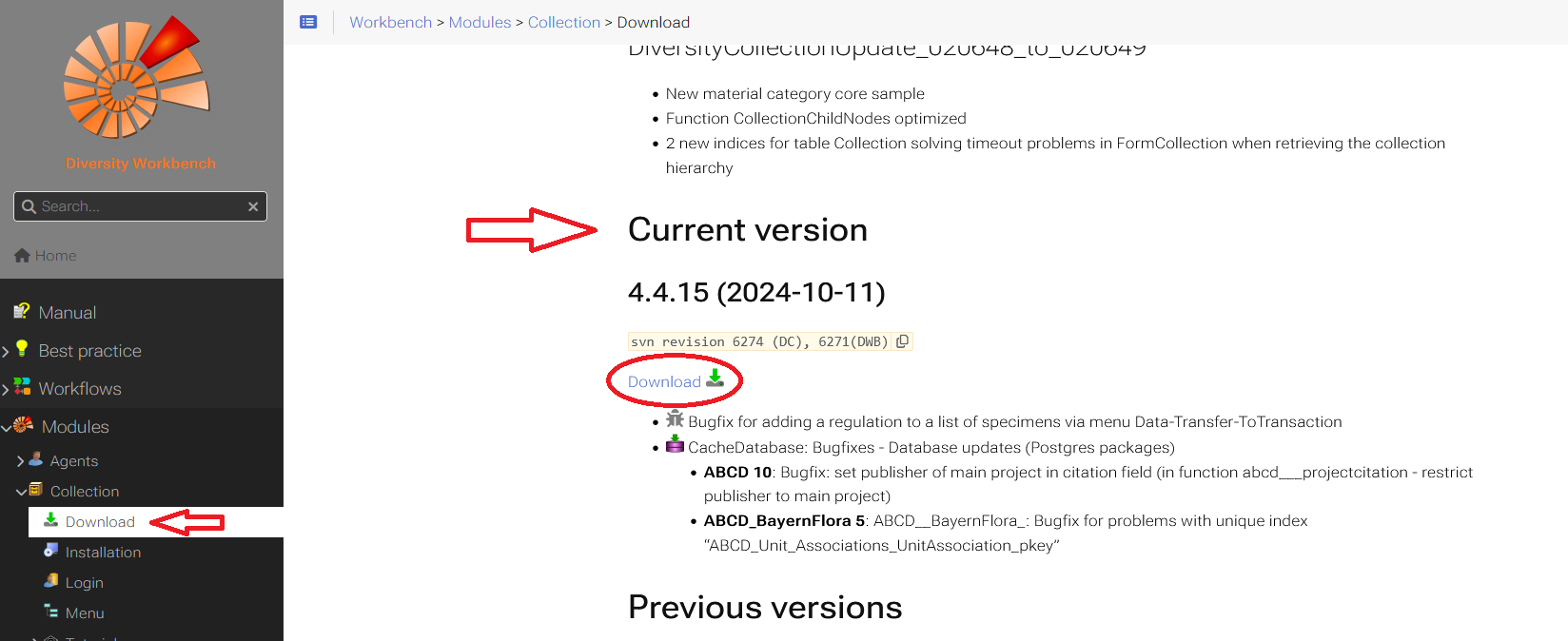
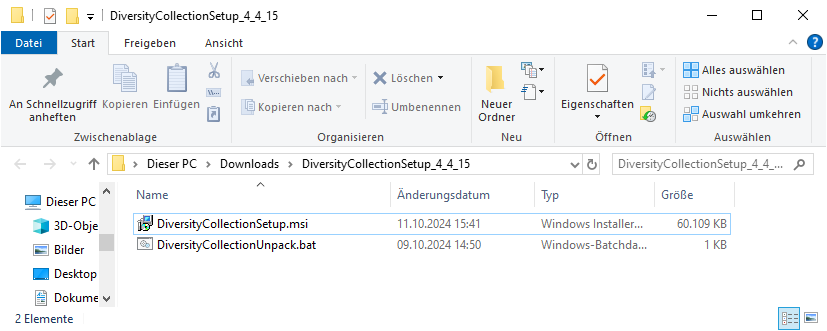
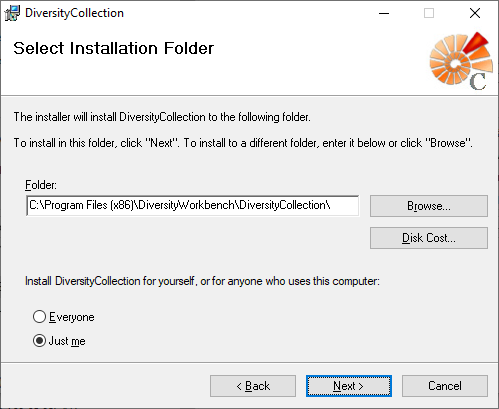
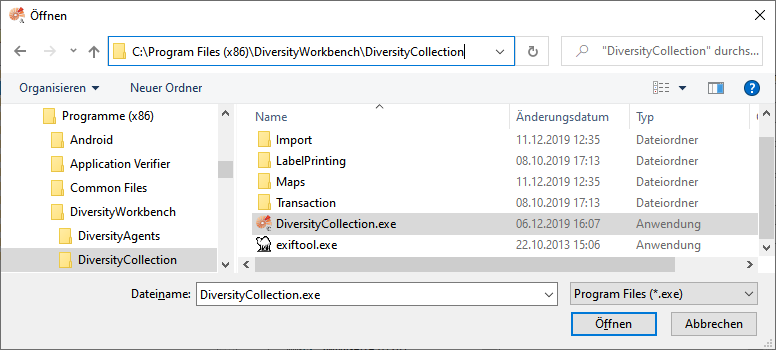
 DiversityCollection.exe.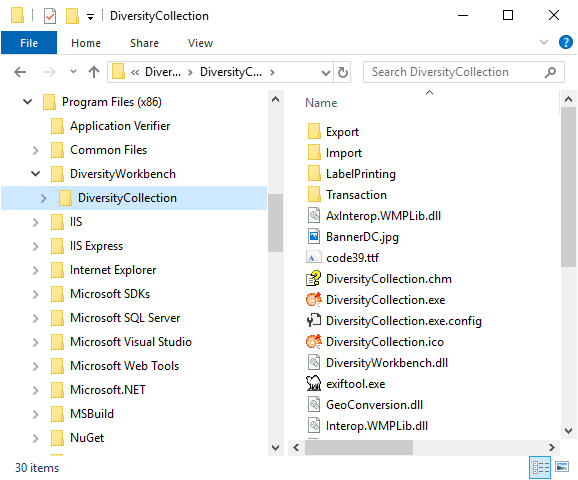
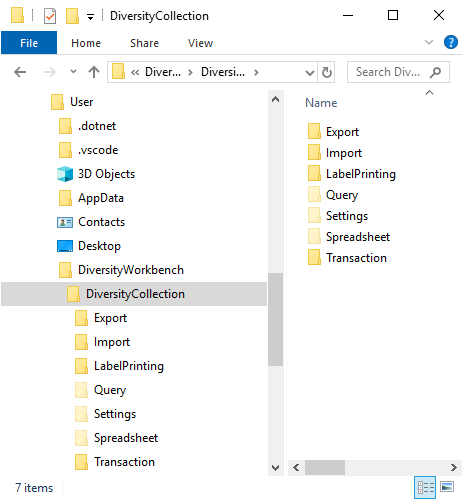


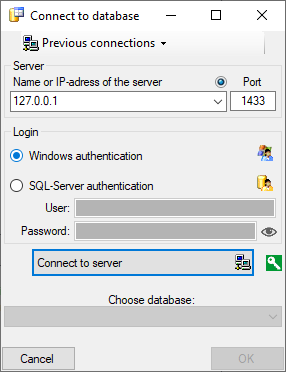
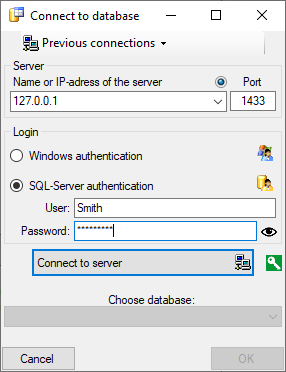
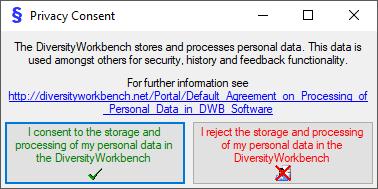
 .
. .
.
 next to the Connect to server button indicates an encrypted connection.
By clicking on the icon, you can switch to an unencrypted connection, indicated by the icon
next to the Connect to server button indicates an encrypted connection.
By clicking on the icon, you can switch to an unencrypted connection, indicated by the icon  .
. Create database Create a new DiversityAgents database on the current server
 Module connections Edit the connections to the other modules within the Diversity Workbench.
 Transfer settings Transfer previous settings IP-Address and port of the server, name of the database, login etc. of a previous version of the client to the current version.
 Timeout for database Setting the timeout for queries in the database.
 Current server activity
 Quit Quit the application and stop all processes started by the application
 Create archive Create a new archive
 Reset archive Reset the database resp. clear user tables
 Restore archive Restore an existing archive
 Create schema Create a schema of the database
 Backup database Backup of the whole database
 Export
 Export wizard Export data of the whole database as csv files
 CSV (bcp) Export data of the whole database as csv files
 GFBio Import data from a GFBio project
 OAIP formats opens a form for the administration of the formats used for OAIP
 Logins…
 Rename database Rename the current database
 Database tools … Tools for handling the objects in the database (experts only!)
 Stable identifier opens a form for the administration of the stable identifier
 Websites
 Information model opens a website with the latest information model
 Info opens a form with information about the current software and database
 Errorlog handles the errorlog
 Metadata opens a form showing the medadata of the current project as provided for other modules
 Update database … Update database to current version
 Update client … Download latest version of client

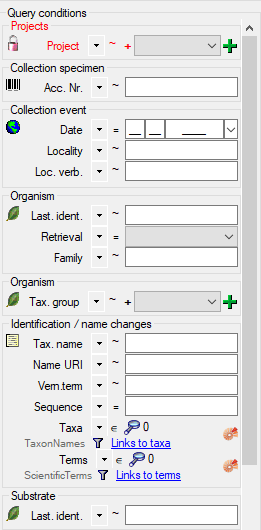
 .
. .
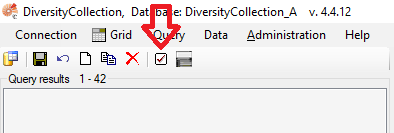
.
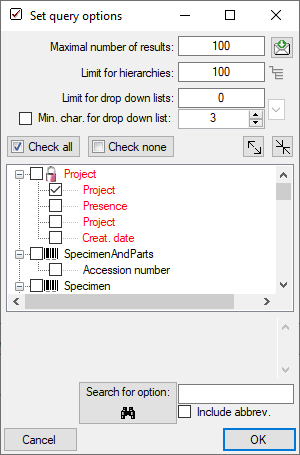
 .
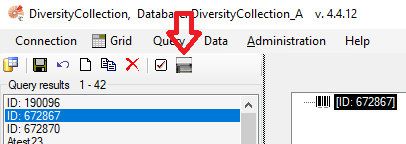
.
 .
. .
. , Problem
  , Reference

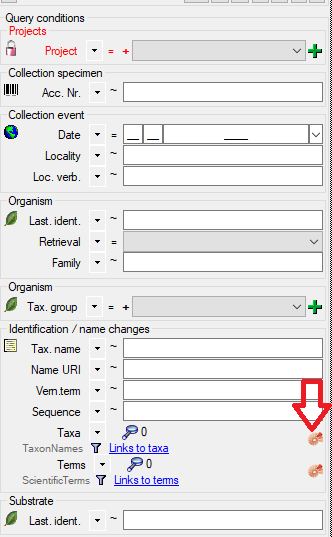
 .
.


 . To display
several columns in the result list, click on the
. To display
several columns in the result list, click on the  button.
To change the sorting of the added order column click on the
button.
To change the sorting of the added order column click on the
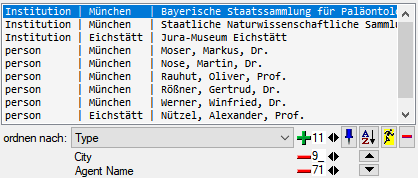

 undo button. This will
recover the original data unless the changes had been saved or changes
were done in certain tables or hierarchies were the data must be stored
to display the hierarchy.
undo button. This will
recover the original data unless the changes had been saved or changes
were done in certain tables or hierarchies were the data must be stored
to display the hierarchy. button below the search result listbox. This will create a entry with
the specimen and show it in the list.
button below the search result listbox. This will create a entry with
the specimen and show it in the list. .
.
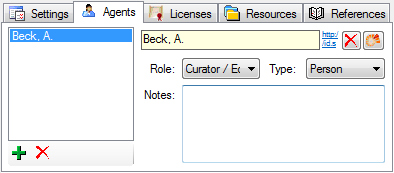
 .
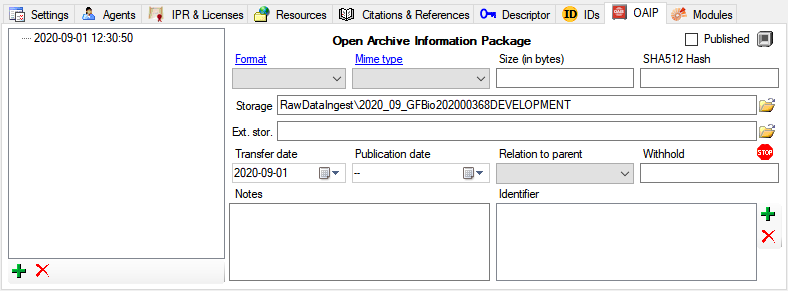
.
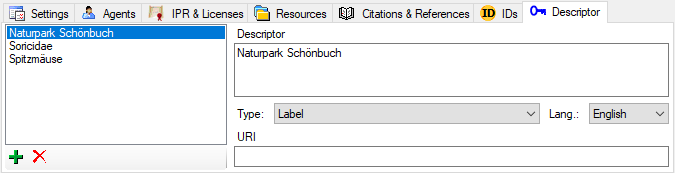
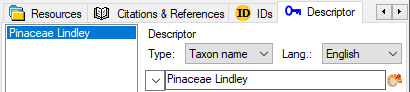
 resp.
resp.  button
to edit the hierarchy.
button
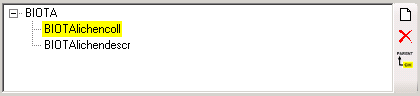
to edit the hierarchy.

 resp.
resp.
 button.
 button (see below). Use
the
button (see below). Use
the 


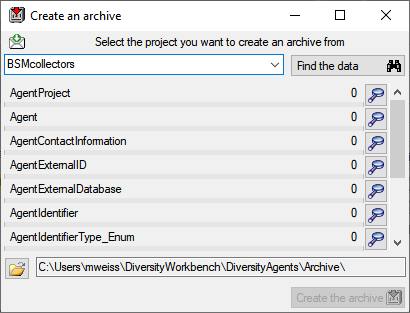
 button. The data related
with the project will be imported into temporary tables to allow you to
inspect them in advance of the creation of the archive (use the
button. The data related
with the project will be imported into temporary tables to allow you to
inspect them in advance of the creation of the archive (use the
 option as described in the tutorial: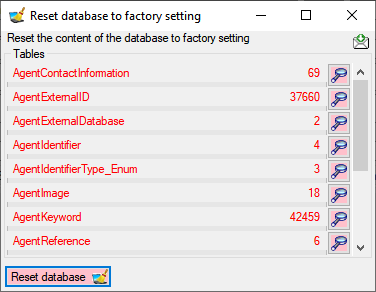
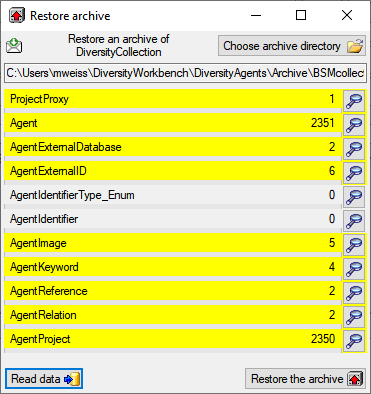
 Restore archive... from the menu. A
window as shown below will open listing the tables in the database. To
restore an archive click on the Choose archive directory
Restore archive... from the menu. A
window as shown below will open listing the tables in the database. To
restore an archive click on the Choose archive directory
 button and select the directory containing the
archive files. Next click on the Read data
button and select the directory containing the
archive files. Next click on the Read data
 option, the import will ask you for a stop in case of an error.
 option as described in the tutorial: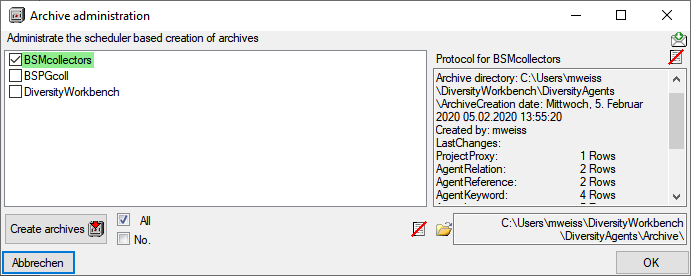
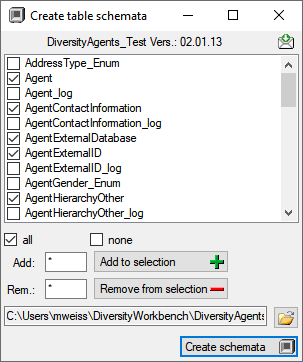
 none buttons resp. the Add to
selection
none buttons resp. the Add to
selection  button. The software will retrieve the data provided for the project as
shown below. Information concerning agents will be taken from the
selected DiversityAgents database and the project selected within this
database. The GFBio portal does not enforce roles for all the agents
enter. If you want to add a role for agents where no role has been given
in the GFBio portal, you may choose a default.
button. The software will retrieve the data provided for the project as
shown below. Information concerning agents will be taken from the
selected DiversityAgents database and the project selected within this
database. The GFBio portal does not enforce roles for all the agents
enter. If you want to add a role for agents where no role has been given
in the GFBio portal, you may choose a default.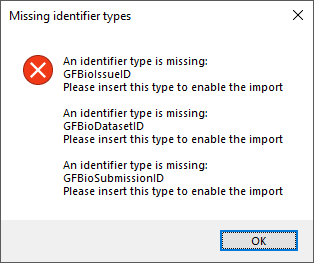

 Record all SQL statements.
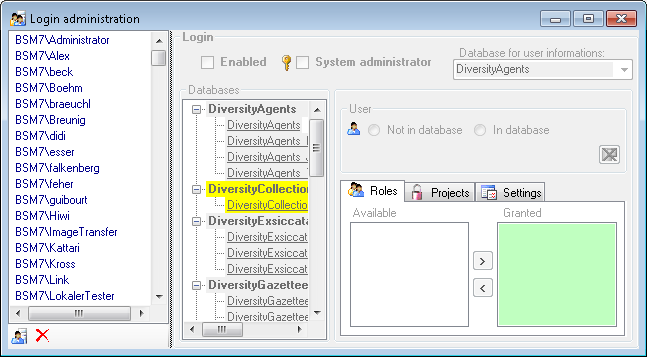
 button.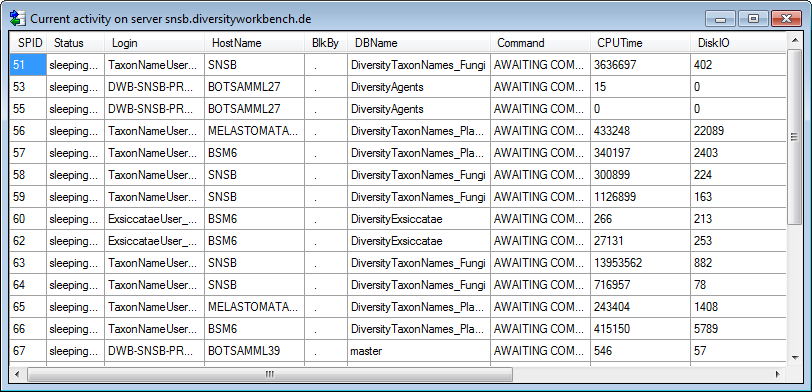
 button.
  button. A window will open as shown below listing all databases and
tables together with the time span (From - To) and the number of data
sets where any activity of the current login has been found.
button. A window will open as shown below listing all databases and
tables together with the time span (From - To) and the number of data
sets where any activity of the current login has been found.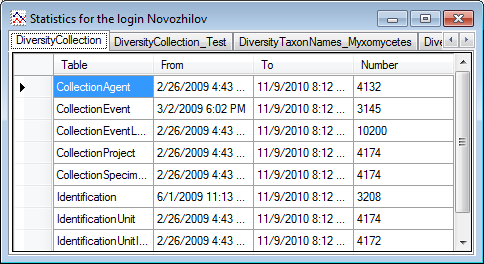
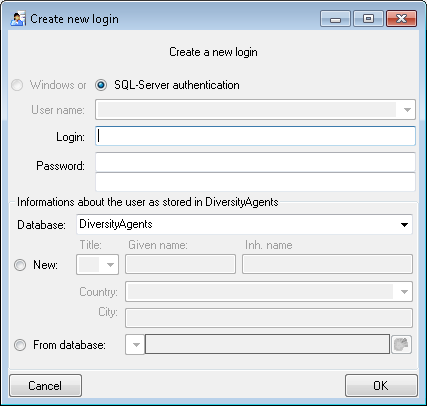
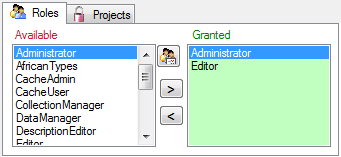
 button.

 button. A window as shown below will open
listing all objects in the database the role has permissions for (see
below).
button. A window as shown below will open
listing all objects in the database the role has permissions for (see
below).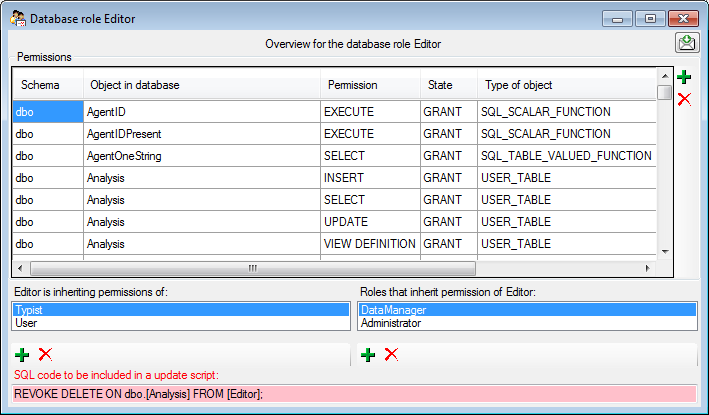
 and
and 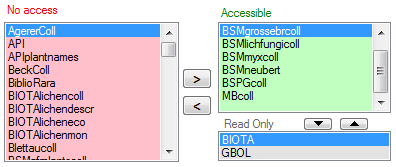
 button. A window will open as shown below.
Projects already in the database will be listed in
green, missing projects in red (see below). Check all projects you need in your database and
click the Start download
button. A window will open as shown below.
Projects already in the database will be listed in
green, missing projects in red (see below). Check all projects you need in your database and
click the Start download 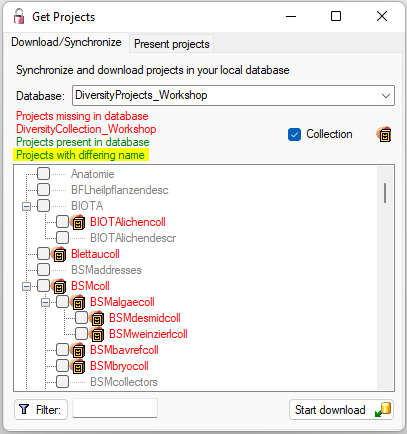
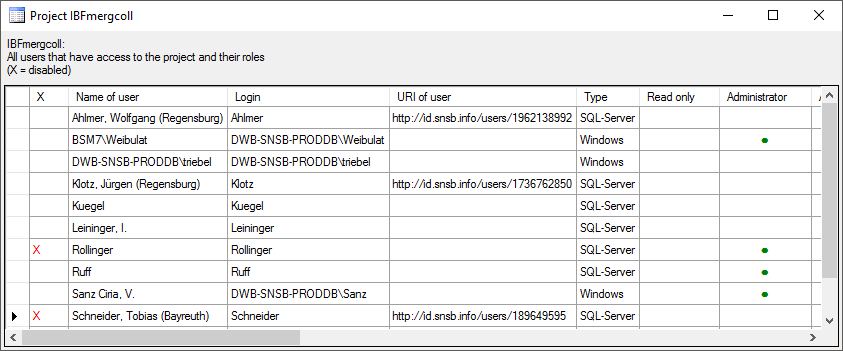
 button. A window as shown
below will open. It lists all
button. A window as shown
below will open. It lists all  roles,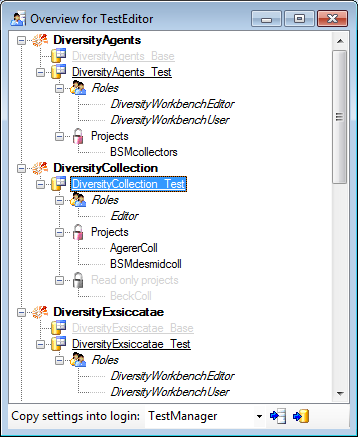
 button to copy the settings for all databases or the
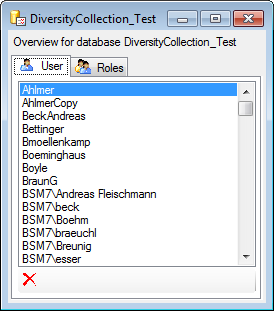
 button may appear. This indicates that
there are windows logins listed where the name of the login does not
match the logins of the server. This may happen if e.g. a database was
moved from one server to another. To correct this, click on the button.
A list of deviating logins will be shown, that can be corrected
automatically.
button may appear. This indicates that
there are windows logins listed where the name of the login does not
match the logins of the server. This may happen if e.g. a database was
moved from one server to another. To correct this, click on the button.
A list of deviating logins will be shown, that can be corrected
automatically.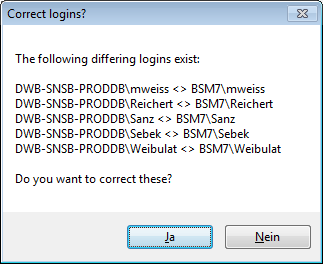
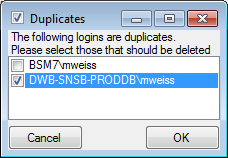
 button. A window as shown below will open,
listing the users without a login. Select those that should be removed
and click OK. This will include a removal from the
button. A window as shown below will open,
listing the users without a login. Select those that should be removed
and click OK. This will include a removal from the 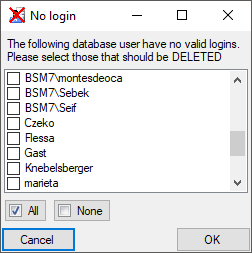
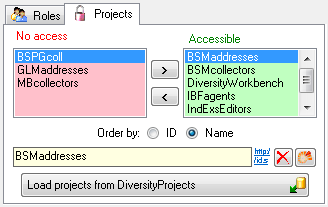
 Accessible: The current user has access
to the project
Accessible: The current user has access
to the project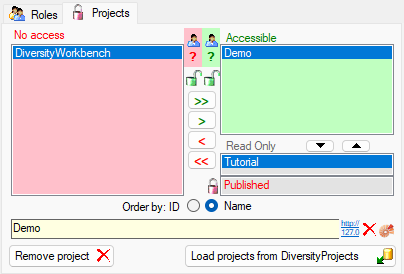
 Details of the projects within the DiversityWorkbench are stored in the
database DiversityProjects. To access further information on a project
click on the button. To edit details in projects you require the
application DiversityProjects.exe in your application directory and
access to the database DiversityProjects. To synchronize the projects
listed in DiversityProjects you may use the synchronize function in the
Details of the projects within the DiversityWorkbench are stored in the
database DiversityProjects. To access further information on a project
click on the button. To edit details in projects you require the
application DiversityProjects.exe in your application directory and
access to the database DiversityProjects. To synchronize the projects
listed in DiversityProjects you may use the synchronize function in the
 .
.
 Clear ErrorLog.