Subsections of Editing
Diversity Sampling Plots
Backlinks
Module relations resp. backlinks

DiversityCollection
 To display dataset in the module DiversityCollection that are linked to
the current plot, you can activate the query for these data in the menu
Data - Scan modules - DiversityCollection (for the specimen) and Data -
Scan modules - Images for the images. Please keep in mind that these
backward query will increase the response time of the application.
To display dataset in the module DiversityCollection that are linked to
the current plot, you can activate the query for these data in the menu
Data - Scan modules - DiversityCollection (for the specimen) and Data -
Scan modules - Images for the images. Please keep in mind that these
backward query will increase the response time of the application.
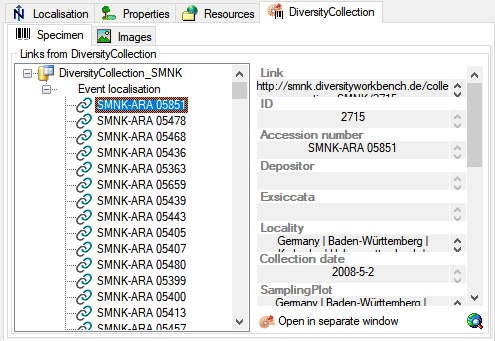
Specimen
 All specimen within the DiversityCollection databases as listed in the
connections and linked to the current plot will be
listed as shown below.
All specimen within the DiversityCollection databases as listed in the
connections and linked to the current plot will be
listed as shown below.
Images
To show the images within a certain DiversityCollection database, linked
to a plot, in the  images tab use the
 button to connect to the
DiversityCollection database. Then all images will be listed as shown
below.
button to connect to the
DiversityCollection database. Then all images will be listed as shown
below.
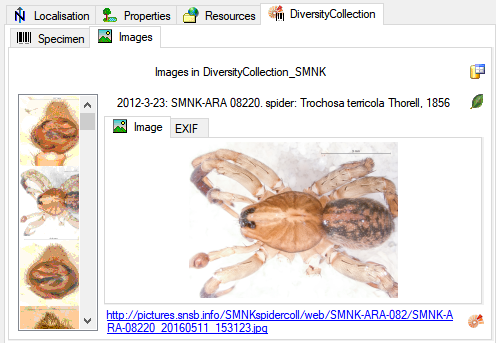
Use the link beneath the image to show the image in a separate window.
The EXIF tab contains the corresponding information of the image.
Diversity Sampling Plots
Edit Plots
Create or change plots
To create a new sampling plot click at the  icon of
the tool bar. A Window will pop up and ask you to enter the identifier
of the new plot.
icon of
the tool bar. A Window will pop up and ask you to enter the identifier
of the new plot.
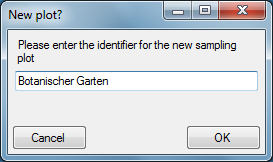
The new plot will be created and shown on the screen.
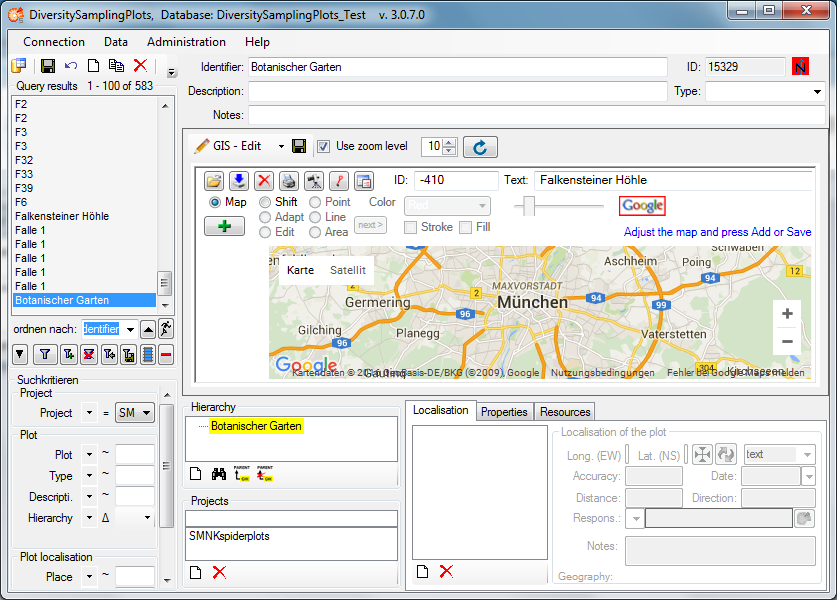
Now you may edit the parameters and either add a geography of any kind
using the GIS-Editor window or a certain point with WGS84 coordinates
using the Localisation control.
For the usage of the GIS-Editor please see the
Description in the second part
of the help file. You may select an appropriate map style, navigate to
your region of interrest by shiftig and zooming the map and create it as
a background map by clicking the  button. Then select
Point, Line or Area mode and draw your geography on the background map.
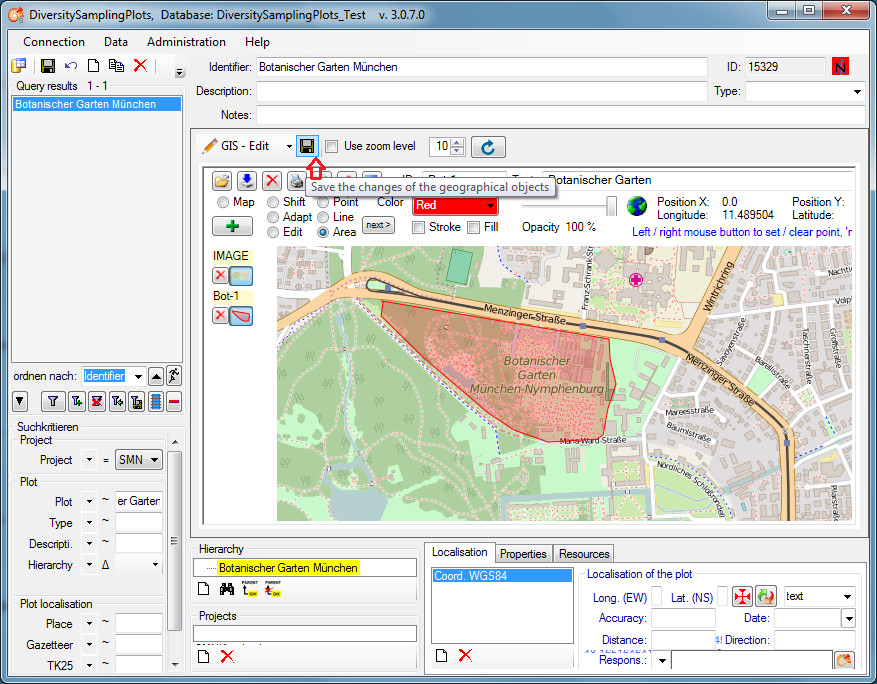
Add one or more geographies using the button. The
geographies may be changed later on using the Editmode of the GIS-Editor. Finally
save the geography to the database by clicking on the
button. Then select
Point, Line or Area mode and draw your geography on the background map.
Add one or more geographies using the button. The
geographies may be changed later on using the Editmode of the GIS-Editor. Finally
save the geography to the database by clicking on the
 button of the GIS-Edit window ( not that of
the Query toolbar!). A WGS84 localisation will be created
automatically.
button of the GIS-Edit window ( not that of
the Query toolbar!). A WGS84 localisation will be created
automatically.
Alternatively you may create a WGS84 localisation using the
button in the Localisation tab below the GIS-Edit
window. A dialog will pop up.
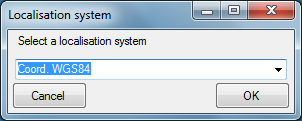
Select “Coord. WGS84” from the drop down list and then press the OK
butten. The new localisation will be shown in the list of the
Localisation tab.
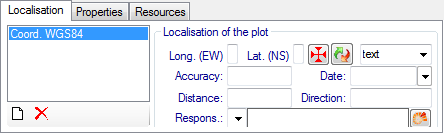
Select the localisation in the list and click at the  button. The coordinates window as known
from other DiversityWorkbench modules will be shown.
button. The coordinates window as known
from other DiversityWorkbench modules will be shown.
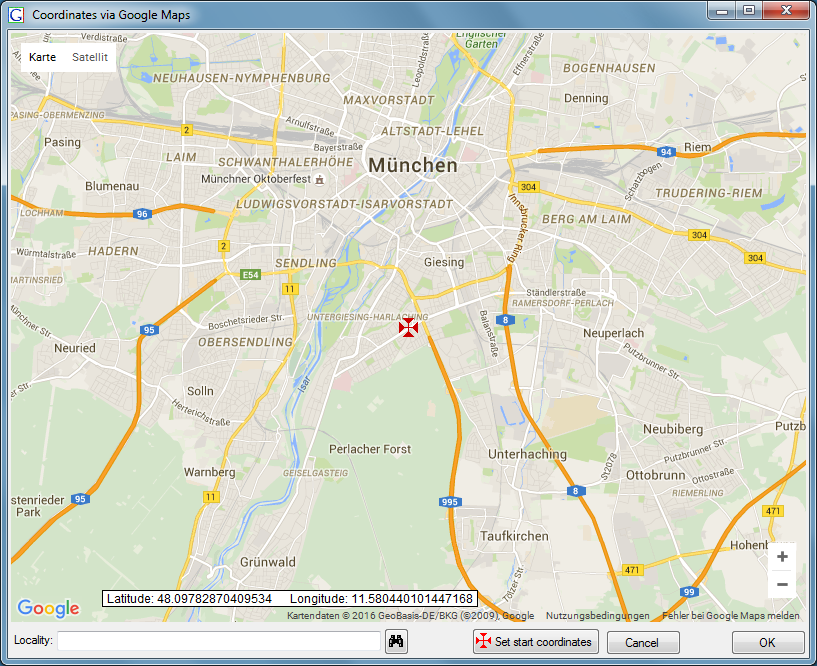
Shift the map using the mouse to localise a certain coordinate point
with the static cross in the center. Then press the OK button and the
coordinate point will be shown in the WGS84 localisation tab.
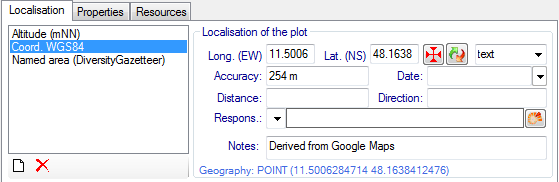
Additionally an Altitude and a Named area localisation will be created
automatically by calling the Geonames web service. Press the
button of the Query toolbar to save the new
localisation.
Diversity Sampling Plots
Plot hierarchy
The plots may be hierarchical organised as a tree view. The location of
the current plot within the hierarchy is displayed in the hierarchy
window:
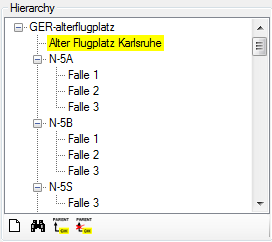
To add a new plot within the selected plot click on the button.
To change to another plot within the hierarchy tree just select the plot
in the tree view and click on the  button.
The new plot will be displayed.
button.
The new plot will be displayed.
To set the superior plot for the current sampling plot click on the
 button.
To remove the superior plot for the current sampling plot click on the
 button.
Diversity Sampling Plots
Localisation
Different kinds of localisation may be assigned to the sampling plots:
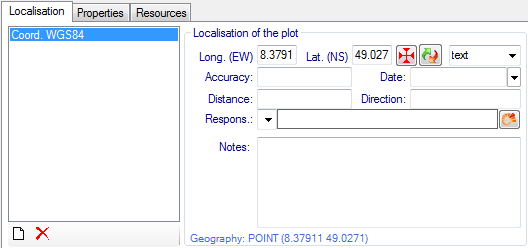
To add a new localisation for the selected plot click at the button. Select the desired kind of localisation from
the drop down list and press the OK button.
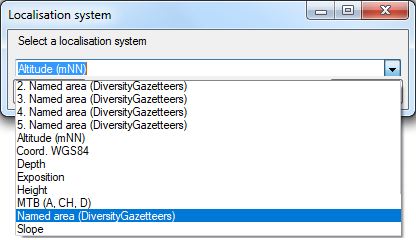
Fill up the data fields in the right part of the window. Each kind of
localisation can only be assigned once. The list will contain the
remaining choices.
Some buttons are provided depending on the selected localisation:
: Open a GoogleMaps window to select
the coordinates.
 : Convert coordinates to another
coordinate system.
: Convert coordinates to another
coordinate system.
 : Open an appropriate Diversity
Workbench remote module.
: Open an appropriate Diversity
Workbench remote module.
To remove a localisation, select it and click at the  button. The localisation will disappear from the
list.
button. The localisation will disappear from the
list.
Finally press the item in the Query
toolbar to store the localisation for the plot in the database.
Diversity Sampling Plots
Maps
The results list box displays the current set of plots found by the
database query. To show a certain plot on the map, just click at the
entry. Due to the coordinates of the place the map will be adjusted to
this area and build up. There are 3 choices how to display the plot:
 Browser,
  GIS - View and
  GIS - Edit:
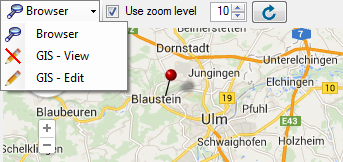
Browser uses a GoogleMaps window and
pins to show the geography of the plot, if any. This is rather fast and
interactive, but there is currently no support of areas or line strings
and no possibility to display more than one plot.
GIS - View uses the powerful GIS
Editor tool of the Diversity
Workbench, which can handle all kinds of geographies and display
distribution maps of multiple plots. Depending on the internet
connection and the map server it can take some seconds until the map
tiles have been build. A message box will pop up to advice the user to
wait, until the map is complete:
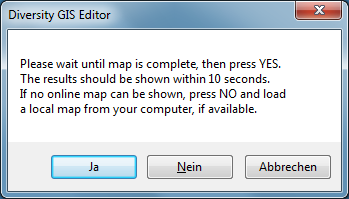
When all tiles of the background map are drawn, press OK to continue.
Then the online map will be scanned and frozen and the plots should
appear on the map:
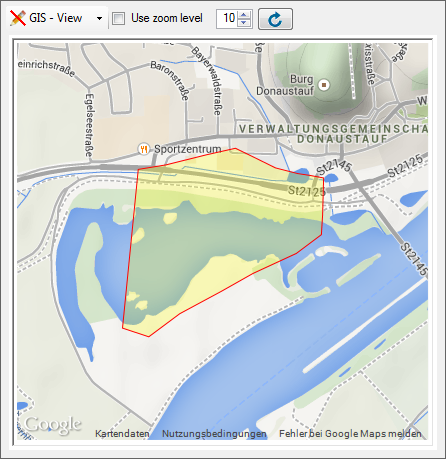
Be aware that this mode is just a viewer of the GIS Editor’s geography
objects. If multiple plots have been selected in the query list box,
press the  reload button to display
them. If you want a certain zoom level for the map, select the Use zoom
level check box and adjust the desired level.
reload button to display
them. If you want a certain zoom level for the map, select the Use zoom
level check box and adjust the desired level.
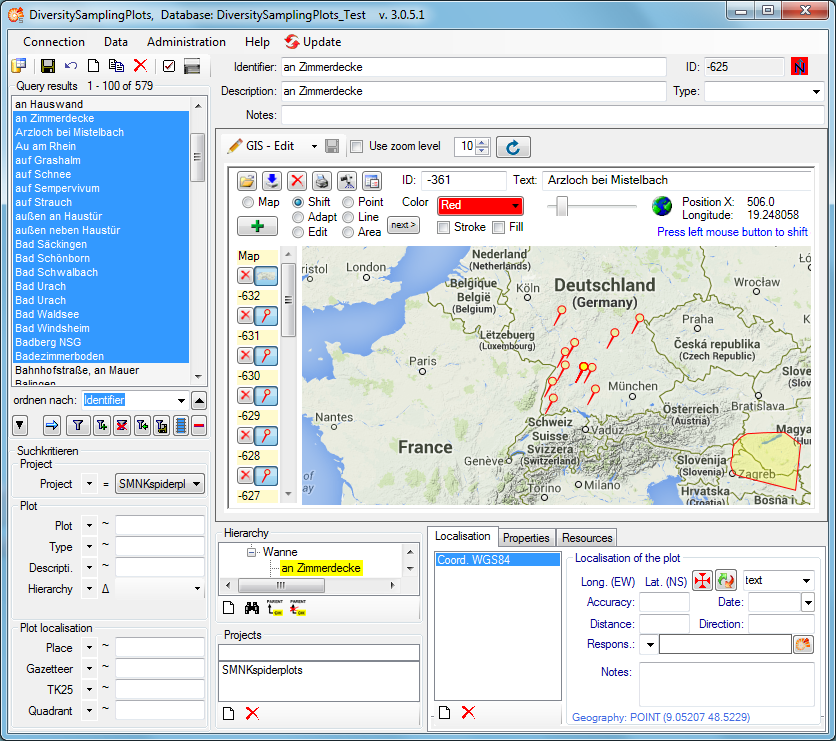
GIS - Edit provides all controls and
capabilities of the GIS Editor including editing the sample plot. Select
a plot in the query list, then the map will be adjusted and a message
box will pop up according to the GIS - View mode. Press OK to add the
map and the plot to the sample list and display the geography:
Diversity Sampling Plots
properties
Some kinds of properties may be assigned to the selected sampling plot.
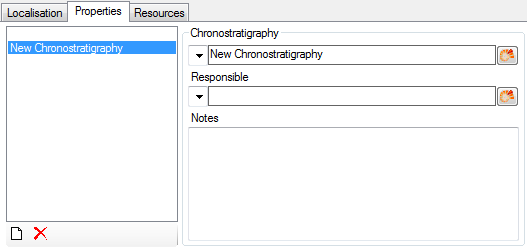
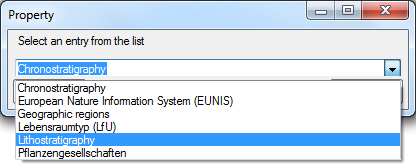
To add a new property for the selected plot click at the button. Select the desired kind of property from the
drop down list and press OK.
Press the button to open an
appropriate Diversity Workbench remote module for the property data.
To remove a property, select it and click at the button. The property will disappear from the list.
Finally press the item in the Query
toolbar to store the properties for the plot in the database.
Diversity Sampling Plots
Resources
Resources (e.g. pictures) may be assigned to the selected sampling plot.
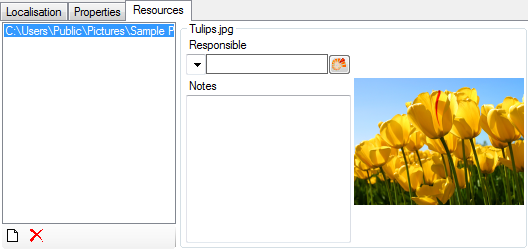
To add a new resource click at the button. A
browser will open where you can select and add the desired file.
Press the button to open the
DiversityAgents remote module, where you may select the responsible for
the resource data. Annotations may be entered in the Notes field.
To remove a resource, select it and click at the button. The resource will disappear from the list.
Finally press the item in the Query
toolbar to store the resource settings for the plot in the database.
Diversity Sampling Plots
Projects
Every plot can be assigned to any number of projects. To assign a plot
to a project click on the button. To remove it from a
project, select the project from the list and click on
the button.
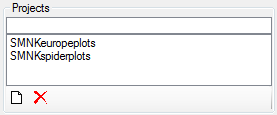
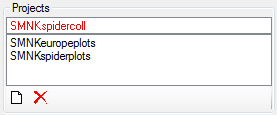
If there are projects, to which you have no access to, these will be
listed in a separate list at the top as shown below.
Details upon the projects within the Diversity Workbench are stored in
the database DiversityProjects. To edit the projects you need the
application  DiversityProjects.exe and
access to the database DiversityProjects. If DiversityProjects is not
available you can create a new project with the Administration -
DiversityProjects.exe and
access to the database DiversityProjects. If DiversityProjects is not
available you can create a new project with the Administration -
 Projects … button.