This tutorial demostrates the import of a small file into the database. The example file is included in the software. At the end of this tutorial you will have imported several datasets and practiced most of the possibilities provided by the import wizard. The import is done in several steps to demonstrate the functionality of the wizard. Please keep in mind, that this tutorial will only work as shown, if the names contained in the file are not already present in the database.

Choose Data ->  Import Wizard ->
import Taxa ... from the menu. A window
as shown here below will open. Click on the
Import Wizard ->
import Taxa ... from the menu. A window
as shown here below will open. Click on the
 button to open the file
ImportTutorial.txt shipped with this application. In addition to the preselected steps, select the step
button to open the file
ImportTutorial.txt shipped with this application. In addition to the preselected steps, select the step
 Common names to import the common
name contained in the file. In the
Common names to import the common
name contained in the file. In the
 Merging step leave all tables as
 Insert (see below).
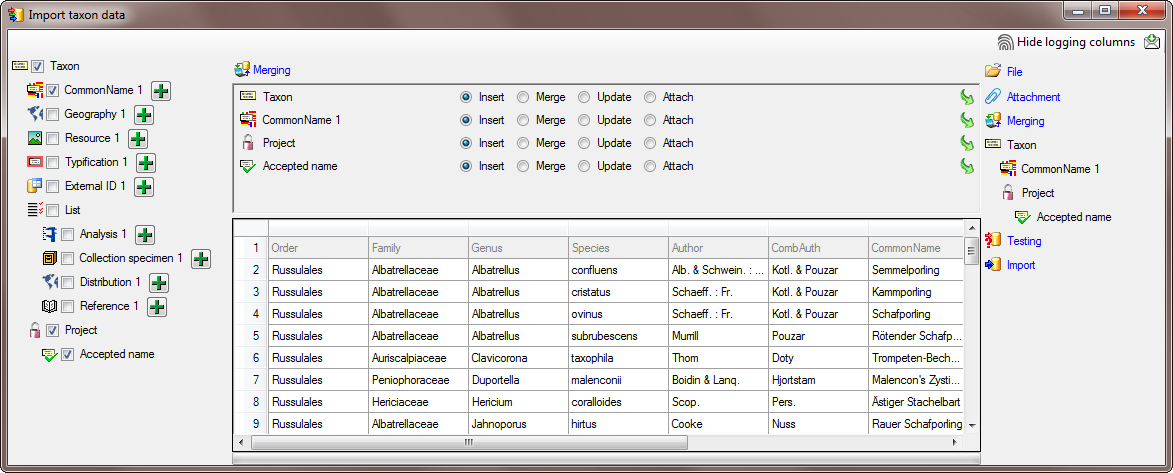
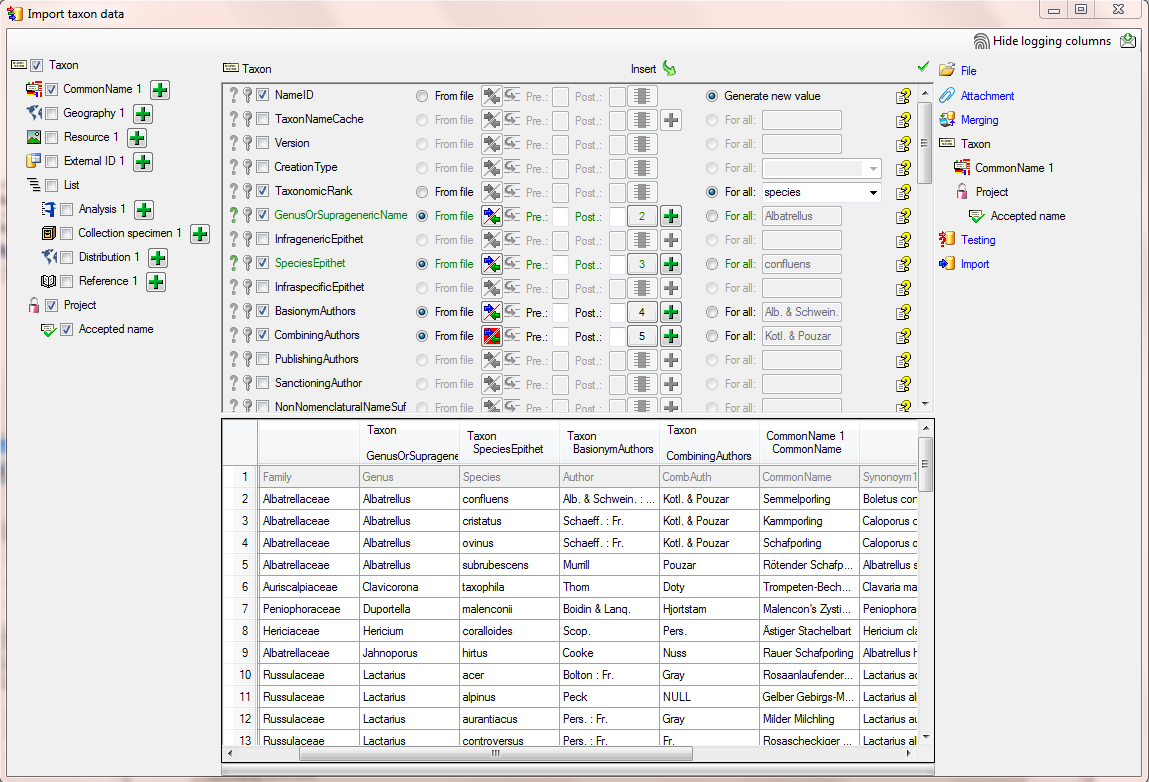
In the
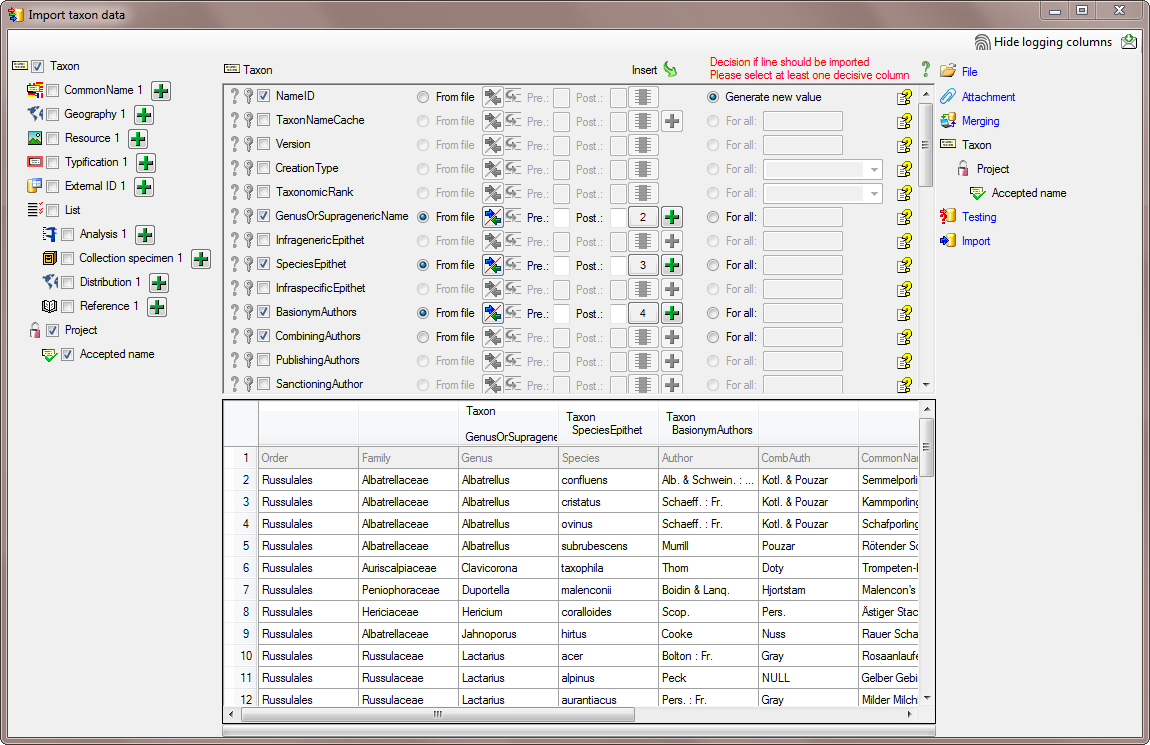
Taxon step, set the first column
NameID to
 Generate new value. Then select
the additional columns as shown below. For the column
TaxonomicRank choose
For all and select species from
the list. For the column NomenclaturalCode choose
For all and select Botany (incl.
Mycology) from the list. All columns besides NameID,
NomenclaturalCode and TaxonomicRank are set on
From file and the colums are set
as shown in the image below.
Generate new value. Then select
the additional columns as shown below. For the column
TaxonomicRank choose
For all and select species from
the list. For the column NomenclaturalCode choose
For all and select Botany (incl.
Mycology) from the list. All columns besides NameID,
NomenclaturalCode and TaxonomicRank are set on
From file and the colums are set
as shown in the image below.
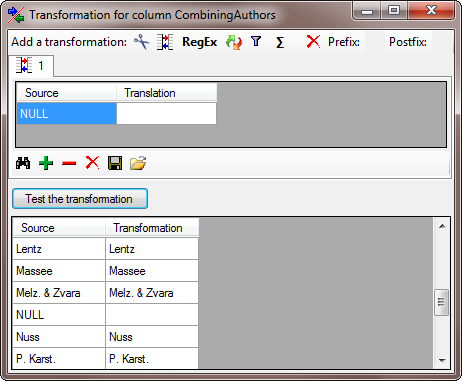
The column CombiningAuthors needs a
transformation. To add this, click on the  button.
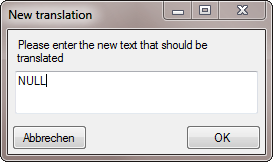
Enter a translation as shown below
where the value NULL is translated to nothing.
button.
Enter a translation as shown below
where the value NULL is translated to nothing.
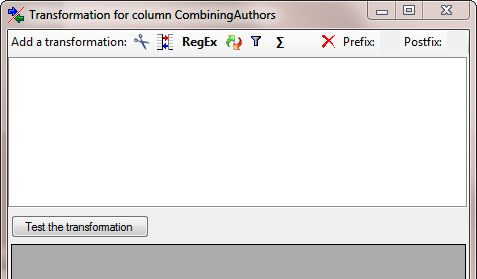
Select a translation transformation (click on the  button) and press the
  button to enter a translation (see below).
Press Test the transformation to visualize how the data would be imported (see below).
To allow the import of this table, choose the 2
columns GenusOrSupragenericName and
SpeciesEpithet as
 Decisive columns (see below).
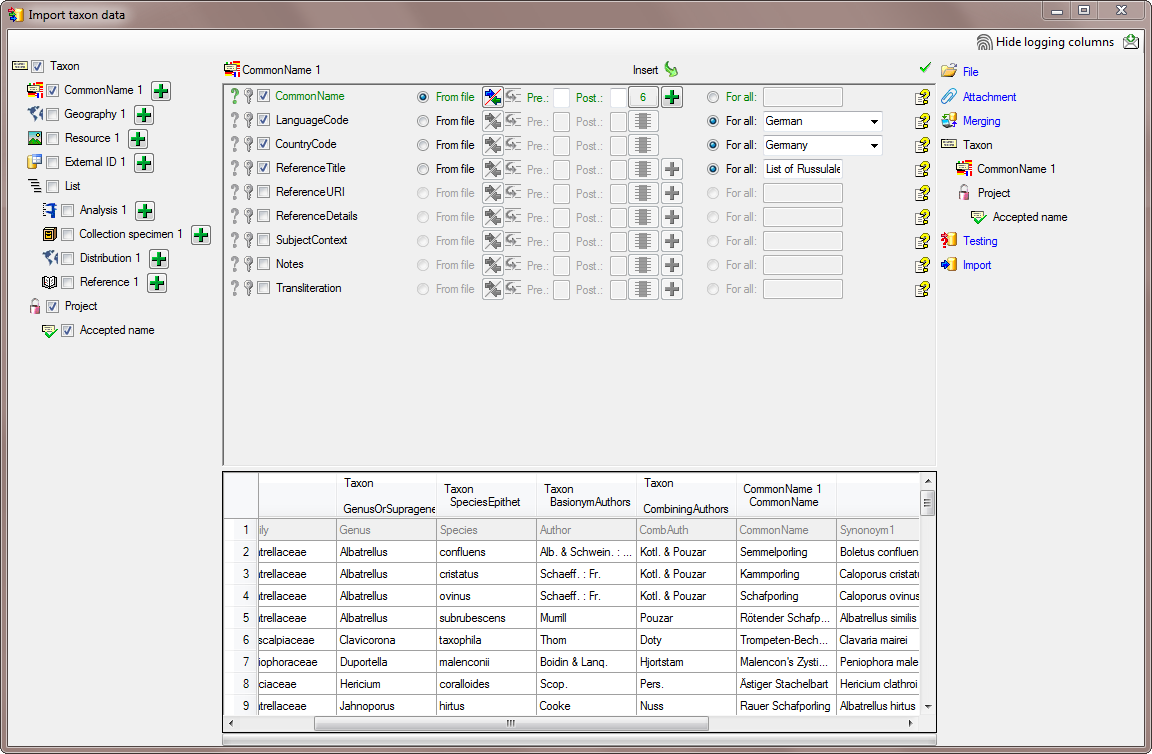
In the step
Common name choose
the column CommonName as
Decisive column and
From file (column 6) for and
For all for the other 3 columns
as shown in the image below.
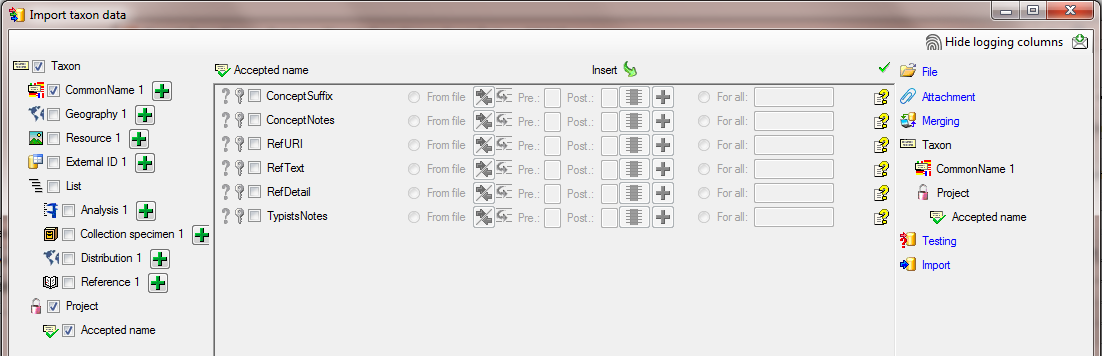
In the step  Project select
For all and the project
DiversityWorkbench from the list and select this column as
Decisive column.
Project select
For all and the project
DiversityWorkbench from the list and select this column as
Decisive column.
In the step  Accepted name no further action is needed.
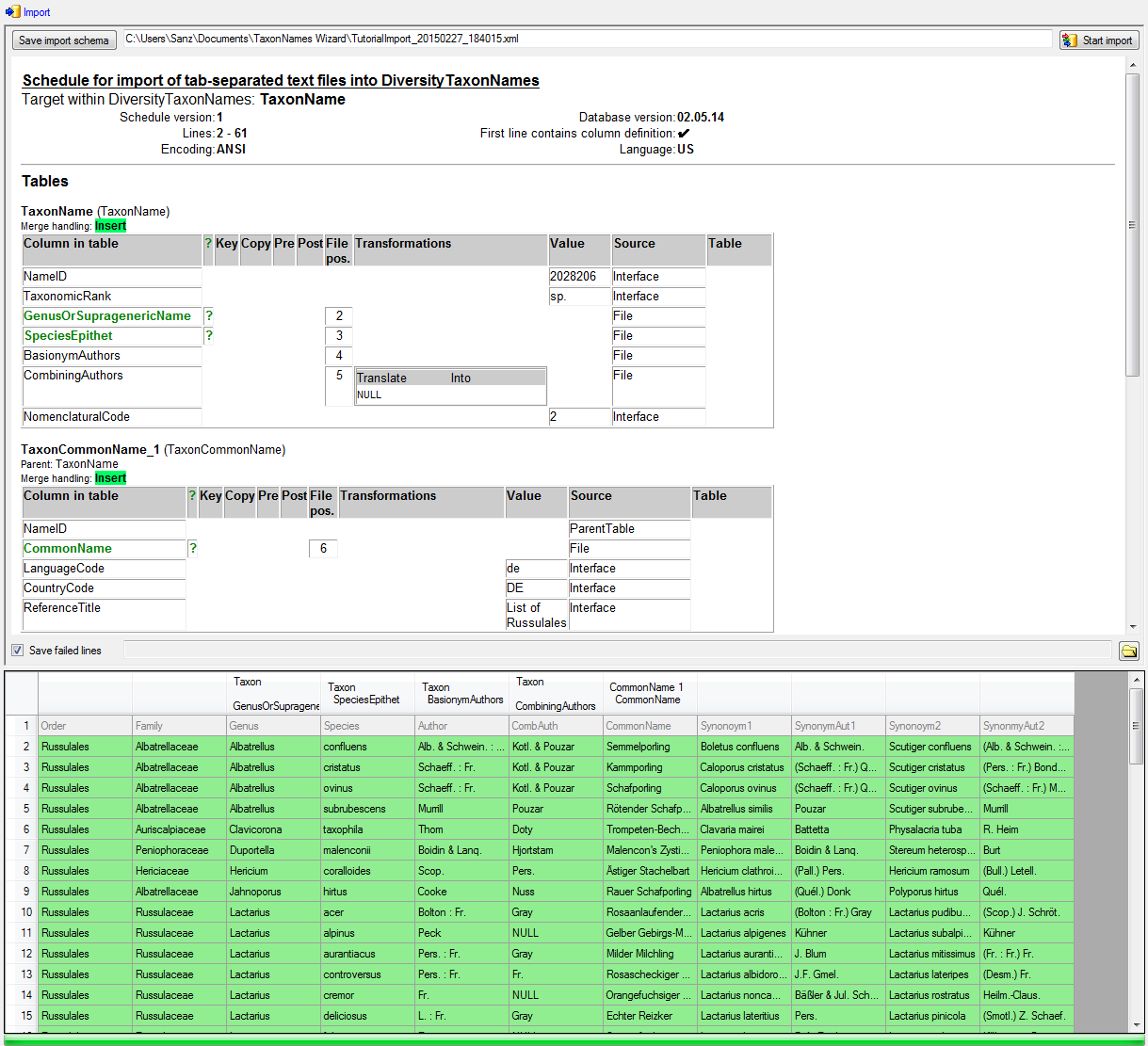
In the step  Testing check if you missed any settings described above. A test should return a
result as shown below.
Testing check if you missed any settings described above. A test should return a
result as shown below.
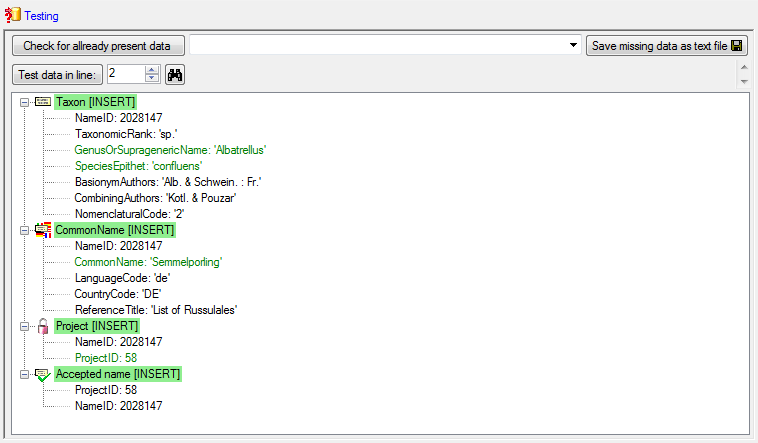
Finally  Import the taxa. If no errors occur, the
import should return a result as shown below.
Import the taxa. If no errors occur, the
import should return a result as shown below.