
If you are connected to a DiversityCollection database (see menu Connection -> Module connections ...
), and you select the option
 Scan module DiversityCollection the program will search in all
available databases for specimen linked to the current name. With the
option
Restrict to type specimen you can restrict this search to type
specimen. If you select an entry from the list the basic data as
provided by the module DiversityCollection are shown. To see the details
of the data you have to set the link to the software
DiversityCollection.exe with a click on the
Scan module DiversityCollection the program will search in all
available databases for specimen linked to the current name. With the
option
Restrict to type specimen you can restrict this search to type
specimen. If you select an entry from the list the basic data as
provided by the module DiversityCollection are shown. To see the details
of the data you have to set the link to the software
DiversityCollection.exe with a click on the  botton (see below).
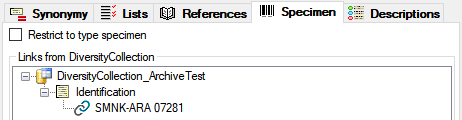
All DiversityCollection databases listed in the connections will be scanned for links to the selected name (see above). To see the details select the entry in the tree (see below).
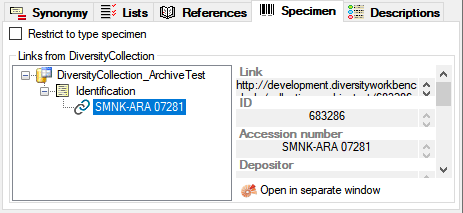
A click on the  button will open the client of DiversityCollection with the respective
dataset (see below. In case the installation path of DiversityCollection
is not detected by default, you will be asked to enter it. If the option
Restrict to type specimen is selected, only type specimen will
be listed. For an introduction see
a short tutorial
button will open the client of DiversityCollection with the respective
dataset (see below. In case the installation path of DiversityCollection
is not detected by default, you will be asked to enter it. If the option
Restrict to type specimen is selected, only type specimen will
be listed. For an introduction see
a short tutorial  .
.
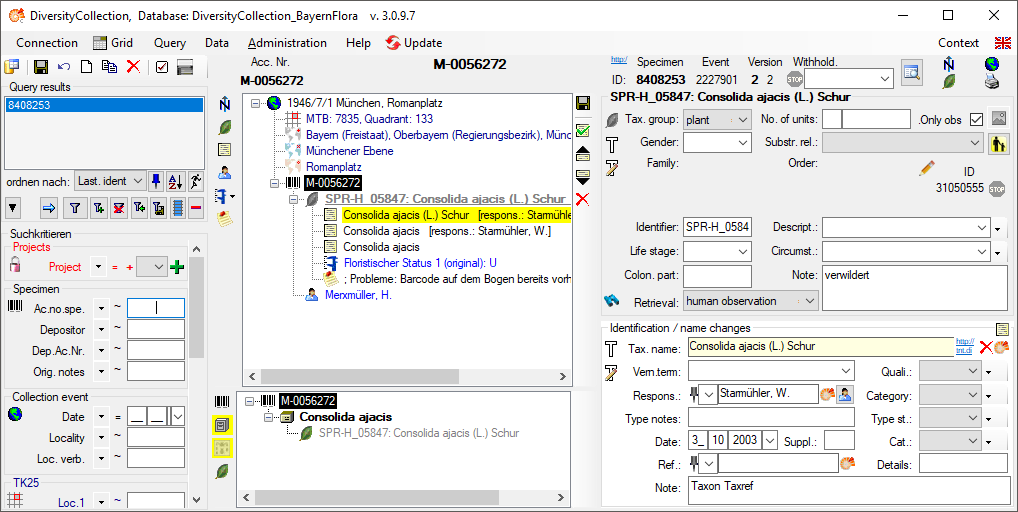
To forward changes in
DiversityTaxonNames to databases containing data linked to data in e.g.
DiversityCollection you must include the corresponding databases as
described here. After changes in the data
the
 button will be marked with a pink background
indicating the option to update the linked data. Click on the
button to perform the update as described here
.
button will be marked with a pink background
indicating the option to update the linked data. Click on the
button to perform the update as described here
.