Diversity Collection

Label printing
Select the printer in the header menu to switch to
the printing mode. Next choose
the part of the specimen for which the label should be generated. The
sequence is shown in the image below and in a short tutorial
 .
.
To gain a better understanding of how the underlying data in XML and the Schemafiles/XSLT work together when creating your label prints, please see Understanding XML and XSLT Schemafiles for Label Printing
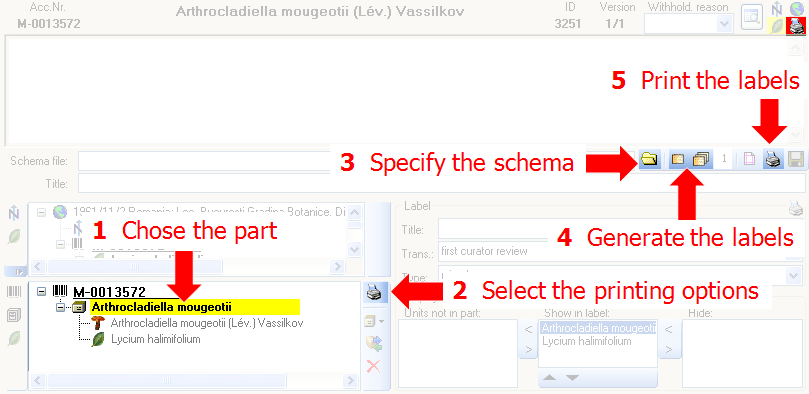
If you do not choose a part, resp. choose the specimen for printing the label some options like the restriction to a certain collection or material will not be available.
Additional information about a label is entered in the label section
(see image below). The title may contain a longer text that can be
displayed by switching from a combobox to a textbox using the
 resp.
resp.  button to return to
the combobox. The data are stored in the table
CollectionSpecimen.
button to return to
the combobox. The data are stored in the table
CollectionSpecimen.
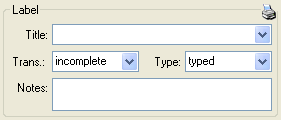
The organisms of a specimen are printed on a label according to the display order.
Understanding XML and XSLT Schemafiles for Label Printing
When you print labels in our software, the process involves two files working together:
The software automatically generates an XML file from your selected specimens. This XML file contains the data from the database in a standardized format.
You select or create an XSLT file (also called a “Schema” file) that controls how this data is formatted and printed. Our software includes several predefined schema files for common label formats, or you can customize your own to meet your specific requirements.
- XML file - Contains your raw data from the database (automatically generated by DiversityCollection)
- XSLT file - Transforms and formats that data for printing (selected or customized by you)
The XML File: Your Data Source
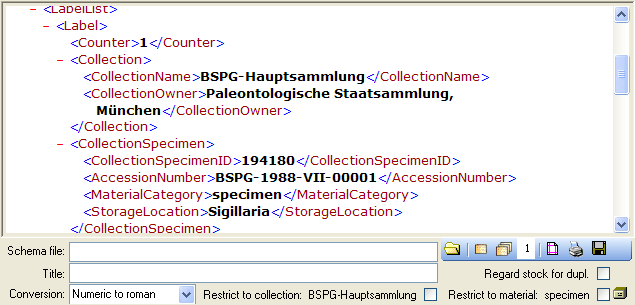
The software automatically generates the XML file from the selected specimens data. This XML export contains the specimen information exactly as stored in the database. To view the generated XML, leave the text box Schema file: blank and click the ‘Label preview’ button.
The XSLT File: Your Design Template (Schema)
The XSLT file is what you select or customize. In our software, these are called “Schema” files. You have two options:
- Use a predefined schema - Our software includes several ready-to-use templates for common label formats
- Create your own schema - Customize an existing template or create one from scratch to match your exact requirements
The XSLT/Schema file:
- Selects which data from the XML to display
- Formats how that data appears (fonts, sizes, layout)
- Transforms the data (e.g., converting codes to readable text)
- Controls the printing logic (what to show, what to hide)
There are default schema files available on github or in the folder LabelPrinting/Schemas in your application directory (see below). This is the default place to store schema files.
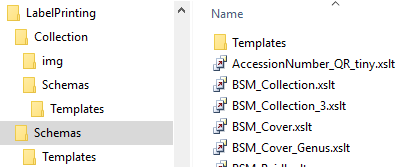
Click on the  open button to open the directory. You will
find several prepared schema files among which you can choose or change
them to your own needs or create new ones respectively. The schema file
/LabelPrinting/Schemas/Templates/LabelTemplates.xslt provides
templates for the other schema files. If this file is missing the
generation of the label may fail and you will get a warning. You may
give a title for the print in the field Title.
open button to open the directory. You will
find several prepared schema files among which you can choose or change
them to your own needs or create new ones respectively. The schema file
/LabelPrinting/Schemas/Templates/LabelTemplates.xslt provides
templates for the other schema files. If this file is missing the
generation of the label may fail and you will get a warning. You may
give a title for the print in the field Title.
See
and e.g. http://www.w3.org/TR/xslt for further information about schema files.
Printing Labels
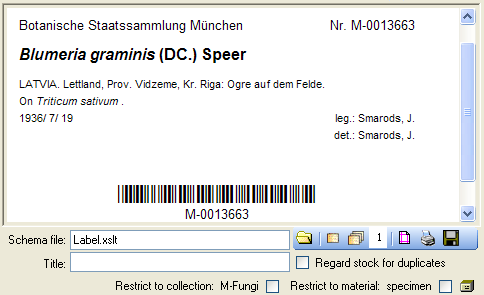
To print a label for a specimen you have to select a schema file. To generate the label for the current specimen
click on the  button. To generate labels for all
specimens selected in your query click on the
button. To generate labels for all
specimens selected in your query click on the
 button (you may use the
 button to select all specimens). If you need
duplicates of your labels change the number in the duplicates box
button to select all specimens). If you need
duplicates of your labels change the number in the duplicates box
 to the desired value. You can print 1 - 99
duplicates of one label. If there are more than 20 specimens in the
list, you receive a warning whether you really wish to create all these
labels as this could be somewhat time consuming. The labels are
generated as XML files with XSLT-schema files, transformed to HTML-files
and depicted in a browser. To print the label click on
the button.
to the desired value. You can print 1 - 99
duplicates of one label. If there are more than 20 specimens in the
list, you receive a warning whether you really wish to create all these
labels as this could be somewhat time consuming. The labels are
generated as XML files with XSLT-schema files, transformed to HTML-files
and depicted in a browser. To print the label click on
the button.
Duplicates
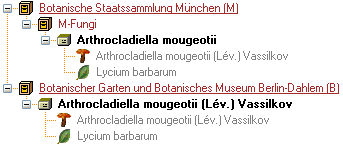
If you wish to print labels for duplicates which are stored in a different collection, the duplicate should be a child of the original specimen as shown in the example below.
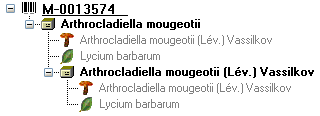
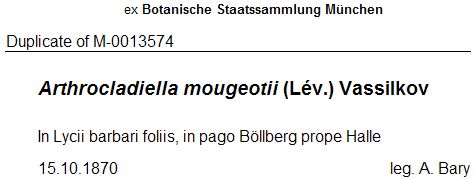
Depending on the schema you use, the label will be marked as duplicate and contain a reference to the original specimen (see below).
Save
If you wish to save the generated files for later printing, click on
the  button to do so. Note that the program will by
default create a file Label.xml and in case a schema file is
specified a file Label.htm in the LabelPrinting directory which
will be overwritten every time you generate a new label. Thus, you need
to save the file under a different name or in a different directory to
prevent the program to erase this data.
button to do so. Note that the program will by
default create a file Label.xml and in case a schema file is
specified a file Label.htm in the LabelPrinting directory which
will be overwritten every time you generate a new label. Thus, you need
to save the file under a different name or in a different directory to
prevent the program to erase this data.
If you wish to print labels for all the specimens in the specimen list, you can restrict these to the collection and the material category of the current specimen part (see image above).
Accession number
If you wish to reformat the accession number, you may choose among the options provided by the program, e.g. conversion of arabic to roman numbers (BSPG-1988-007-00001 → BSPG-1988-VII-00001). Select the format from the combobox Conversion shown above.
Codes
For a short tutorial about the inclusion of codes in the label see a
short tutorial
.
Code 39
If you use  Code 39 for your labels and wish to print the barcodes on
the labels, you need the font
Code 39 for your labels and wish to print the barcodes on
the labels, you need the font  , which is included in
the DiversityCollection package. Place this font in the folder where
your fonts are stored (e.g.: C:\WINNT\Fonts). If the font is not
available, the barcode will appear as the accession number between two
'*' signs. If this font does not do the job you may try other fonts,
e.g. code 39 fromlogitogo.
Download the font, copy it into your fonts directory and adapt the xslt
file according to the line below:
, which is included in
the DiversityCollection package. Place this font in the folder where
your fonts are stored (e.g.: C:\WINNT\Fonts). If the font is not
available, the barcode will appear as the accession number between two
'*' signs. If this font does not do the job you may try other fonts,
e.g. code 39 fromlogitogo.
Download the font, copy it into your fonts directory and adapt the xslt
file according to the line below:
<xsl:variable name=\"FontBarcode\"\> font-size: 10pt; font-family:[Code-39-Logitogo]\</xsl:variable\>
QR-code
The QR-codes are restricted to labels for specimen parts. Select a part in the lower tree to enable the QR-codes.
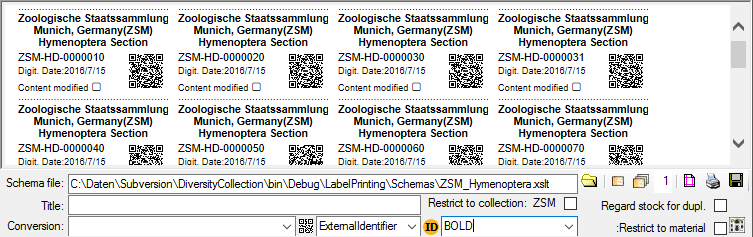
To include a  QR-Code in the label, activate the QR-Code generator
and select the source for the QR code. For certain sources you can specify the type of the
source (see below).
QR-Code in the label, activate the QR-Code generator
and select the source for the QR code. For certain sources you can specify the type of the
source (see below).
- AccessionNumber
- CollectorsEventNumber
- DepositorsAccessionNumber
- ExternalIdentifier
- Type of the external identifiers
- PartAccessionNumber
- StableIdentier
- Type of the stable identifiers
- StorageLocation
Depending on your XSLT-schema the QR code will appear in your label (see below). By Default the QR-Codes are generated via a an Api provided by the SNSB IT-Center using a python library, which is only available if you have access to the Internet. The created QR-Code images will be stored in the folder LabelPrint/img with the filenames corresponding to the ID of the specimen part. This folder will be cleared for every printout. So if you want to keep the label you need to copy the created file Lable.html together with the folder img.
You can change the default size and the default service for generating the QR-code. Use the context menu of the QR-code button to open a window where you can enter either the size or the template of your preferred service as in the example shown below where the parameter {0} corresponds to the text that should be coded e.g. the accession number (as selected in the interface) and parameter {1} the size in pixel (as integer) for the QR code.
https://services.snsb.info/qrcode/?size={1}&text={0}