Wizard Advanced Tutorial Step 6

Step 6 - Import of resources for categorical states
Close the import wizard for the descriptor resources. Now choose Data
-> Import -> Wizard →
  Import resources → State resources … from
the menu, select the session for project “Deemy”. The following window
opens that will lead you through the import of the categorical state
resource data. Open file “Deemy_RSC.txt” (see below).
Import resources → State resources … from
the menu, select the session for project “Deemy”. The following window
opens that will lead you through the import of the categorical state
resource data. Open file “Deemy_RSC.txt” (see below).
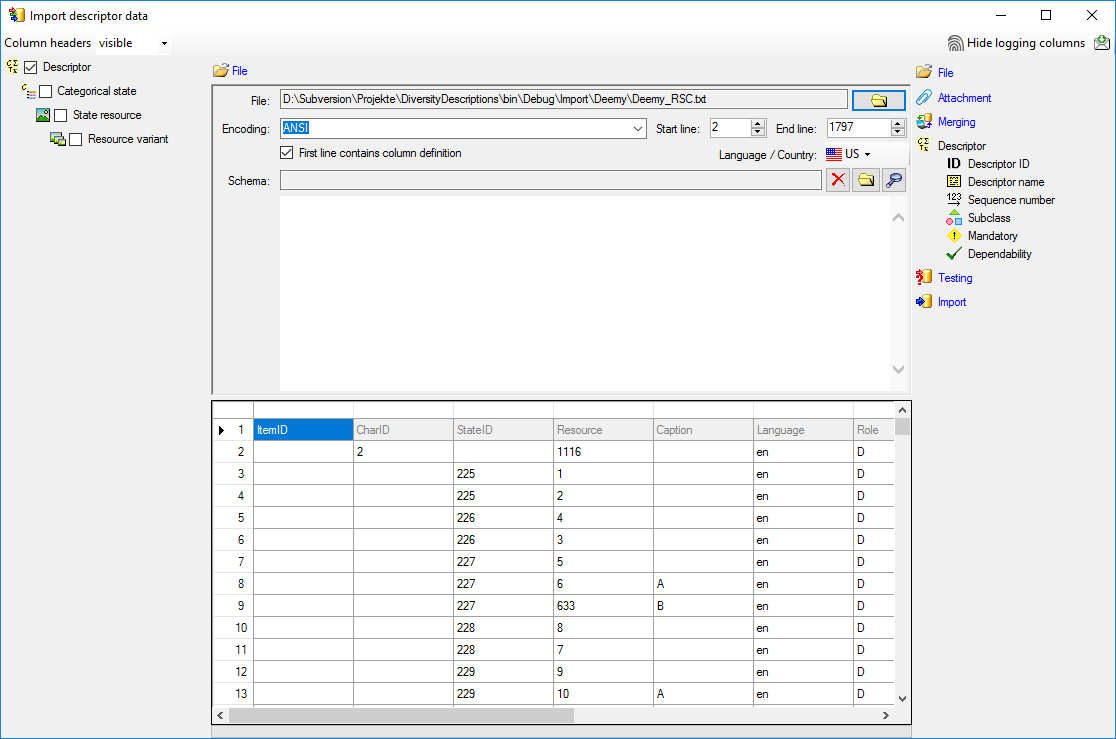
Selecting the data ranges
In the selection list on the left side of the window all possible import
steps for the data are listed according to the type of data you want to
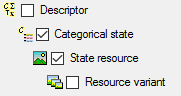
import. Deselect the step  Descriptor, it is
not needed since the categorical states have been assigned unambiguous
external IDs in step 3. Check
the steps
Descriptor, it is
not needed since the categorical states have been assigned unambiguous
external IDs in step 3. Check
the steps  Categorical state and
State resource (see below).
Categorical state and
State resource (see below).
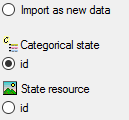
We attach the state resource values to the categorical states, therefore
we will not change anything in the categorical state but will attach
data. In import step  Attachment at the right
side select Categorial state
Attachment at the right
side select Categorial state
 id (see below).
Select the import step  Merge from the list.
For Categorical state we select the
Attach option because this tables shall not
be changed, for the other step
Merge from the list.
For Categorical state we select the
Attach option because this tables shall not
be changed, for the other step  Insert
should already be selected, because a new entry has to be inserted (see
below).
Insert
should already be selected, because a new entry has to be inserted (see
below).

In the step table at the right side you find the import steps
Categorical state and
State resource and below them the data
groups of the import steps. Deselect every column from import step
Categorical state except “id”. Mark the
“id” column as  Key column for comparison during
attachment and click on
Key column for comparison during
attachment and click on  From file to
select the column “StateID” as data source. The “id” column of import
step Categorical state now looks as shown
below.
From file to
select the column “StateID” as data source. The “id” column of import
step Categorical state now looks as shown
below.

In the import step State resource click on
 Resource ID and in the center window the
assignemt data for the resource id (“id”) are displayed. Click on
Resource ID and in the center window the
assignemt data for the resource id (“id”) are displayed. Click on
 to make this the decisive column, further click
on From file to select the column
“Resource” as data source. After that the column should look as shown
below.
to make this the decisive column, further click
on From file to select the column
“Resource” as data source. After that the column should look as shown
below.

Click on  Resource name. The center window
shows the data column “label”. Click on
From file in the “label” line to select file column “Resource”. After
the resource number the value in data column “Caption” shall be
inserted, included in brackets, if it is present. Click on the
Resource name. The center window
shows the data column “label”. Click on
From file in the “label” line to select file column “Resource”. After
the resource number the value in data column “Caption” shall be
inserted, included in brackets, if it is present. Click on the
 button at the end of line “label” and select column
“Caption”. Enter ( (blank and opening
bracket) in field Pre.: and ) in
field Post.: of the new line. After that the column should look as
shown below.
button at the end of line “label” and select column
“Caption”. Enter ( (blank and opening
bracket) in field Pre.: and ) in
field Post.: of the new line. After that the column should look as
shown below.

Finally click on  Sequence number. In the
center window select the data column “display_order”, click on
From file and select file column
“DisplayOrder” (see below).
Sequence number. In the
center window select the data column “display_order”, click on
From file and select file column
“DisplayOrder” (see below).

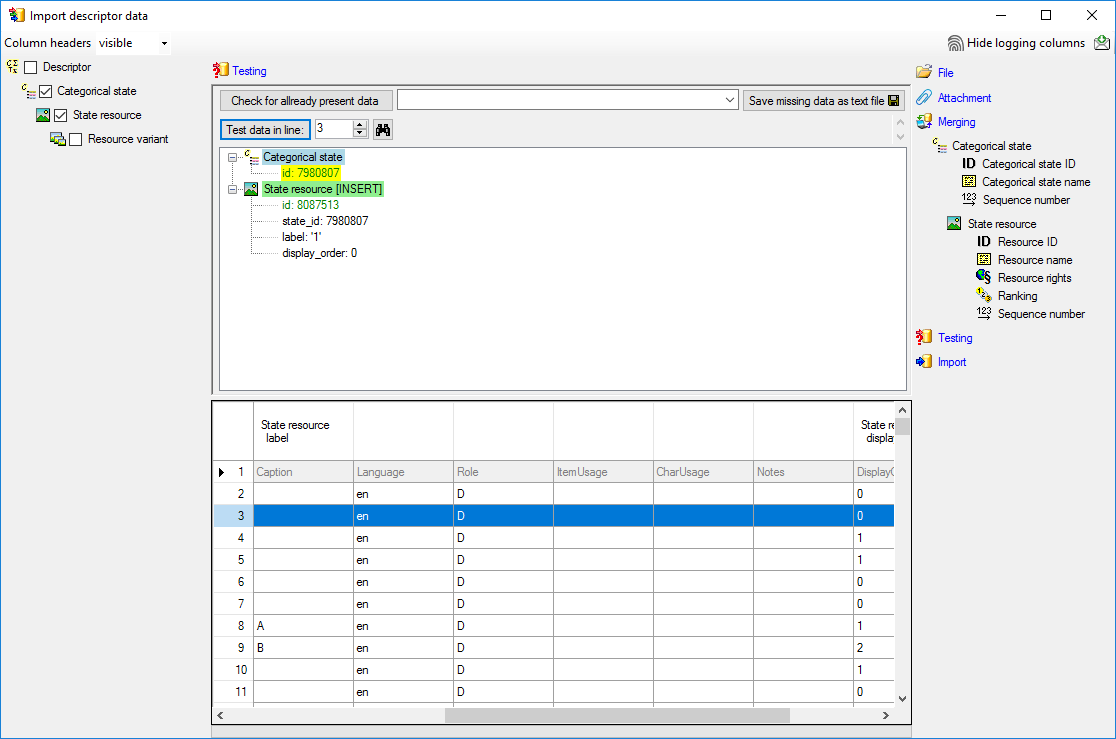
Testing
To test if all requirements for the import are met use the
 Testing step.
The test for the second data line is shown below.
Testing step.
The test for the second data line is shown below.
Import
With the last step you can start to  import the data into the database.
If you want to repeat the import with the same settings and data of the
same structure, you can save a schema of the current settings. There are
561 lines that were not imported due to duplicate entries (see below).
import the data into the database.
If you want to repeat the import with the same settings and data of the
same structure, you can save a schema of the current settings. There are
561 lines that were not imported due to duplicate entries (see below).
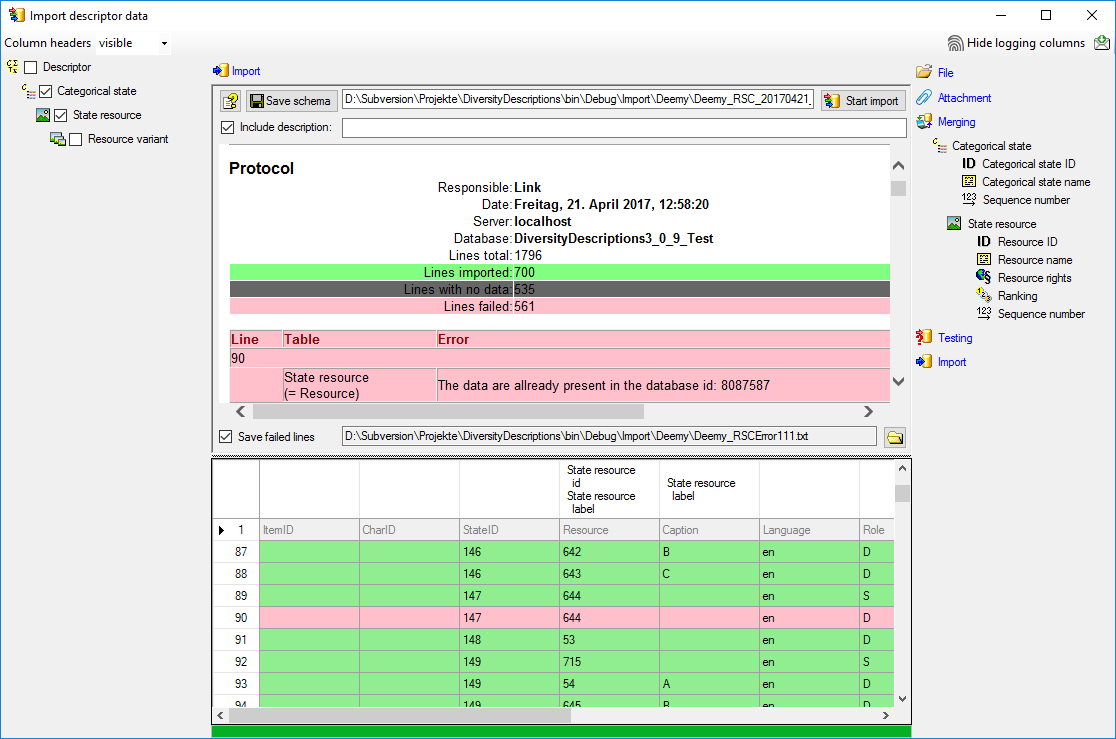
The failed lines are caused by duplicate entries, i.e. the resource was already imported for the categorical state.